Access Control
Allow all members or selected members to use the AI Agent, and set an optional monthly spend cap.
Organization owners and administrators can set AI Agent access under Settings > AI > General. The AI Agent must also be enabled.
Select an Access Mode
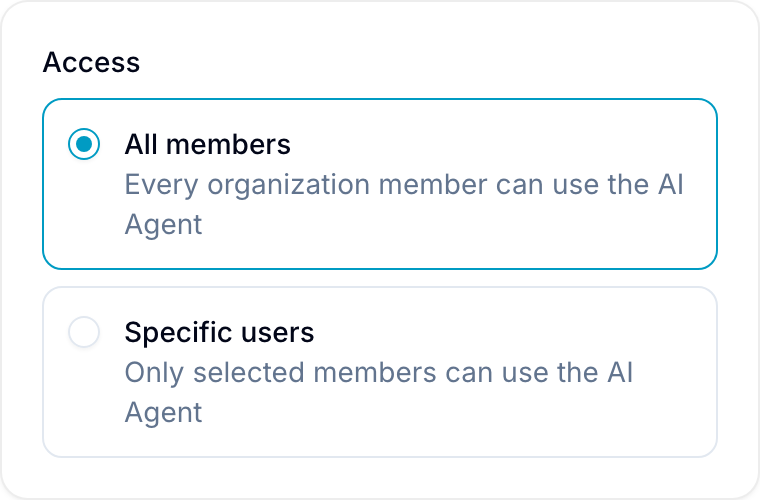
Under Access, select one of these options:
- All members: Every organization member can use the AI Agent.
- Specific users: Only selected members can use the AI Agent. Other members see a locked panel.
Organization owners and administrators always have access when the AI Agent is enabled. This rule prevents administrators from locking themselves out of the access settings.
Grant Access to Specific Members
An organization owner or administrator can manage individual access:
- Set Access to Specific users under Settings > AI > General.
- Select Save.
- Open Settings > Users.
- In the AI Access column, turn access on or off for each member.
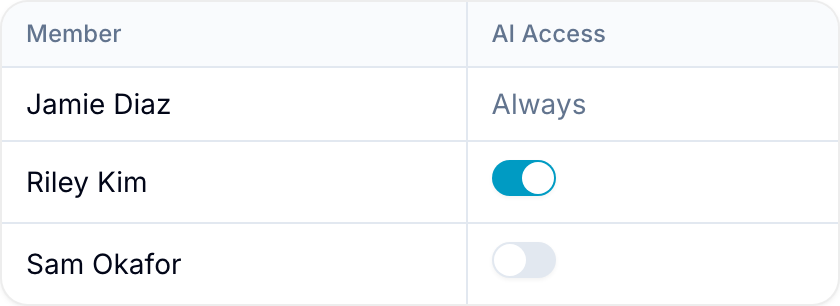
The AI Access column shows Always for organization owners and administrators.
- With All members, all access switches are on and disabled.
- When the AI Agent is disabled, all access switches are off and disabled.
Monthly Spend Cap
Set Monthly spend cap (USD, optional) under Settings > AI > General. Blue blocks a new model call if its reserved cost would exceed the cap.
An in-progress call can finish. New calls remain blocked until the next calendar month in UTC, or until an administrator raises or removes the cap.
Leave the field empty for no cap. Organization owners and administrators can compare estimated usage with the cap under Statistics.