Download Apps
Use Blue in a web browser or install it on macOS, Windows, iOS, iPadOS, and Android.
Web application
Open blue.app in a major web browser to use the Blue web application.
Desktop app
The desktop application provides:
- Faster performance
- A separate window without the browser interface
- Access from the Mac Dock or a Windows desktop shortcut
- Fullscreen mode
- Native desktop notifications
- Automatic updates
To install the desktop application, use a Chromium-based browser such as:
Open a supported browser.
Find the install icon on the right side of the browser address bar.
Select the install icon. The icon typically looks like a small computer or a plus symbol.
Follow the browser prompts. The Blue desktop application opens separately from your browser after installation.
This video also shows the installation procedure:
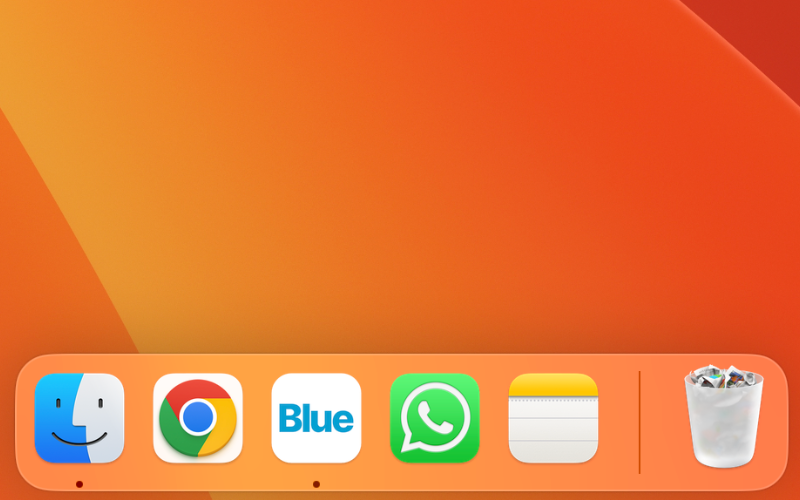
Keep Blue in the Mac Dock
- Open the installed Blue application.
- Right-click or Control-click its Dock icon.
- Select Options > Keep in Dock. The Blue icon remains in the Dock after you close the application.
Create a Windows desktop shortcut
- Open the system location where the Blue application is installed.
- Right-click the Blue application icon.
- Select Create shortcut.
- Place the shortcut on your desktop. Double-click the shortcut to open Blue.
Mobile applications
Install the native mobile application for your device:
The mobile applications do not include all web application features. You can view boards and calendars, and you can review and reply to comments.
iPad application
The Blue iPad application uses a layout designed for the larger tablet screen.
Download the Blue iPad application.
PWA
A progressive web application (PWA) is a website that you can install on a device. Install the Blue PWA if you cannot use an app store or need the web application’s full functionality.
PWA on iOS
You must use Safari to install a PWA on iOS.
- Open Safari.
- Enter
https://blue.appin the address bar. - Select the Share icon after Blue loads. The icon is a rectangle with an upward arrow.
- Select Add to Home Screen.
- Enter a name for the shortcut, such as Blue.
- Select Add. The Blue PWA icon appears on your home screen.
- Select the Blue icon to open the PWA.
PWA on Android
- Open Chrome.
- Enter
https://blue.appin the address bar. - Select the three-dot menu in the upper-right corner.
- Select Install or Add to Home screen. The option can also appear as a downward arrow inside a box.
- Confirm the installation by selecting Install or Add. The Blue icon appears on your home screen or in the app drawer.
- Select the Blue icon to open the PWA.