White Label
Configure Blue with your organization's domain, logo, colors, application name, and email server.
White label changes Blue’s user-visible domain, branding, and email sender. It is included with Pro and Enterprise.
You can configure:
- Your organization’s logo, favicon, primary interface color, and application name
- A custom domain for Blue, forms, and file-sharing links
- An SMTP server for email from your organization’s domain
Custom domain
You can configure branding and SMTP without a custom domain. Add a custom domain if you want to serve Blue, forms, and file-sharing links from your domain. One CNAME record covers all three surfaces.
Blue supports subdomains such as app.yourcompany.com. It does not directly support root or apex domains such as yourcompany.com.
If you must use an apex domain, check whether your DNS provider supports CNAME flattening. Providers such as Cloudflare and Route 53 offer this feature.
| Domain Type | CNAME Record | Points to |
|---|---|---|
| Web Application | app.yourcompany.com | wl.blue.app |
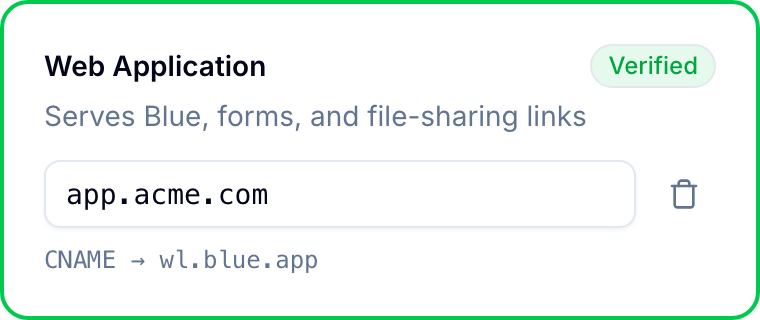
You can use a different subdomain, such as projects.yourcompany.com or process.yourcompany.com.
Branding
You can change these branding elements:
- Logo: Replaces the Blue logo across the platform, including the public pages people open from a shared file or folder link. Those pages show your logo and no Blue attribution.
- Favicon: Appears in browser tabs and bookmarks.
- Primary Interface Color: Applies one primary color to the interface for all users.
- App Name: Appears in browser tabs and the desktop application.
- Fonts: Coming soon. This setting will provide a selected list of Google fonts.
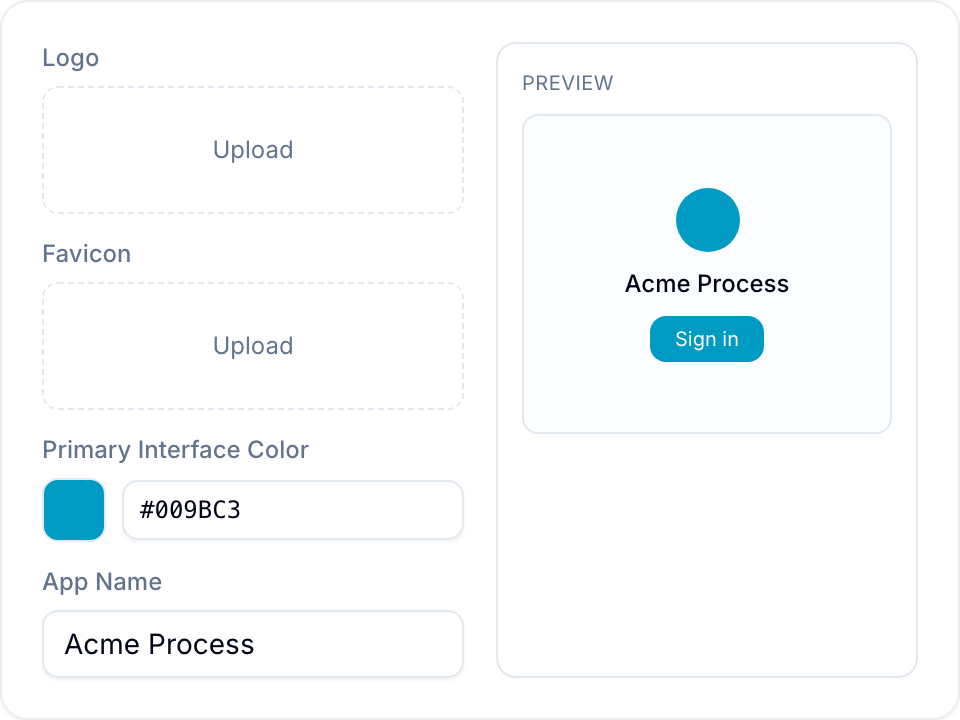
Blue shows a live preview of the login page and application icon while you configure branding.
Your branding also applies to the desktop application.
Use these recommended asset dimensions:
| Asset | Recommended Shape | Background | Aspect Ratio |
|---|---|---|---|
| Logo | Rectangle | Transparent | 1:1.5 |
| Favicon | Square | Transparent | 1:1 |
Email notifications
Configure SMTP to send Blue email notifications through your email server and domain. Enter these settings:
| Setting | Description |
|---|---|
| SMTP Server | The server address that sends your email. |
| SMTP Port | The connection port. Use the port that your provider supplies for STARTTLS, typically 587. |
| Username | The username for your SMTP server. This is usually an email address. |
| Password (stored in encrypted format) | The password for the SMTP username. Blue stores this password in encrypted format. |
| Sender Name | The sender name that appears in email notifications. |
| Sender Email Address | The sender address that receives replies. Your SMTP provider must authorize this address. |
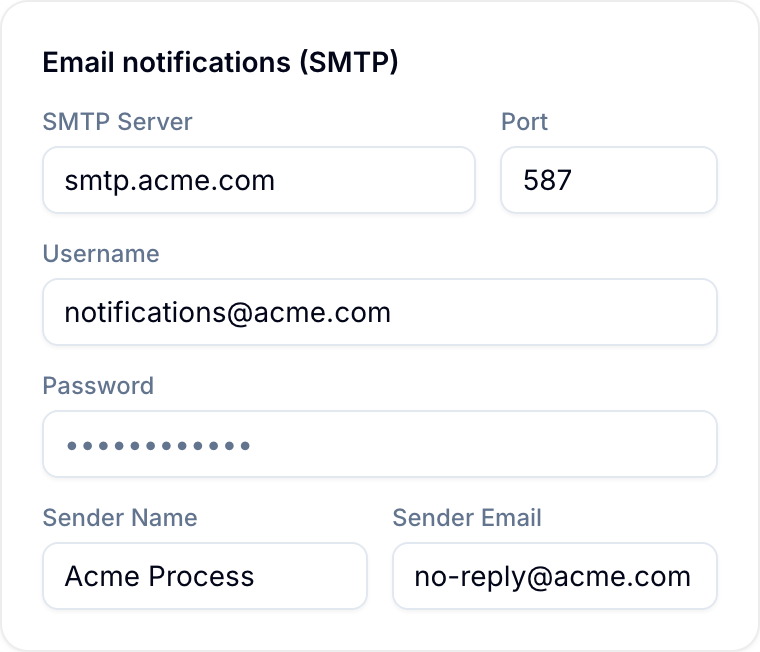
Use an SMTP server that supports STARTTLS on port 587. Blue upgrades the connection when the server offers STARTTLS. Blue does not currently support implicit TLS on port 465 or require TLS when the server does not offer it.
Select Save to store the SMTP configuration. When you provide a password, Blue also verifies the connection and shows the result in a notification.
SMTP requirements
Blue sends transactional, notification, and automation emails through your SMTP server. One-time password (OTP) email is the only exception.
Blue sends OTP email from notifications@process-system.app for security.
Ensure that your SMTP server:
- Can handle high email volumes.
- Has a strong sending reputation to avoid spam filters.
- Has enough quota for the expected email volume.
Custom invitation email
You can customize the first invitation email sent to new users when they register for your Blue instance.
Custom onboarding email (coming soon)
Without white label, Blue sends onboarding emails when new users join an organization. Blue does not send these emails when white label is active.
A future setting will let you create custom onboarding emails for new users.
Mobile applications
White-labeled mobile applications are a separate add-on. Blue can publish branded applications through your Apple App Store and Google Play Store accounts.
Contact sales@blue.app for pricing and setup details.
Frequently asked questions
What does white label include?
White label includes one domain for the application, forms, and file sharing. It also includes custom branding and SMTP email notifications.
How much does white label cost?
White label is included with Pro, which costs $500 per year. You can add Pro to any tier. Enterprise also includes white label.
Does white label affect Blue’s functionality?
No. White label changes the platform’s branding but does not change its core functionality.
Can I use a root domain instead of a subdomain?
Blue directly supports only subdomains. Use CNAME flattening if your DNS provider offers it and you must use an apex domain.
Do I need separate domains for forms and files?
No. One CNAME covers the application, forms, and file shares on the same domain.
Can I use a different subdomain name?
Yes. For example, use projects.yourcompany.com or process.yourcompany.com instead of app.yourcompany.com.
Which branding elements can I customize?
You can change the logo, favicon, primary interface color, and application name.
Does the desktop application use my branding?
Yes. The desktop application uses your configured branding.
Can different users have different color schemes?
No. The configured primary color applies to all users of your Blue instance.
Which email settings do I need?
Provide the SMTP server, port, username, password, sender name, and sender email address. Blue stores the SMTP password in encrypted format.
How do I test the SMTP configuration?
Enter the SMTP password and select Save. Blue stores the settings, tests the connection, and shows the result in a notification. If you update settings without entering a new password, Blue saves them without another connection test.
Which email does my SMTP server send?
Your SMTP server sends transactional email, notifications, and automation email. Blue sends OTP email from notifications@process-system.app for security.
Can I white-label the mobile applications?
Yes. White-labeled mobile applications are a separate add-on. Contact sales@blue.app for pricing and setup details.
How can I get help with white-label setup?
For general help, contact support@blue.app. For custom mobile applications, contact sales@blue.app.
Can I preview white-label features before I apply them?
Yes. Blue previews the login page and application icon while you configure branding.
DNS settings
Domain Name System (DNS) providers use different controls for CNAME records. Follow the procedure for your provider.
GoDaddy
- Sign in to your GoDaddy account.
- Open Domain Portfolio.
- Select your domain.
- Select DNS.
- Select Add New Record.
- Select CNAME from Type.
- Enter your subdomain prefix, such as
app, in Name. - Enter
wl.blue.appin Value. - Select a TTL value.
- Select Save.
Bluehost
- Sign in to your Bluehost account.
- Select Domains > Zone Editor.
- Find Add DNS Record.
- Enter your subdomain in Host Record.
- Select CNAME from Type.
- Enter
wl.blue.appin Points To. - Select Add Record.
Cloudflare
- Sign in to your Cloudflare account.
- Select your domain.
- Open DNS Settings.
- Select Add Record.
- Select CNAME.
- Enter your subdomain in Name.
- Enter
wl.blue.appin Target. - Set the Proxy toggle to a gray cloud.
Domain.com
- Sign in to your Domain.com account.
- Select Manage for your domain.
- Select DNS and Nameservers from the left menu.
- Select Add DNS record.
- Select the CNAME record type.
- Enter
wl.blue.appas the target. - Select Update DNS.
DreamHost
- Sign in to your DreamHost account.
- Open Websites > Manage Websites.
- Open the three-dot menu for your domain.
- Select DNS Settings.
- Select Add Record.
- Select CNAME from Type.
- Enter your subdomain prefix, such as
app, in Host. - Enter
wl.blue.appin Value. - Select Add Record.
Squarespace Domains
Google Domains registrations are now managed through Squarespace.
- Sign in to Squarespace and open the Domains dashboard.
- Select your domain.
- Select DNS from the side panel.
- Add a custom DNS record and select CNAME from Type.
- Enter your chosen subdomain prefix, such as
app, in Name. Do not use@; Blue requires a subdomain. - Enter
wl.blue.appin Data. - Save the record.
- In Blue, open Settings > White Label > Domains and enter the full subdomain, such as
app.yourcompany.com. - Select Add, then select Verify after the DNS change has propagated.
HostGator
- Sign in to your HostGator account.
- Select CPanel from the left side.
- Select Domains > Zone Editor.
- Select CName Record for your domain.
- Enter your subdomain in Name.
- Enter
wl.blue.appin CNAME. - Select Add a CName Record. HostGator confirms that it added the CNAME.
Namecheap
- Sign in to your Namecheap account.
- Select Account > Dashboard.
- Select Domain List.
- Find your domain.
- Select Manage.
- Select Advanced DNS.
- Find Host Records.
- Select Add New Record.
- Select CNAME Record from Type.
- Enter your subdomain as the host.
- Enter
wl.blue.appas the value. - Select Save all changes.