File Management
Upload, organize, preview, share, and manage workspace files.
Use workspace files to store design files, documents, images, videos, and other supporting content.
File storage is subject to Blue’s fair-use policies. The maximum size of one upload depends on the organization’s tier and plan:
| Tier or Plan | Maximum Upload |
|---|---|
| Starter | 256 MB |
| Starter+ | 512 MB |
| Growth | 1 GB |
| Growth+ | 2 GB |
| Scale | 5 GB |
| Legacy tiers | 1 GB |
| Enterprise | No fixed limit |
Pro keeps the maximum-upload limit from the organization’s tier.
Upload Files in Comments
You can upload files anywhere that you can write a comment. Blue shows each file inline with the comment text.
The file also appears in the Files tab. If you delete the source comment, Blue also deletes its file from the Files tab.
Use a File Field
Use a File field for structured file uploads. Its files appear in the Files tab.
You can delete these files from either the field in the record or the Files tab.
Preview Files
You can preview supported images, video, audio, and documents without downloading them.
Preview support includes:
- Images: JPG, PNG, GIF, SVG, and WebP.
- Video: MP4, WebM, and MOV. The inline player has full-screen and seek controls.
- Audio: MP3, WAV, M4A, OGG, and Voice Messages recorded in Blue. Use play, pause, and seek without leaving the record.
- Documents: PDF and Word (
.docx) documents. Blue renders them in the browser.
Previews in Descriptions and Activity
The same preview controls appear for files in record descriptions, comments, and record activity.
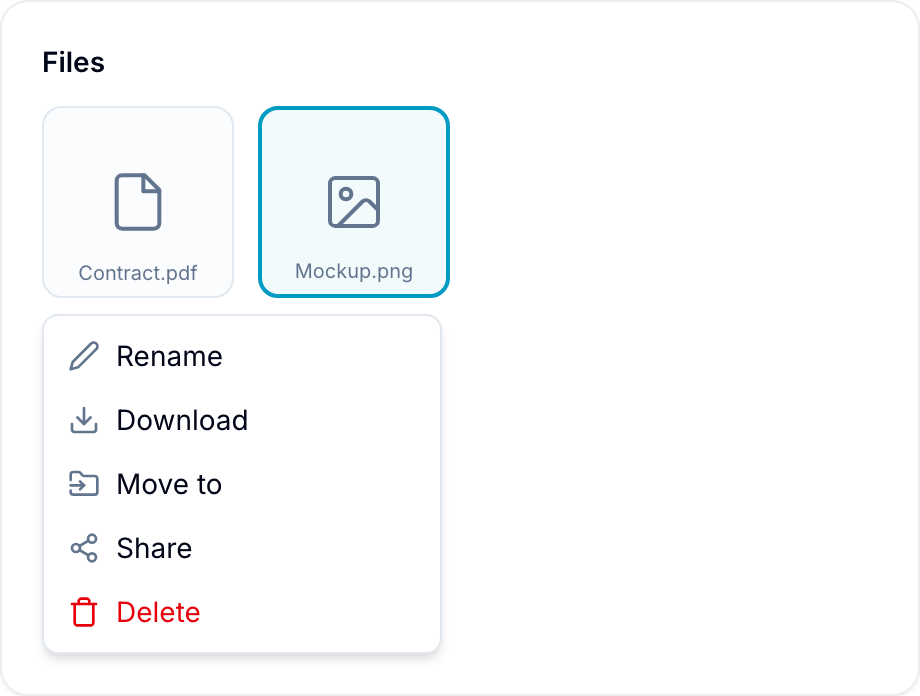
Rename Files
- Right-click a file in the Files tab or a File field.
- Select Rename.
- Enter a display name. Blue does not change the file contents.
For example, you can replace an automatically generated name such as IMG_3429.HEIC.
Download Files
- Right-click a file.
- Select Download. Your browser downloads the file to your device.
Delete Files
Workspace Owners and Project Administrators can delete any file. Other workspace members can delete files that they uploaded.
A custom role can deny file deletion for a Team Member. If the custom role allows file deletion, the Team Member can delete other files too.
- Right-click a file.
- Select Delete.
- Confirm the deletion in the warning dialog.
Files Tab
Every workspace has a Files tab. It contains files uploaded to workspace comments and files uploaded directly to the tab.
Change the File View
Use grid view or list view in the Files tab.
Search for Files
Enter a file name in the file search bar. Blue searches all folders and subfolders.
Locate a File’s Record
- In the Files tab, right-click the file.
- Select Locate. Blue opens the record that contains the file.
Move Files
- To move multiple files, hold Shift while you select each file.
- Right-click the selected file or files.
- Select Move to. Blue shows the available folders.
- Select the destination folder.
Blue does not support moving files between workspaces.
Share Files Publicly
Create a public download link for a file:
- Open the file location.
- Right-click the file.
- Turn Share on. Blue creates a unique public link.
- Select Copy link.
- Send the link to the recipients.
- After the recipients download the file, turn Share off to revoke access.
Share Folders Publicly
Create a public link for a folder and everything inside it:
- Right-click the folder.
- Turn Share on. Blue creates a unique public link and copies it to the clipboard.
- Send the link to the recipients.
Only workspace owners and admins can share a folder.
Recipients do not need a Blue account. They can open the folder, move into its subfolders, preview files, and download files. They cannot see folders outside the shared folder, and they cannot see the workspace or organization name.
Files that you add to the folder later are available through the same link. Turn Share off to close the folder, its subfolders, and every file inside it.
Manage Folders
Create Folders
Workspace Owners, Project Administrators, and Team Members can create unlimited folders and subfolders.
- Right-click empty space in the Files tab.
- Select New folder.
- Enter the Folder name.
- Select Create. Blue adds the folder to the current location.
Rename a Folder
Workspace Owners and Project Administrators can rename any folder. Team Members can rename folders that they created.
- Right-click the folder.
- Select Rename.
Change a Folder Color
Folders are blue by default. Workspace Owners and Project Administrators can change any folder color. Team Members can change the color of folders that they created.
- Right-click the folder.
- Select Change colour.
- Select a color.
Use Bulk Actions
The Files tab supports these bulk actions:
- Upload: Drag multiple files or an entire folder into the tab. Large files upload in the background while you continue using Blue.
- Select: Hold Shift while selecting files.
- Download: Right-click the selected files and select Download. Your browser downloads each file separately.
- Move: Right-click the selected files, select Move to, and choose a folder or subfolder. You cannot move files between workspaces.
- Delete: Right-click the selected files and select Delete. Blue shows a confirmation before deleting them. Deleting a folder also deletes all its files.