Sidebar Visibility
Show, hide, and reorder the Platform section of the sidebar for everyone in your organization.
The Platform section contains Home, Assignments, Inbox, Activity, Records, Analytics, and Settings. Its visibility and order are shared across the organization. Records contains the organization calendar and map. Analytics contains dashboards and reports in one folder tree. Only organization owners see Settings in this section.
Use Sidebar Folders to organize the separate workspace list.
Permissions
Only an organization owner can change the Platform section. Each change applies to every organization member.
Edit the Sidebar
Open the editor with either method:
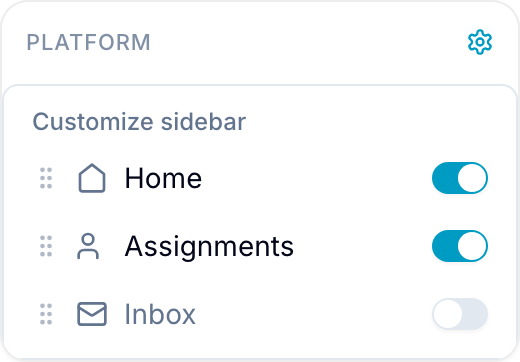
- Point to the Platform section header and select the Customize sidebar settings icon.
- Open Settings > Sidebar.
Then make the required changes:
- Turn an item’s switch off to hide it, or on to show it.
- Drag an item’s handle to change its position. The editor list and sidebar use the same order.
Blue saves changes automatically and applies them to everyone in the organization.
Hidden Item Behavior
Hiding an item removes it from Platform for all members. If a member opens its URL directly, Blue redirects them to the first visible Platform item.
Hiding Settings removes it only from Platform. Organization settings remain available from the profile menu.