Public Views
Create a public, read-only view of a database and control its visible records, process steps, fields, and view types.
Public Views share the live records of a database through a read-only link. Visitors do not need a Blue account.
Use public views for client roadmaps, public workspace trackers, hiring pipelines, content calendars, or embedded website data.
Workspace Owners and Project Administrators can create and manage public views.
How Public Views Work
Each public view belongs to one database and has its own URL, visibility rules, and options. You can create multiple public views for the same database.
For example, create one view for clients and another for a public roadmap. Each view can show different data.
Only enabled fields, lists, and records appear to visitors.
Create a Public View
From the Workspace
- Open the workspace.
- Select Share in the top-right corner.
- Select Create public link. Blue opens the public views settings.
- Select Create Public View.
From Workspace Settings
- Open the workspace Settings.
- Select Databases at the top of the settings menu.
- In the Database list, choose the database.
- Select Public Views.
- Select Create Public View.
Blue opens the full-page editor. General settings appear on the left, and field permissions appear on the right.
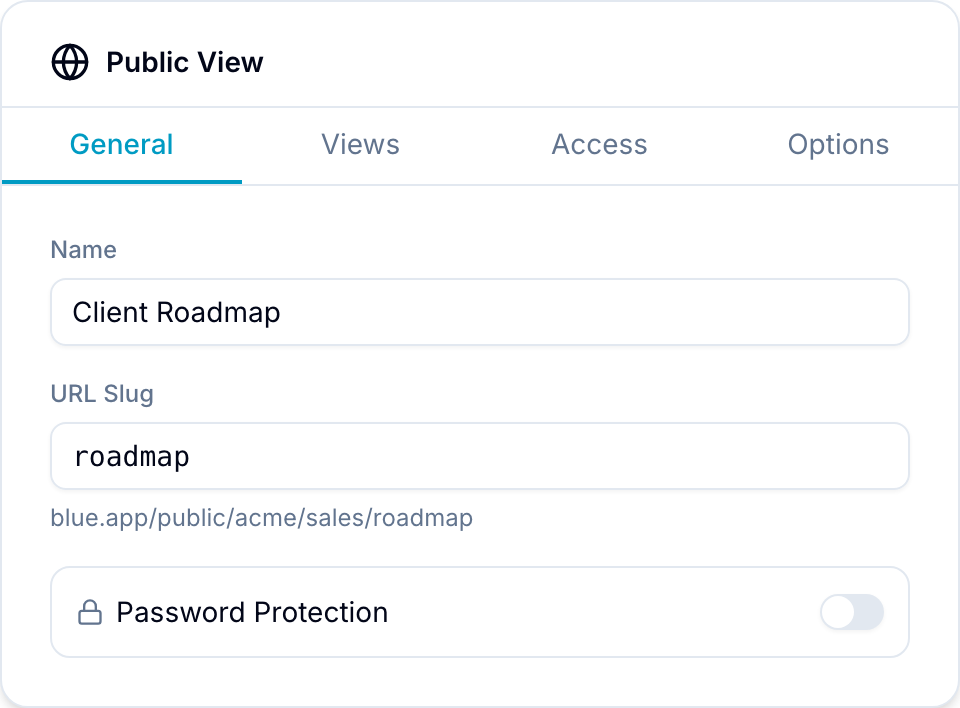
General Settings
Name
Enter a name to identify the public view inside Blue. Visitors do not see this name.
URL Slug
Enter the slug that forms the public URL. For example, roadmap produces a URL such as blue.app/public/your-org/your-workspace/roadmap.
Slugs must be unique within a workspace.
Password Protection
Require a password to restrict the view to a group such as a client, partner, or internal stakeholders. These visitors do not need Blue accounts.
Options
Allow Filtering
Enable this option to show a filter toolbar. If it is off, visitors see only the configured data.
Allow CSV Export
Enable this option to let visitors download visible records as a CSV file.
Allow Opening Records
Enable this option to let visitors select a record and view its details. If it is off, records cannot be opened.
Show Comments
Enable this option to show each record’s comment thread to visitors, including author names, mentions, and attachments. Comments are read-only — visitors can read a discussion but cannot post, reply, or react.
This option is off by default, including on views that already exist. It appears only when Allow Opening Records is on, because comments open with the record.
Allow Search Engine Indexing
Enable this option to let search engines discover and index the public view. If it is off, anyone with the link can still open the view, but search engines do not index it.
View Types
Choose the view types that visitors can use. You can rename and reorder them in the view switcher.
Currently supported view types for public views:
- Board: Kanban-style columns.
- Table: Spreadsheet-style grid.
- Calendar: Date-based view.
Public views do not currently support Timeline or Map views.
Record Visibility Filter
Set filter conditions to control which records appear. Blue hides records that do not match the conditions.
For example, show only records tagged Client Visible in a client-facing public view. Other records remain hidden.
Leave the filter empty to show all records in the database.
List Permissions
Choose which lists visitors can see. A list is an option of the List field, shown as a board column. Blue hides records in all other lists from the public view.
Field Permissions
Choose which fields visitors can see.
Blue hides all other fields from board cards, table columns, calendar tooltips, and the record detail panel.
Saved Views
You can let visitors switch between selected saved views. Visitors cannot create saved views.
For example, provide By Status and By Assignee options. Set one saved view as the default that opens first.
Share a Public View
Select Create Public View to save a new view. When you edit a saved view, sharing options appear at the top of the editor.
Copy Link
Select Copy link to copy the public URL. You can add it to an email, message, social post, or website.
Embed Code
Select Copy embed to copy an iframe snippet. Add the code to a website, Notion page, client portal, or other site.
The embedded view supports the same enabled interactions as the standalone view, including scrolling, filtering, and opening records.
Custom Branding
Public views show a Powered by Blue mark by default. Pro and Enterprise plans can hide it.
Pro and Enterprise plans can also serve public views from a custom domain instead of blue.app. See White Label for setup instructions.
Feature Availability by Plan
| Feature | Team | Pro | Enterprise |
|---|---|---|---|
| Create public views | Yes | Yes | Yes |
| Pick visible lists and fields | Yes | Yes | Yes |
| Choose and rename view types | Yes | Yes | Yes |
| Allow filtering | Yes | Yes | Yes |
| Allow opening records | Yes | Yes | Yes |
| Show record comments | Yes | Yes | Yes |
| Toggle search engine indexing | Yes | Yes | Yes |
| Embed into other sites | Yes | Yes | Yes |
| Expose saved views | No | Yes | Yes |
| Remove “Powered by Blue” | No | Yes | Yes |
| Custom domain | No | Yes | Yes |
| Password protection | No | Yes | Yes |
| Pre-applied record filters | No | Yes | Yes |
| CSV export for visitors | No | Yes | Yes |
Deleting a Public View
- In the public view editor, select Delete in the top-right corner.
- Select Delete in the confirmation dialog. Blue permanently removes the public URL, but it does not delete the records.