Docs
Docs give every workspace a knowledge base of nested pages with real-time collaborative editing.
Docs provide a workspace knowledge base with nested pages and real-time collaborative editing. Use pages for meeting notes, specifications, procedures, onboarding guides, and internal documentation.
Use the Pages Sidebar
The Pages sidebar under Docs lists every page in the workspace:
- Nested pages: Nest subpages to any depth. Select a page’s chevron to expand or collapse its subpages. Blue remembers the expanded sections for each workspace.
- Drag and drop: Drag a page above or below another page to reorder it. Drop it onto another page to make it a subpage. You cannot move a page into its own subtree.
- Page icons: Assign an icon to identify a page in the sidebar.
- Sidebar visibility: Collapse the sidebar to use the full page width. Select the control again to restore the sidebar.
You can also favorite a page from the sidebar. Blue pins it to the Favorites section.
Create Pages
To create a top-level page:
- Open Docs.
- Select New page at the top of the Pages sidebar.
- Enter a title.
- Select Create. Blue opens the new page in the editor.
To create a subpage, use either method:
- Point to a page in the sidebar and select New subpage.
- Right-click a page and select New subpage.
Blue opens the new subpage in the editor.
Organize Pages
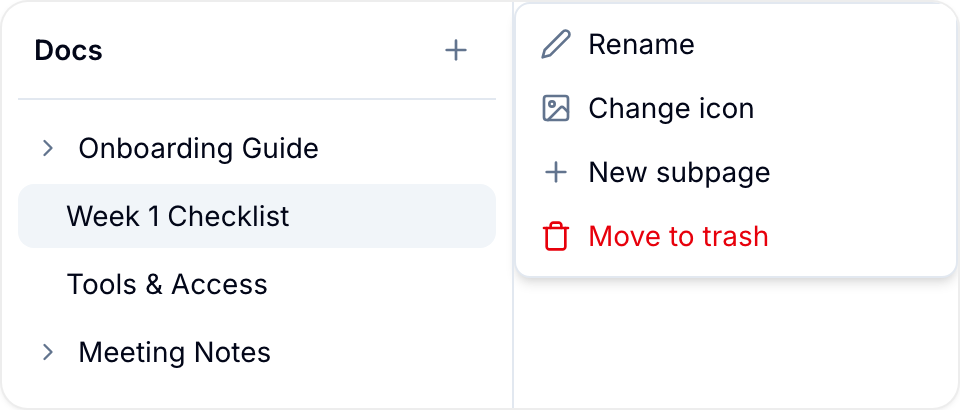
Right-click a page in the sidebar, or open its actions menu. Then select an action:
- Rename: Change the page title.
- Change icon: Assign a different page icon.
- New subpage: Add a child page.
- Move to top level: Move a nested page to the root of the tree.
- Move to trash: Remove the page and all its subpages. The confirmation shows the number of affected subpages.
Edit Pages
The rich-text editor supports formatted text, embedded content, record links, page links, and document navigation.
Type / to open the slash command menu. It includes headings, checklists, quotes, code blocks, tables, and other content types.
Use keyboard shortcuts or commands such as /bold and /italic to format text.
Use an @mention to notify a team member or go to their cursor location.
Type @@ to mention a record. A reader can select the link to open the record within the page.
Use the Link to a page slash command to link to another page in the workspace.
Drag an image into the editor, or use /attachment, to embed it. The editor also supports headings, checklists, and highlights.
Blue creates an outline from the headings in long pages. Select an outline item to go to that section.
Breadcrumbs above the editor show the page’s location in the tree. Select a breadcrumb to open that level.
Collaborative Editing
Multiple users can edit a page at the same time:
- View another editor’s updates in real time.
- See who is viewing the page and go to their position.
- Preview edits as users type.
- Rely on automatic saving. You do not need to save manually.
Common Page Types
- Internal documentation: Organize procedures, policies, training materials, and best practices. Use top-level pages for topics and subpages for details.
- Planning documents: Record scope, requirements, resources, budgets, timelines, workspace objectives, and milestones. Multiple planners can edit the page together.
- Design specifications: Record specifications, asset requirements, content plans, style guides, and other design details.
- Client briefs: Record client needs, expectations, workspace parameters, success metrics, target audiences, messaging, and deliverables.
- Meeting agendas and notes: Record talking points, attendance, decisions, and next steps.
Page Permissions
Workspace Owners, Administrators, and Team Members can create and edit pages. Users with Client, Comment, or View-only access can read pages but cannot edit them.
Pages in archived workspaces are read-only for all users.