Search
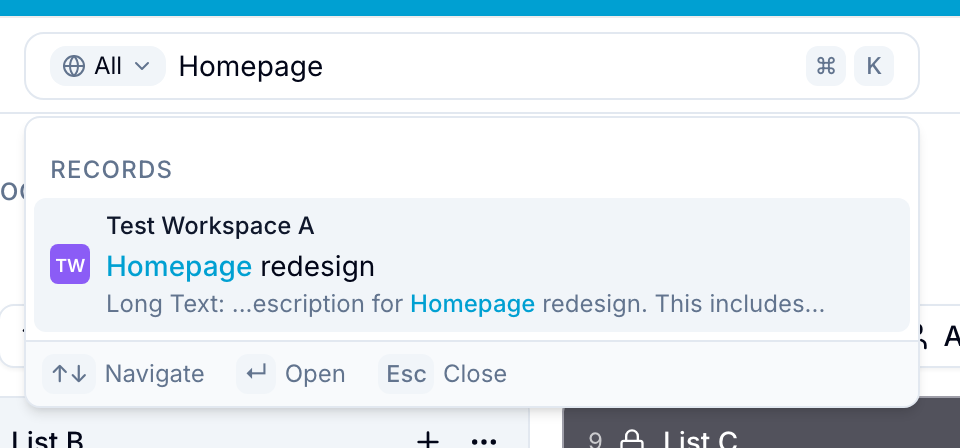
Search for records, docs, chats, users, workspaces, navigation destinations, organizations, and actions from the top navigation bar.
Search shows matching results as you type. Results appear below the search bar and are grouped by category.
Open Search
Select the search bar in the top navigation bar, or use a keyboard shortcut:
- Mac: Press Cmd+K.
- Windows: Press Ctrl+K.
Search Categories
Search includes these categories:
- Records: Find matching records from one or more workspaces.
- Users: Find organization members.
- Docs: Open a doc page.
- Chats: Open a chat.
- Workspaces: Open a workspace.
- Navigation: Open pages such as Home, Activity, Calendar, Analytics, and Settings.
- Organizations: Switch organizations if you belong to more than one.
Open a Record
- Enter all or part of a record name.
- Select the record from the results. Blue opens the record in its workspace.
Blue immediately searches records loaded into your current session in a background web worker. In large organizations, local results might omit records that have not loaded.
Organizations with server-backed search enabled receive results from all accessible records after the local results. If server search is unavailable, Blue continues to show the local results.
Search Archived Records
- Select the scope chip in the search bar.
- Select All workspaces + Archived Records.
- Enter your query. Matching archived records appear in an Archived group, below the active results.
This scope matches archived record content — name, description, comments, and field values. A query that contains a token of one or two characters matches the record name only.
Read Archiving Records to restore an archived record.
Quick Actions
Search also provides actions for changing dark mode, viewing keyboard shortcuts, and signing out.