@mentions
Mention a person or role group to notify them, or add links to related records and workspaces.
Use an @mention in a comment or record description to notify a workspace member.
- Enter
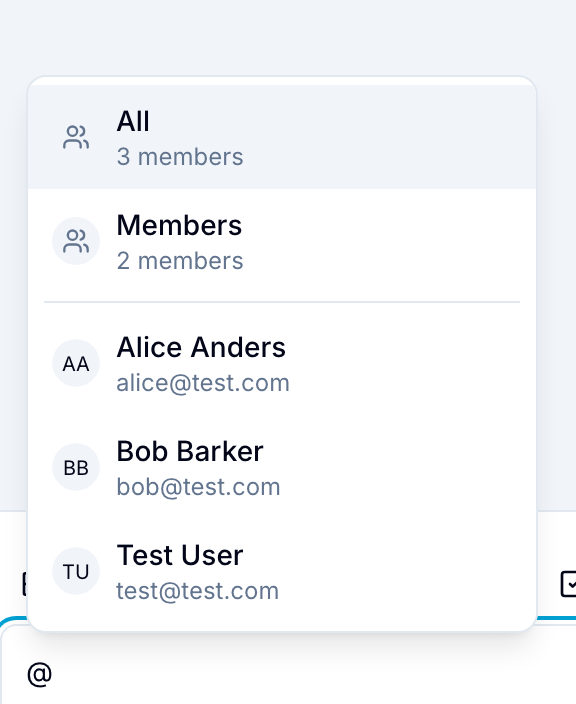
@in the text area. - Enter the person’s name.
- Select the person from the suggestions. Blue sends that person a mention notification.
Use personal mentions to:
- Direct a question to a workspace member.
- Identify a person responsible for work.
- Recognize a member’s contribution.
- Notify a client, manager, or other stakeholder about an update.
Mention a group
Group mentions notify workspace members based on their assigned roles. You can also notify everyone in the workspace.
Use one of these predefined groups:
- @All: All workspace members.
- @Admins: All Project Administrators. This group does not include the Workspace Owner.
- @Members: All Team Members.
- @Clients: All Clients.
- @Comment Only: All Comment Only users.
- @View Only: All View Only users.
You can also mention a custom role to notify all workspace members assigned to that role.
Each group suggestion shows how many members it will notify. Mentioned members receive notifications through their configured email or push channels.
The mention also appears in each member’s mentions view in Blue.
Mention records and workspaces
In comments, doc pages, and record descriptions, use the @@ and / menus to add navigation links:
- Mention a record: Enter
@@and select a record. You can also enter/and select Mention Record. Blue adds a chip that opens the record in a side panel. - Mention a workspace: Enter
/and select Mention Workspace. Blue adds a chip that shows the workspace name and opens that workspace.
Record and workspace mentions do not send personal notifications. Mention a person or group when you need to notify them.