Signing In
Sign in to Blue with an email code, magic link, Google, Microsoft, or your password.
Blue supports email codes, magic links, Google, Microsoft, and passwords. Available email options depend on whether your account has a password.
Sign in with your email
- Enter your email address on the sign-in screen.
- Select Continue. Blue checks your account and shows the correct sign-in method.
- If your account has a password, Blue asks you to enter it.
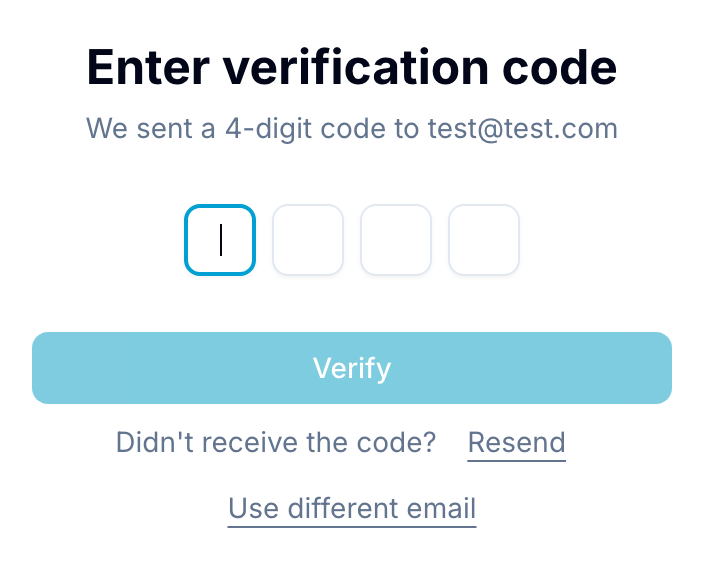
- If your account does not have a password, Blue sends a four-digit code to your email.
Use a one-time password
Blue sends a single-use, four-digit code to your email. The code expires after a short time.
- Open the email from Blue.
- Enter the code on the sign-in screen.
- Select Verify. Blue signs you in.
If the email does not arrive, select Resend to request a new code.
Use a magic link
A sign-in email can include a magic link. Select the link to open the sign-in screen with the code already entered.
Select Verify to sign in. The link works once and expires after a short time.
Sign in with Google
Select Continue with Google on the sign-in screen. If a Blue account uses the same email address, Blue links the Google account automatically. Blue can ask you to authenticate the existing account once before it completes the link.
Sign in with Microsoft
Select Continue with Microsoft on the sign-in screen. You can use a personal Outlook, Hotmail, or Live account, or a work or school account.
If a Blue account uses the same email address, Blue links the Microsoft account automatically. Blue can ask you to authenticate the existing account once before it completes the link.
Set or use a password
Open Account > Access to set or manage your password. After you set one, Blue asks for it when you sign in with your email.
If you forget your password, request a reset email or use a one-time code. Google and Microsoft sign-in remain available after you set a password.