Custom User Roles
Create workspace roles with specific permissions for databases, records, fields, lists, saved views, and invitations.
Custom user roles let Project Administrators apply one permission set to people with the same workspace responsibilities.
Create a custom role
- Open Users in the workspace.
- Select Manage custom roles.
- Select Create role.
- Under Name *, enter a name that describes the role. Role names can contain up to 191 characters.
- Optional: Enter a Description.
- Select the permissions for the role.
- Select Create Role.
To choose the database whose field permissions you edit, open the role again after you create it. To open a role, select it in the role list. Select Save Changes after you change a role.
Choose role permissions
For each role, you can:
- Apply the same permissions to multiple people.
- Choose which workspace features and databases appear in the workspace menu.
- Limit record visibility with conditions or to records assigned to the user.
- Control whether users can invite new members into the same custom role.
Control the workspace menu
Under Workspace Menu, turn on the features that the role can access: Activity, Chat, Docs, Files, Forms, and People.
Under Menu items, turn each database menu item on or off for the role. A new database menu item starts off for every custom role. Blue saves a menu item change immediately.
Control record actions
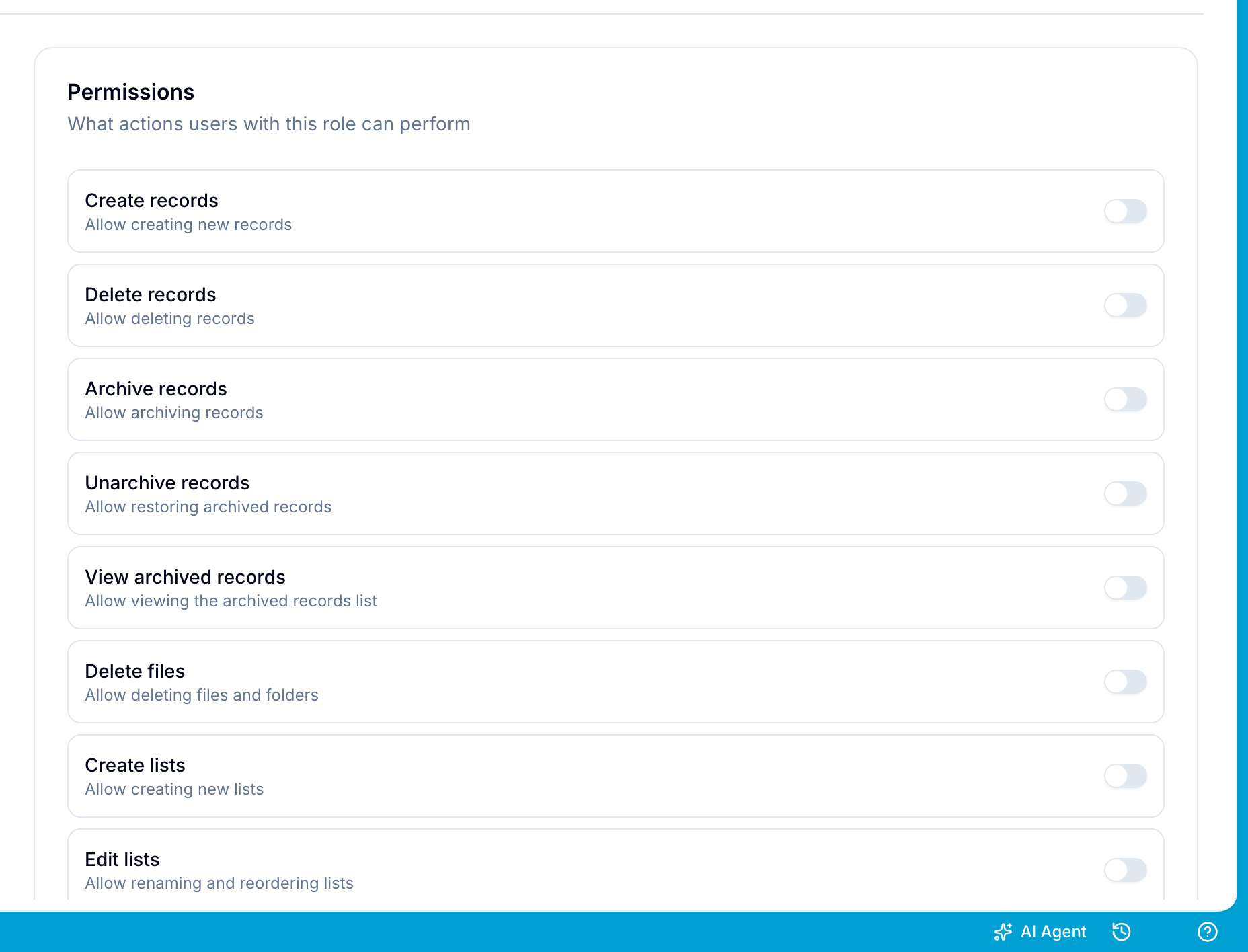
Under Permissions, configure these actions separately:
- Create records: Allow the role to add records.
- Delete records: Allow deletion separately from editing. A role can edit records without permission to delete them.
- Archive records, Unarchive records, and View archived records: Control access to archived records.
- Delete files: Allow the role to delete files and folders.
- Create lists and Edit lists: Allow the role to create lists, and to rename and reorder lists.
- Invite others: Allow the role to invite users into the same custom role.
- Mark as done: Allow the role to mark records as complete. Turn it off when a reviewer must control completion.
For example, an Editor role can prepare a record while a Publisher role completes it.
Control field access
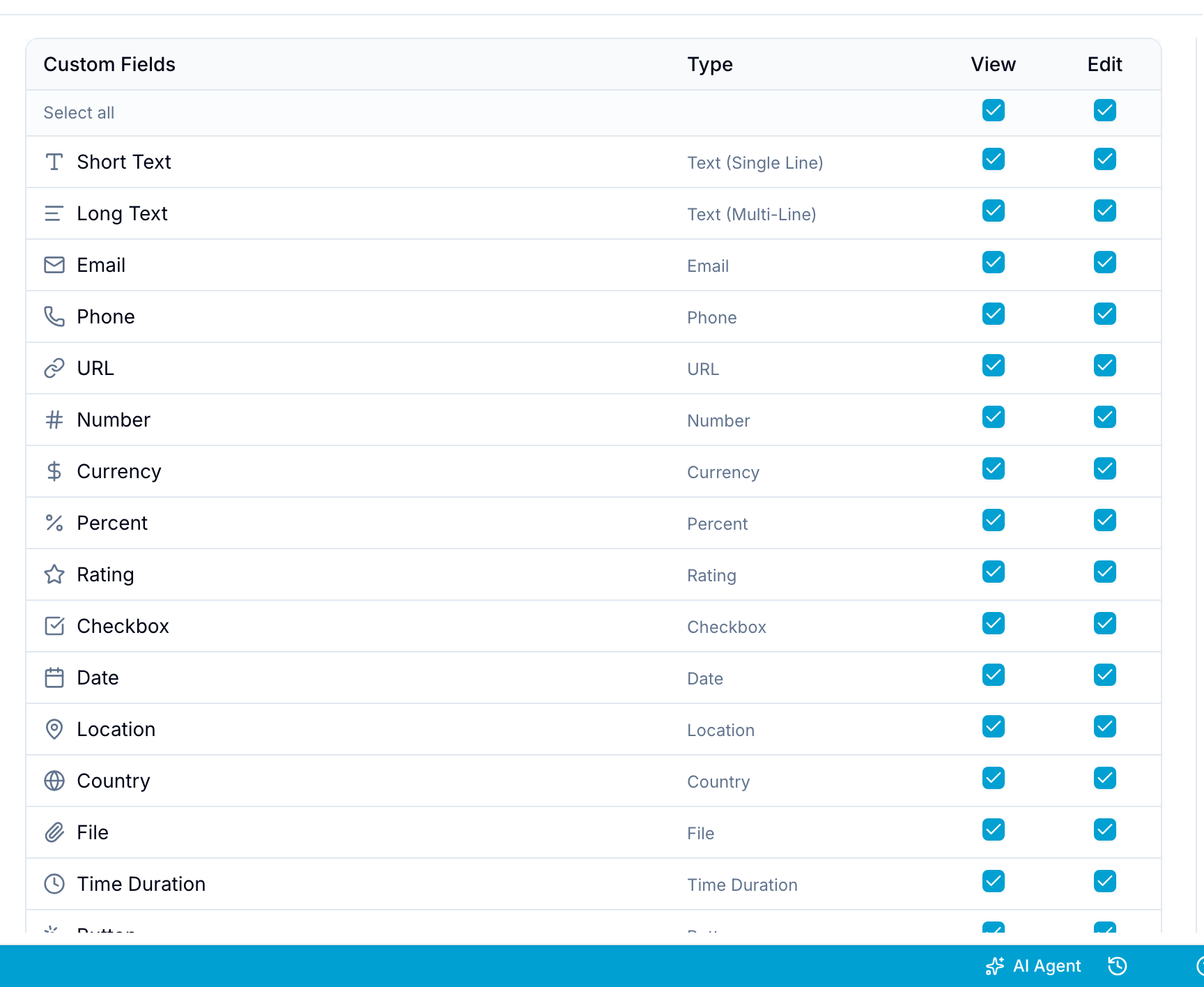
Field Permissions lists the fields of a database with View and Edit checkboxes. Clear Edit to make a field read-only. Clear View to hide it. Computed fields, such as Formula, Unique ID, and Lookup fields, remain read-only.
If the workspace has two or more databases, select the database in the Table picker first. Blue keeps the permissions for each database separately.
Set access for fields and databases added later
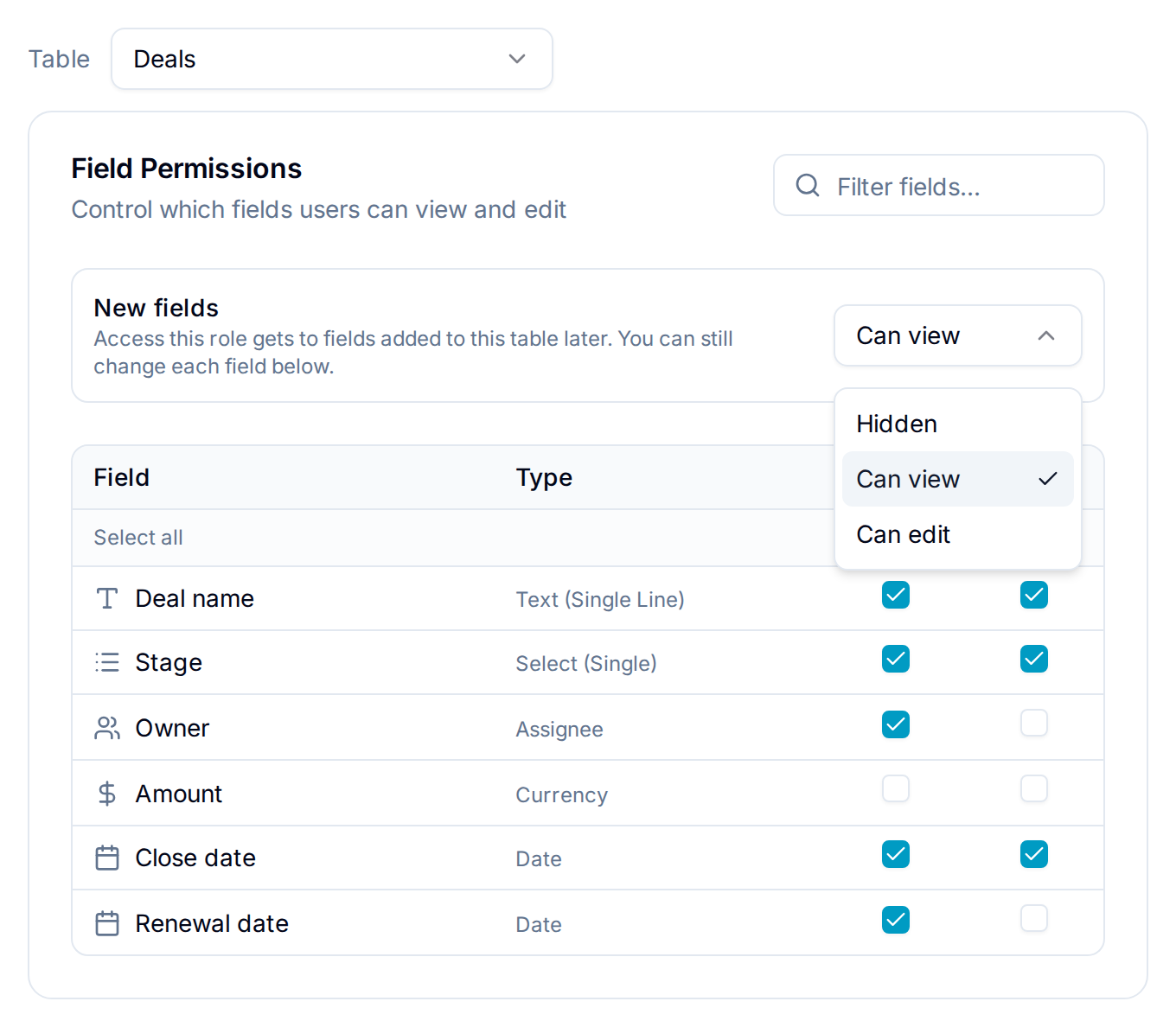
A custom role cannot see a field that is added to a database after you create the role, until you give the role access. To avoid this step for each field, set a default:
- New fields: In Field Permissions, select the database in the Table picker. Then choose Hidden, Can view, or Can edit. Fields added to that database later get this access. You can still change each field in the list.
- New databases: In Permissions, choose the access that the role gets to databases added to the workspace later. The role gets the same access to the fields of those databases.
Both defaults start as Hidden. A change to a default does not change existing fields or databases.
Control list access
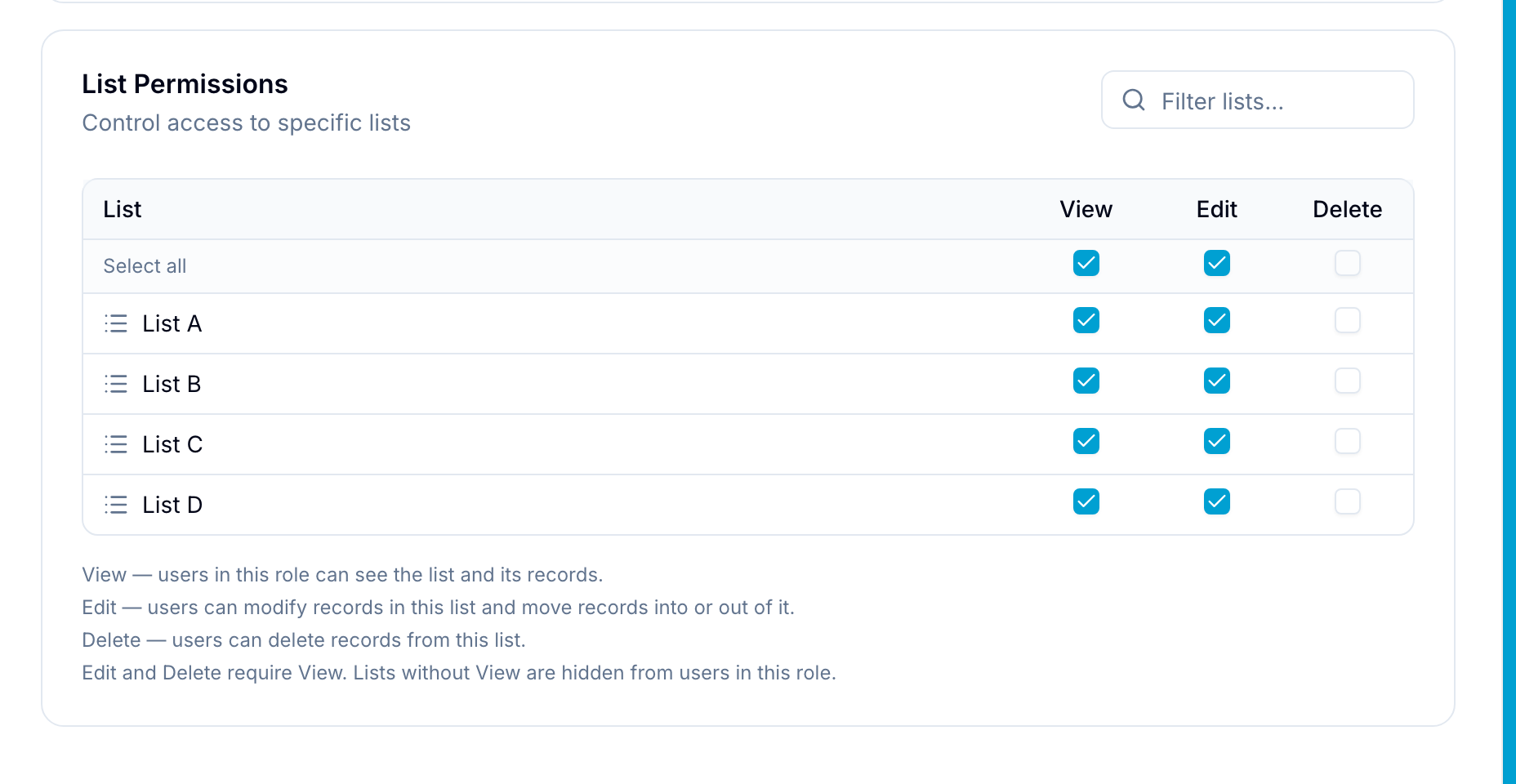
List Permissions sets View, Edit, and Delete access separately for each list:
- View: Users in this role can see the list and its records.
- Edit: Users can change records in this list and move records into or out of it.
- Delete: Users can delete records from this list.
In a database, the lists are the options of its List field. A rule applies to the records that have that option.
Limit record visibility
Under View Filters, use these switches:
- Show only assigned: Users see only records assigned to them.
- Show only mentioned: Users see only comments that mention them.
- Forwarded emails in comments: When off, comments created from forwarded emails are hidden from this role.
Under Record Visibility Filter, add conditions. Users in the role see only records that match the conditions. The Record Visibility Filter applies on Pro and Enterprise plans.
For example, add the condition Tags is Marketing to show only records with the Marketing tag.
Control saved views
Under Saved Views, select Visible for each shared view that users in the role can see in the views menu. Private views are not listed. Every user always sees their own private views.
Copy a custom role
Open the role’s … menu and select Copy role. Blue immediately adds Copy of {role name} in the same workspace with the same permissions and no users. Open the copy to rename it or change its permissions.
For long names, Blue shortens the source name to fit the copy prefix. Copies count toward your workspace’s custom role limit.
Assign a custom role
Assign the custom role to individual workspace members. Blue applies the configured permissions to each member assigned that role.