Organization Owner
Manage organization settings and members as the organization owner or an Organization Administrator.
The organization owner and Organization Administrators can open Organization Settings and manage organization-wide settings and members.
Administrators see every settings page except Billing and Usage, which stay with the owner. These actions also stay with the owner alone:
- Delete the organization.
- Manage billing, plans, and the Pro add-on.
- Remove the organization owner, or change the owner’s access level. An administrator cannot do either.
Change organization settings
Open your organization’s settings page. You can change:
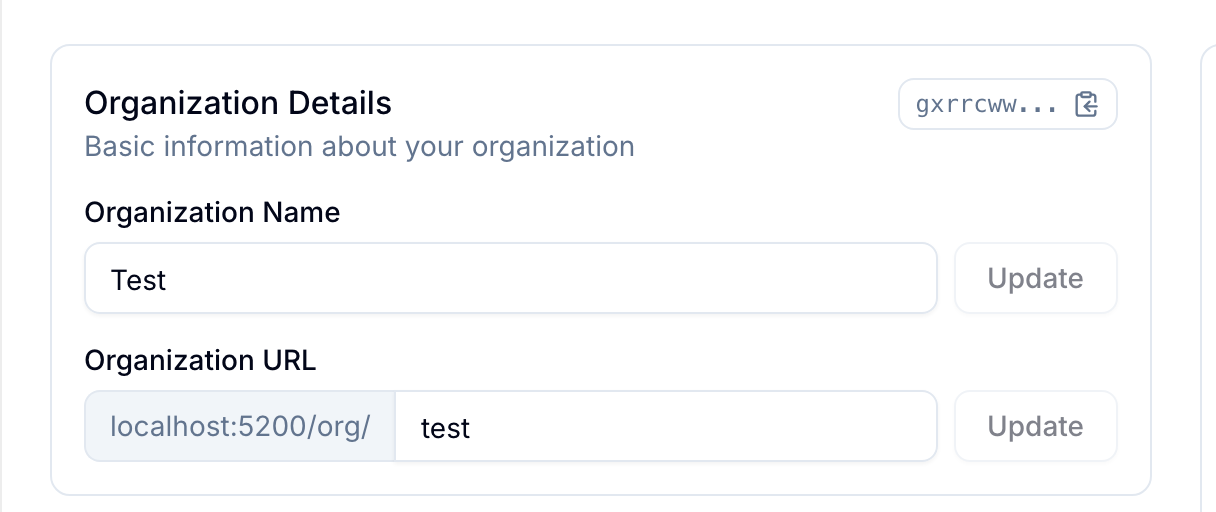
- Name: Change the organization name.
- URL: Change the URL slug that people use, for example,
blue.app/org/blue. - Image: Change the organization image shown in the sidebar and other parts of Blue.
- Color: Select Blue, Cyan, Indigo, Green, Amber, Red, Purple, Pink, Orange, or Black.
- Appearance: Use Bold Top Bar or Bold Background to apply the theme color to the top bar or the app background.
- Workspace Terminology: Change the term “workspace” across the organization, for example, to “project” or “board.”
- Date & Time Defaults: Set the date format, week start, year display, and time format that members inherit. See Date & Time Defaults.
- Delete Organization: Permanently delete the organization and all its data. Blue requires email verification.
Set date and time defaults
Set the date format, first day of the week, year display, and 12- or 24-hour time for the whole organization. Every member inherits these values until they pick their own in their account settings.
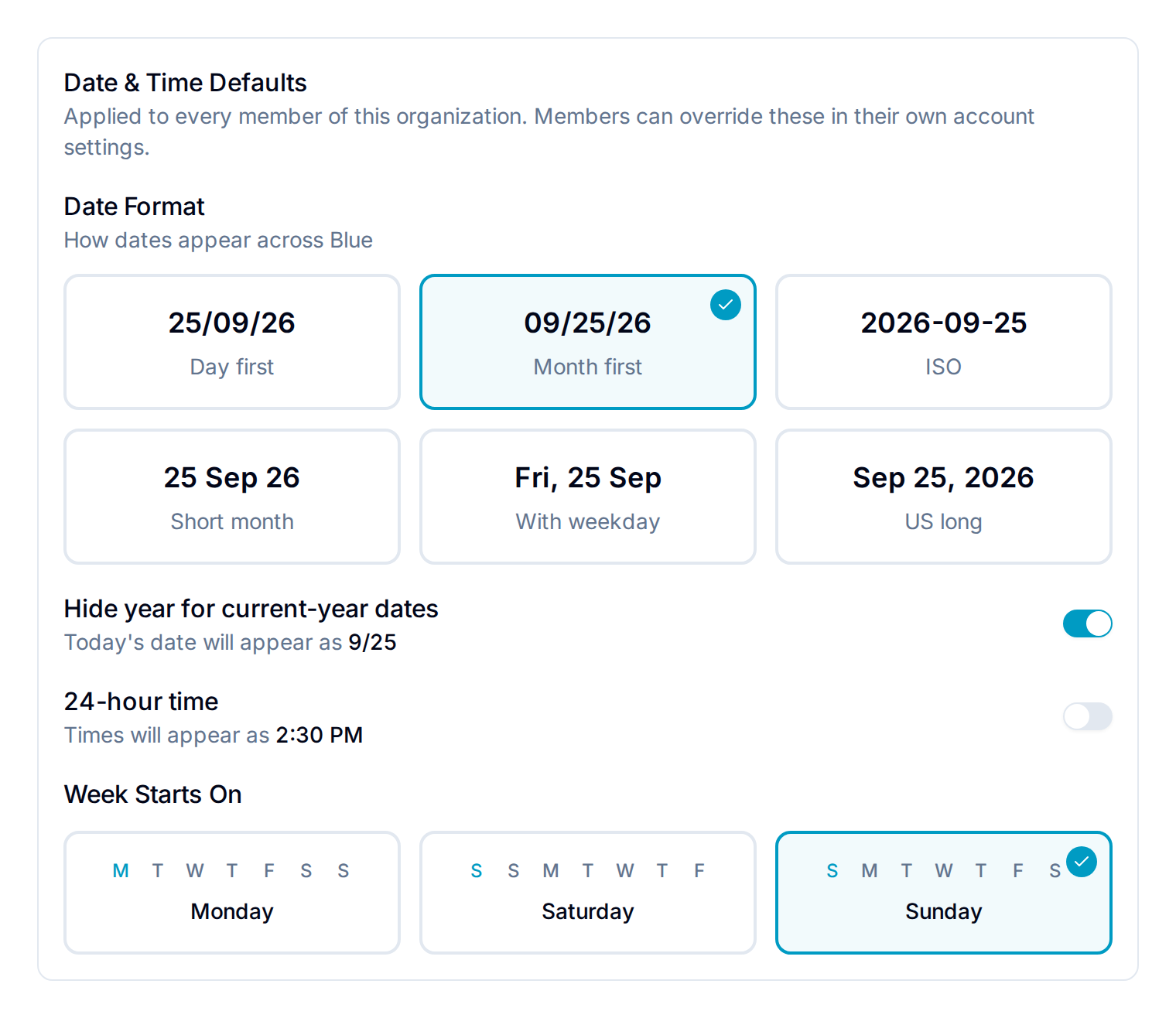
- Changes apply to members the next time they load the organization.
- A member who already chose a value keeps it. Members can reset a setting to follow the organization again.
- Timezone and language have no organization default. They stay personal.
Manage organization users
Remove a user
- Open the organization settings.
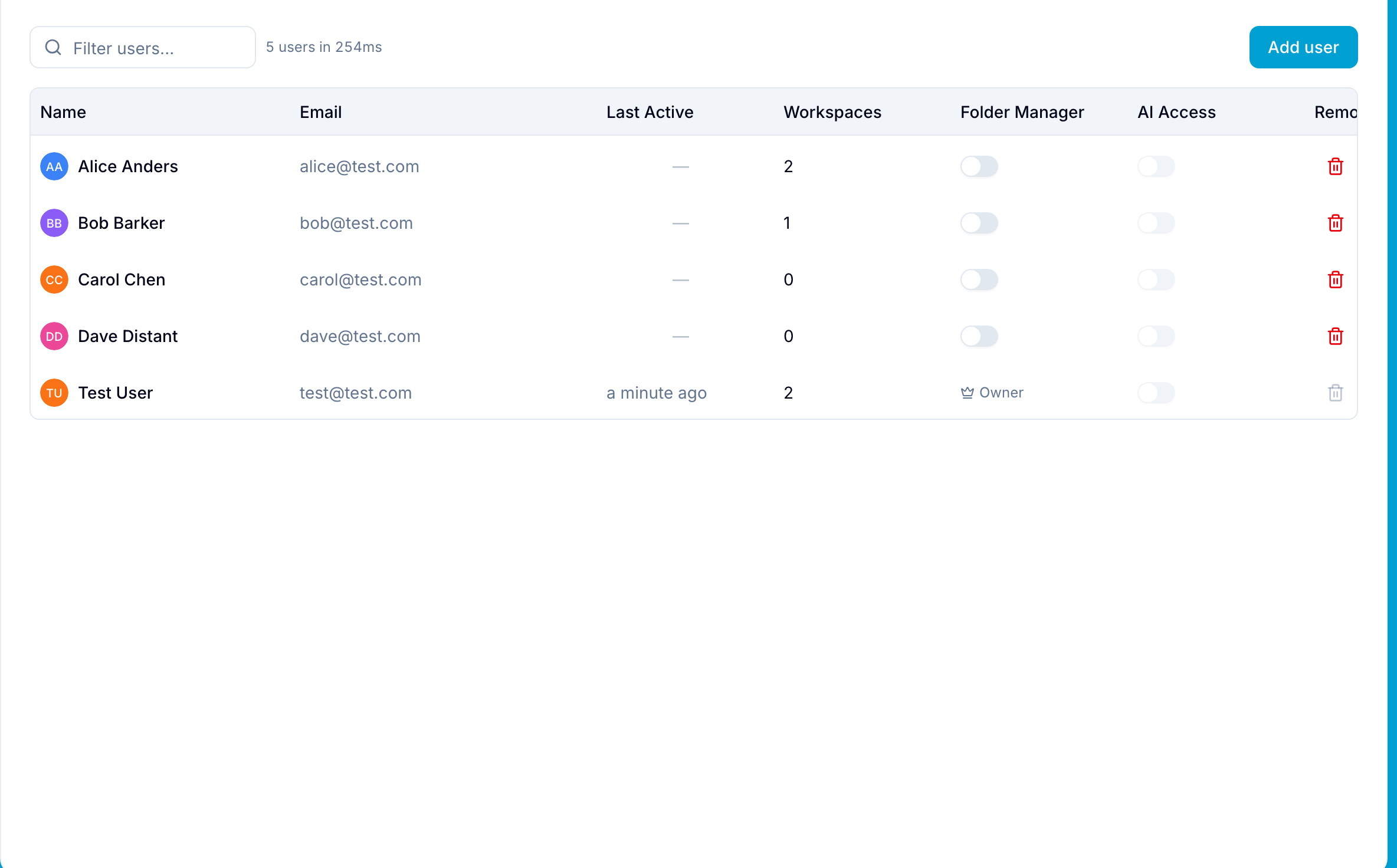
- Select Users.
- Remove the member.
- Confirm the removal. Blue revokes the member’s access to the organization.
The removed member’s comments and files remain visible in their workspaces.
The organization owner cannot be removed this way, and an administrator cannot change the owner’s access level.
View a member’s sign-in methods
The Sign-in column lists every way a member can sign in: Password, Google, Microsoft, or Email code. A member can have more than one. Not signed in means the member accepted no invitation yet.
Email code always shows for a member who has signed in, because the email code works for every account.
Use this column to check that everyone uses your identity provider. A member who still shows Password or Email code can bypass the multi-factor authentication your provider enforces. Ask them to open Account → Access and remove the password. The email code is always available.
The organization owner and Organization Administrators see this column. Changes a member makes to their sign-in methods appear within five minutes.
View a user’s workspace memberships
Open a member’s profile to view their workspace memberships. Each entry shows the access level or custom role and the date the member joined.
The list is read-only and excludes archived or template workspaces. The organization owner and Organization Administrators can view any member’s list. Everyone else sees only their own.
Find and join workspaces you are not in
The organization owner and Organization Administrators can list every workspace in the organization that they have not joined.
- Point to the workspace list header in the sidebar and select the filter icon.
- Select Available to join. The count beside it shows how many workspaces you are not in.
Select a workspace in the list to open the join confirmation, then select Join as admin.
Blue adds you to the workspace as an administrator and emails the workspace owner. You can leave the workspace at any time.
Edit any workspace’s settings
The organization owner and Organization Administrators can open and save the Settings tab of any workspace in the organization. This includes workspaces they are not a member of, and workspaces where they hold a lower access level.
This covers everything on that tab, such as the inbound email address, the GitHub sync, the AI configuration, and the workspace color.
Manage billing and plans
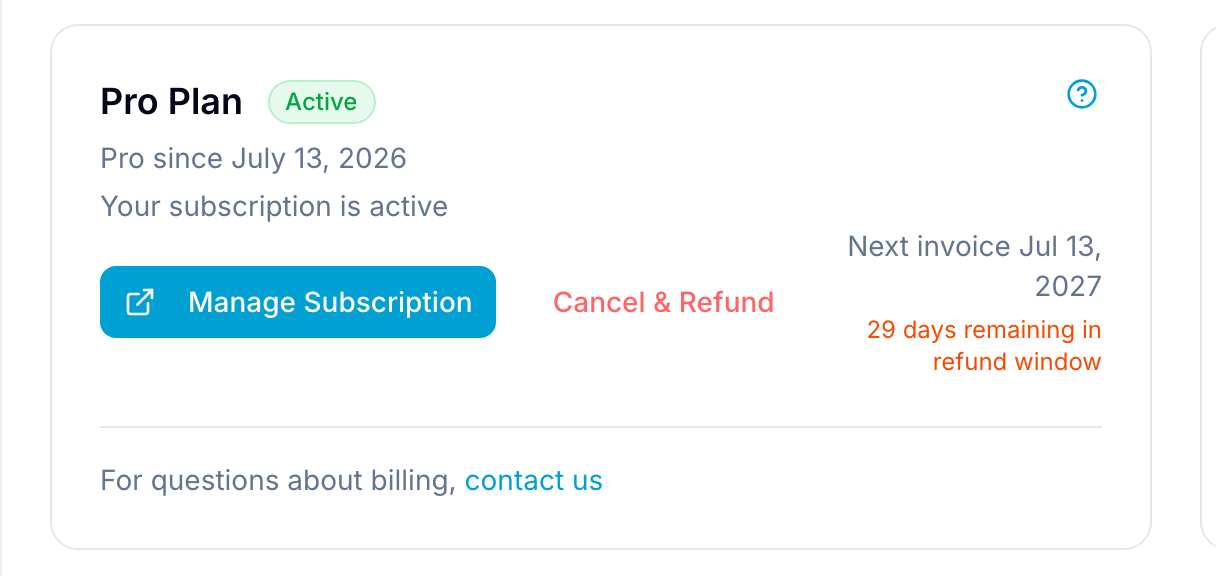
Only the organization owner can access Billing in Blue. Open the organization settings and select Billing to manage the tier, Pro add-on, and payment details.
From Billing, you can:
- View the current tier and usage against its limits.
- Upgrade to a higher tier with a one-time payment for the difference.
- Add the yearly Pro add-on to enable advanced features.
- Update payment details.
- View and download invoices.
- Cancel the Pro subscription. Tier purchases are one-time and cannot be canceled.
Get support
For help with organization owner access, email support@blue.app.