Saved Views
Save the filters, sorting, grouping, and columns of a database view so you or other members can reuse them.
A saved view stores the configuration of a database view for later use. Saved views belong to one database. Each database has its own list of saved views. A saved view can be personal or shared with everyone who can open the database.
Saved Views is a Pro feature.
Settings that Blue saves
A saved view includes:
- View type: Board, Table, Calendar, Timeline, or Map
- Filters: Search text and advanced filters
- Sorting: Sort fields and directions, including column sorts on the Board
- Grouping: The grouped field and its grouping options
- Column settings: Hidden columns, pinned columns, column order, and column totals in the Table view
- Date settings: The date fields of the Calendar and Timeline views
- Record field display: Show All, Filled, or Empty fields inside a record
Calendar date presets stay relative in saved views. For example, a saved view with This month shows the current month each time you open it. A custom date range stays fixed.
To save the record field display, open a record and select All, Filled, or Empty. Close the record, then save or update the view. Reset Changes restores the saved choice. Older saved views use your browser’s existing field display preference until you update them.
Create a saved view
- Configure the filters, sorting, grouping, and columns of the view.
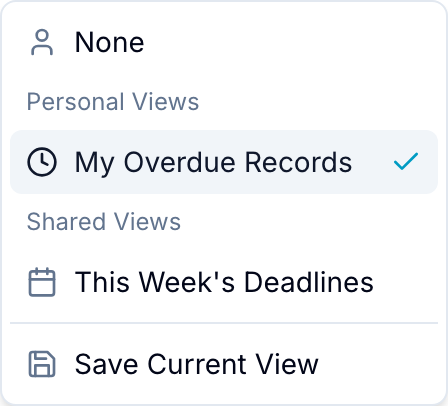
- Select Views in the toolbar.
- Select Save Current View.
- Enter a Name.
- Select an Icon.
- Optional: Select Share with database, Set as database default, or Set as my default.
- Select Save View. Blue adds the saved view to Views.
Apply a saved view
- Select Views.
- Select a saved view. Blue applies its view type, filters, sorting, grouping, and columns.
When a saved view is active:
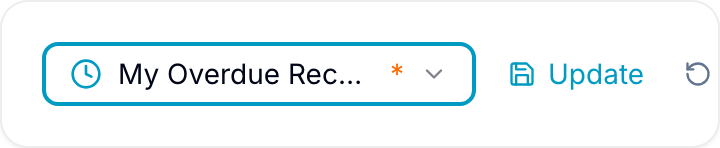
- The control shows the name of the saved view instead of Views.
- A blue border appears around the control.
- The icon changes to match the view type.
To return to no saved view, select None.
Personal and shared views
Views in My Views are personal. Only you can see, edit, or delete them.
Views in Shared are available to every member who can open the database. Use them for common configurations such as All Open Records or This Week’s Deadlines.
Set a default view
A default view opens automatically when you open the database.
- Your default: Opens for you. Open the view menu and select Set as my default, or select this option when you create the view.
- Database default: Opens for members who do not have their own default. Only workspace owners and admins can set it, and only on a shared view. Open the view menu and select Set as database default.
If both defaults exist, Blue opens your own default. The view list marks them with Your default and Database default.
Update a saved view
When you change an active saved view, an asterisk (*) appears beside its name.
Choose one of these actions:
- Update View: Save the current changes to the active view.
- Reset Changes: Discard the current changes and restore the saved configuration.
Manage saved views
Point to a view and select its … menu. Then select an action:
- Edit: Change the name, icon, or sharing settings.
- Duplicate: Create a personal copy.
- Add to favorites: Add the view to your favorites.
- Set as my default: Set your own default.
- Set as database default: Set the default for members who have no default of their own. Only workspace owners and admins can do this.
- Move up and Move down: Change the position of the view in its section.
- Delete: Permanently remove the view.
Change the order of saved views
My Views and Shared are ordered separately. Change the order of a section with one of these methods:
- Drag a view to a new position in its section.
- Open the … menu of a view and select Move up or Move down.
- Select the sort icon beside the section heading, then select Name A–Z or Name Z–A to sort the whole section at once.
You can reorder your own personal views. Only a workspace owner or admin can reorder the shared views. The order they set applies to every member.