Calendar
Show the records of a database by date, and reschedule them by dragging.
The Calendar view shows the records of one database by date. Each record with a date is a bar on a day-by-day track. The position and length of the bar show the date of the record.
To open it, select Calendar in the view type menu of the database toolbar, or press C.
Choose the date field
The Calendar view reads dates from a Date field of the database. When you first switch a view to Calendar, Blue uses the first Date field of the database.
If the database has no Date field, the view shows Choose a date field. Add a Date field to the database in Settings > Databases > Fields, then open the view again.
Blue does not show records that have no value in the date field.
Read the calendar
- The header shows the dates. Select − or + to change the zoom level: day, week, month, quarter, or year.
- The count at the top right shows how many records the view shows.
- A Date field with a start date and an end date shows as a bar across all of its days.
- If the database has more records than one page, select Load more at the bottom.
Reschedule a record
- Drag a bar to another date. Blue moves the date by whole days.
- If the date has an end date, drag the left or right edge of the bar to change the start or end date.
To move several records at once:
- Select a bar.
- Hold ⌘ on Mac or Ctrl on Windows and Linux, then select more bars. Hold Shift and select a bar to select a range.
- Drag one selected bar. Blue moves all selected records by the same number of days.
Select an empty area of the calendar to clear the selection.
Apply filters
The Calendar view uses the filters of the view. Filters stay active when you switch between Calendar and the other views of the database.
Change date and time preferences
Open Account > Regional Settings to change these personal preferences:
- Week Starts On: Start the week on Sunday, Monday, or Saturday.
- 24-hour time: Use 24-hour labels instead of 12-hour AM and PM labels.
- Date Format: Select a preset such as month-first, day-first, or ISO formatting.
- Hide year for current-year dates: Hide or show the year for dates in the current year.
These settings affect dates and times throughout Blue. They apply only to your account and do not change another user’s display.
Sync an external calendar
You can subscribe to your Blue calendar from an external calendar application.
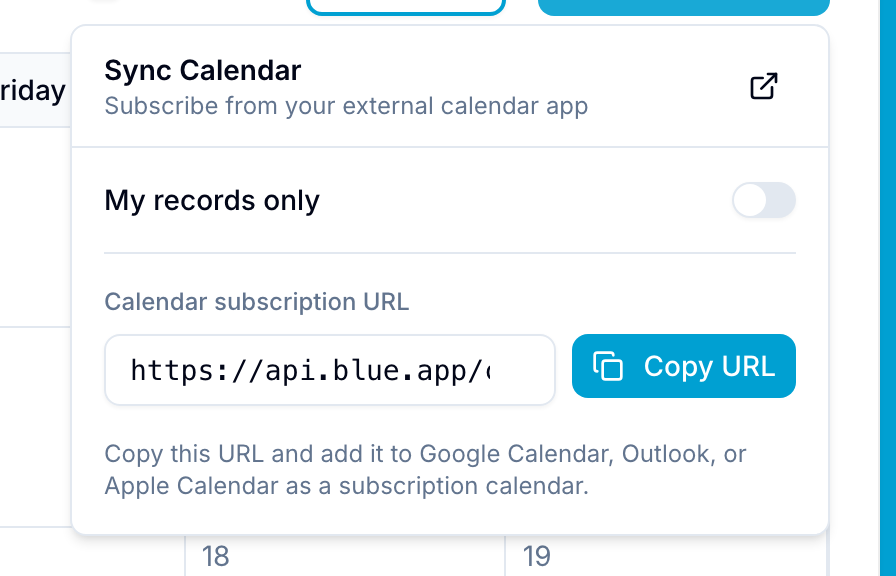
Read Calendar Sync for setup instructions.