Table
View, sort, filter, and edit the records of one database in a spreadsheet-style table.
The Table view shows the records of one database in a spreadsheet-style table. Each row is a record. Each column is a field of the database. Use it to edit field values, compare records, and change many records at once.
To open it, select Table in the view type menu of the database toolbar, or press D.
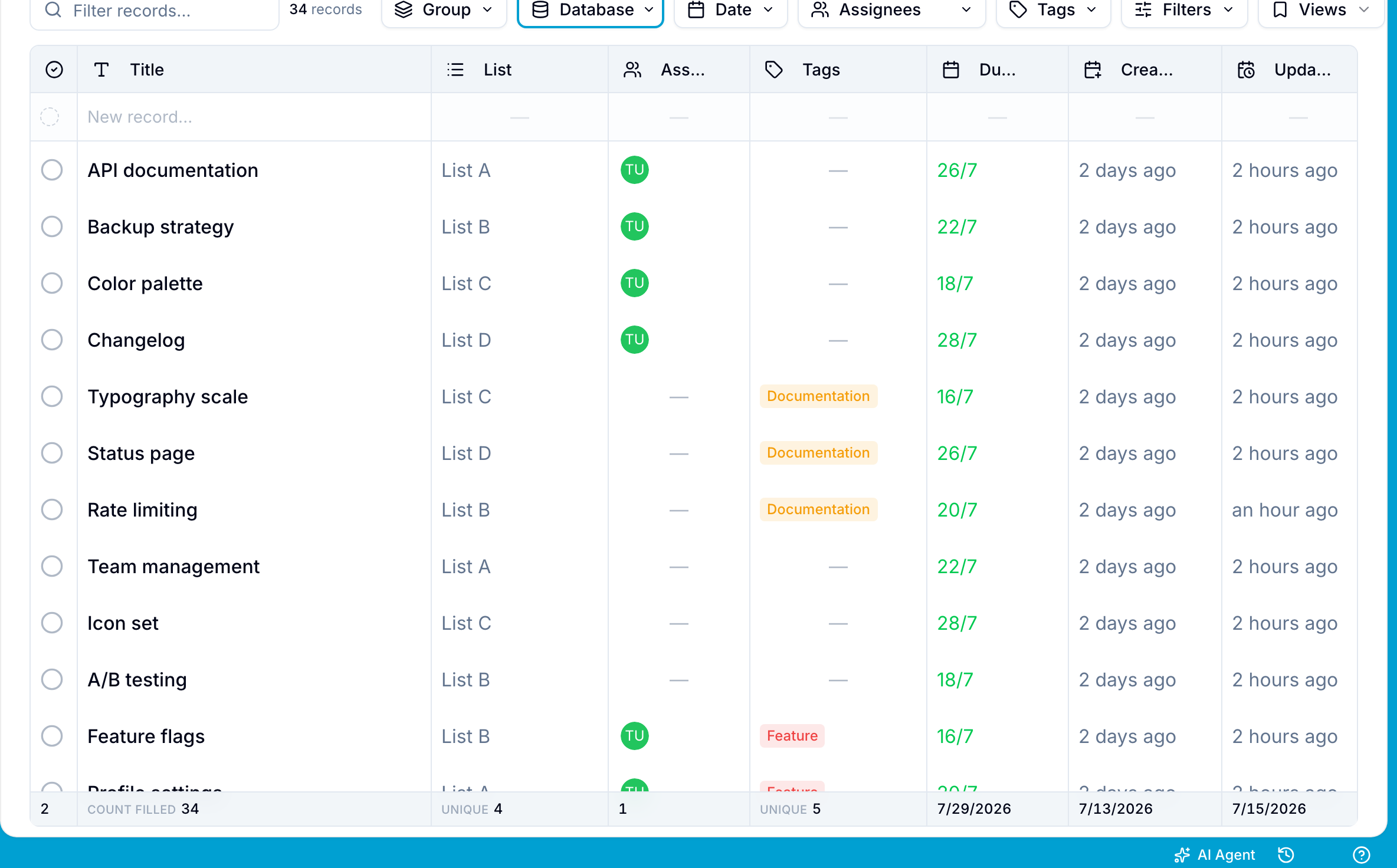
Add a record
- Select the quick-add row at the top or bottom of the table.
- Enter the record name.
- Press Enter. Blue creates the record in the database and keeps the table open.
Edit and arrange columns
Select a cell to edit its value.
Drag a column header to change the column order. Drag a column edge to change its width.
To rename a column, rename its field. To add a column, right-click a column header and select Add Column. Blue opens the field manager, where you create a field for the database.
Sort records
Select a column header to sort records by that column. Select it again to reverse the direction, then select it once more to clear the sort. The table sorts by one column at a time.
Filter records
Enter text in the search box of the toolbar to show only matching records. Select Filters to add conditions on fields. Read Filters for all filter options.
Open record details
Select a record to open its details. Right-click a record to open its actions, for example Rename, Copy, Copy URL, Pin to top, Archive, and Delete. Mark as complete shows only when the database has a completion field.
Select and edit multiple records
Hold ⌘ on Mac or Ctrl on Windows and Linux, then select rows to add them to a selection.
A command bar appears at the bottom of the table. It shows the number of selected records and these actions:
- Due date: Apply one date to the selection. Blue writes the date to the Date field of the database. This works only when the database has exactly one Date field.
- Assign and Tags: Add or remove assignees and tags across the selection.
- Button fields: A button field with bulk actions enabled appears on the bar. One button shows by itself. Two or more collapse into a Buttons menu. Hover a row in that menu and select the pin to keep that button on the bar for you in this workspace. Blue asks you to confirm before it runs the button’s automations for every selected record.
- More: Open the remaining bulk actions, including Edit fields to set field values.
Right-click a selected row to apply the same actions from the context menu.
To clear the selection, select the close icon in the command bar, select anywhere in the table, or press Esc.
Blue keeps the selection to records the table currently shows. A record that a filter or a search removes leaves the selection.
Column totals
A sticky footer at the bottom of the table shows the selected calculation for each column. Available operations depend on the field type:
- Most fields provide Count empty and Count filled.
- Number, Percent, Currency, Rating, and Time duration fields also provide Sum, Average, Min, Max, Median, and Range.
- Formula fields also provide Sum, Average, Min, and Max when the result is a number.
- Date fields also provide Earliest, Latest, and Range.
- Select (single), Select (multi), and Country fields also provide Unique and Most frequent.
- Checkbox fields provide % checked, % unchecked, Count checked, and Count unchecked.
Right-click a column header and select Summarize to choose an available operation. Summarize appears only for columns that support totals. Blue recalculates totals when you filter, search, or edit records.
Manage columns
Right-click a column header to open its management options:
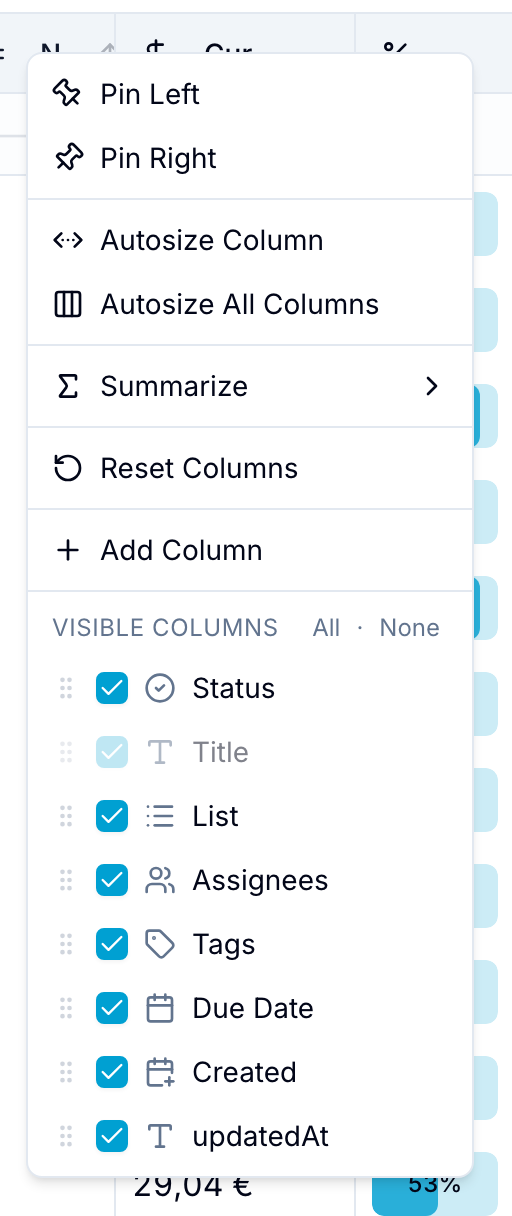
- Pin Left or Pin Right: Keep the column visible while you scroll horizontally.
- Autosize Column or Autosize All Columns: Resize one or all columns to fit their cell content.
- Summarize: Select a footer calculation from Column totals. Shown only for columns that support totals.
- Reset Columns: Restore the default column order, width, and visibility.
- Add Column: Open the field manager to add a field to the database.
- Visible Columns: Show or hide columns. Use All or None to change all columns. You cannot hide the name column.