File
Attach multiple files to records for preview, download, forms, and API access.
The File field attaches files to records. It supports documents, spreadsheets, images, PDFs, and most other file types. The Files default field is a File field. You can add more File fields to a database, such as “Contracts” or “Invoices”.
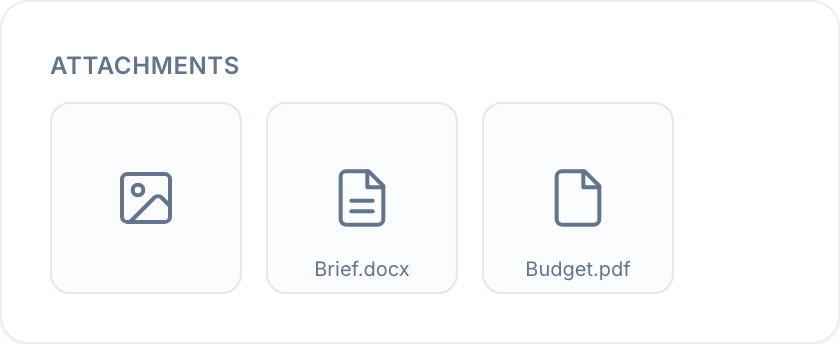
Upload and access files
By default, each File field accepts multiple files. Signed-in users can upload a file up to 4.8 GB. Anonymous uploads through public forms can be up to 500 MB.
Blue can preview supported file types, including images, PDFs, and Word documents. A workspace member can open an attached file only if their role can access Files, the record, and the File field.
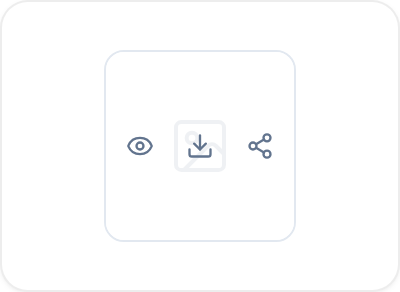
Blue also shows uploaded files in the workspace Files tab. Custom user roles with restricted record access cannot see files from those records.
Limit the number of files
Open the File field settings. You need permission to manage fields.
- Keep Allow multiple files on to accept more than one file.
- Optional: enter a positive whole number in Maximum files (optional). Leave it empty for no file-count limit.
- Turn Allow multiple files off to keep one file per record in this field.
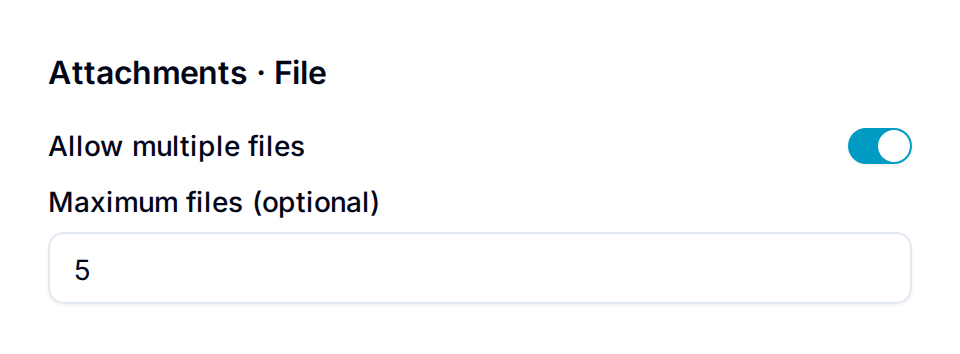
In single-file mode, Blue asks you to confirm before replacing an existing file. If you cancel or the upload fails, Blue keeps the existing file.
In multiple-file mode, Blue blocks uploads that would exceed the maximum. Lowering the maximum does not delete existing files. Remove files before adding more when the field is at its limit.
Download every file at once
Select the download icon in the field header to save every file in the field as one ZIP file. The archive keeps the field’s folder structure, and contains only the files you are allowed to see.
Up to 512 MB and 2,000 files, the download starts in your browser. Above either limit, Blue prepares the archive in the background and emails you a link when it is ready. The link stays valid for seven days.
Organize files into folders
Each File field has its own folders, separate from the workspace Files tab. Open the field in list or grid view, create folders and subfolders, then move files into them.
- A File field supports up to 10 folder levels and up to 100 folders.
- Only users who can manage fields can create, rename, move, or delete folders. Any member who can edit the field can upload, move, and remove files.
- Deleting a folder also deletes every file inside it, after a warning.
- Files added through public forms or automations go to the field’s root.
To give new records the same folders, set a Default folder structure in the field settings and select Save structure. Create the field first, then edit its default folder structure. Select Apply to existing records… to add the structure to records that already exist. Blue only adds folders that are missing. It does not move or delete files.
Share a folder publicly
Users who can manage fields can share a folder inside a File field. Open the folder menu and select Share folder. Blue creates a public link and copies it to the clipboard.
Recipients do not need a Blue account. They see the folder name, its subfolders, and its files — never the record, field, or workspace name. Select Turn off sharing to close the link.
Collect files through forms
Add a File field to a form to let external users upload files with a submission. They do not need a Blue account.
Blue attaches the uploaded files to the records generated from form submissions. For example, candidates can attach CVs and cover letters to job applications. Customers can submit images for creative requests, and clients can submit intake documents.
Access files through the API
The Blue API accesses File field uploads through the standard file-related API calls. Use these calls to download, upload, organize, or integrate files programmatically. You can also process uploaded files or add metadata.