Select (single)
Create a list of colored options and let each record store one of them.
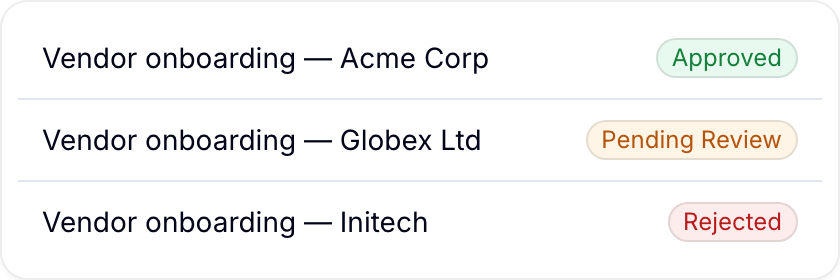
A Select (single) field lets each record store one choice from a predefined set of options. Each option has a name, a color, and an optional icon.
Use this field for categories such as product type, status, appraisal grade, or risk level. Use a Select (multi) field when a record can have more than one choice.
Configure the options
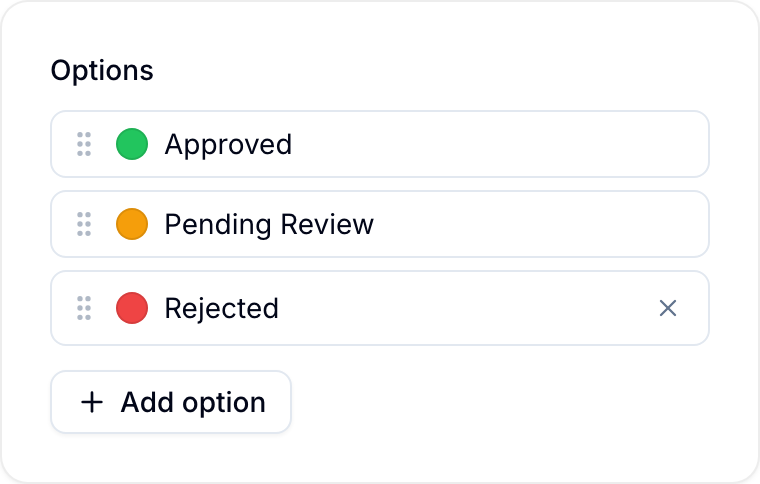
Organization Owners and Admins, and workspace Project Administrators, manage the options in the field’s settings. They can add, rename, recolor, and reorder options. Use Sort options to sort the options by name.
Select a value
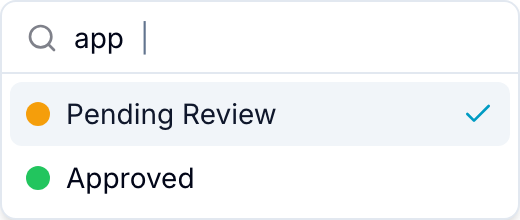
Open the field and start typing to search the available options. Select one option to save it on the record.
Use options as board columns
When you group a Board by a Select (single) field, each option is a column. Move a record to another column to change its value. The first database of a new workspace has a Select (single) field named List for its process steps. A database created with New database asks you to create a Select (single) field when its board is empty.
You can limit how many records an option holds. In the field’s settings, enter a number in the WIP box next to an option, or select Set WIP limit in the board column menu. To block records when the option is full, select Hard in the field settings, or Block new records when the limit is reached in the board dialog. Otherwise, Blue lets records in and shows that the option is over its limit.
Use with other Blue features
- Record Status can use a Select (single) field to track the state of each record.
- Custom user roles can control who can view or edit the field.
- Forms can collect one predefined option.
- Analytics can filter records by selected values.
- Conditional Select can filter this field’s options based on another field.