Reference
Link a record to one or more records in another database and use the relationship in Lookup and Rollup fields.
The Reference field links a record to one or more records in a target database. The target database can be in the same workspace or in another workspace of your organization.
Lookup fields and Rollup fields can use this relationship to show values from the linked records.
Configure A Reference Field
A workspace Owner or Project Administrator configures the relationship:
- Add a field and select Reference.
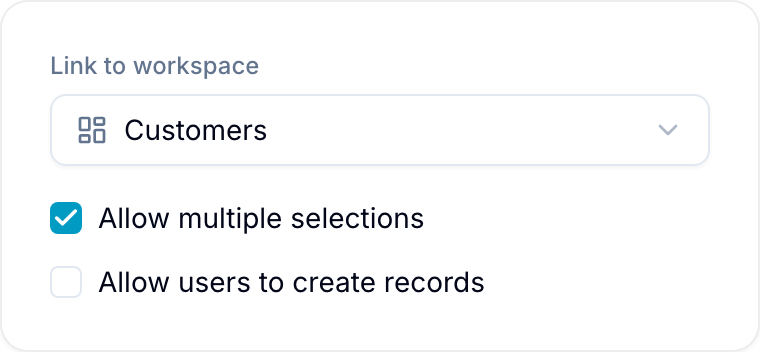
- Under Target table, select the database that contains the records you want to link. The list groups databases by workspace and shows the current workspace first.
- To link more than one record, select Allow multiple selections.
- To let people create a record from the picker, select Allow users to create records.
- Under Filter linkable records, add conditions if people must select from a smaller set. Leave the filter empty to allow any record in the target database.
- Select Create.
If Allow multiple selections is not selected, each record links to one record. Linking a different record replaces the current link.
If you change the target database, Blue clears the filter, because its conditions use the fields of the previous database.
Link A Record
- Open a record, or select the Reference cell in the Table view.
- Select Link record.
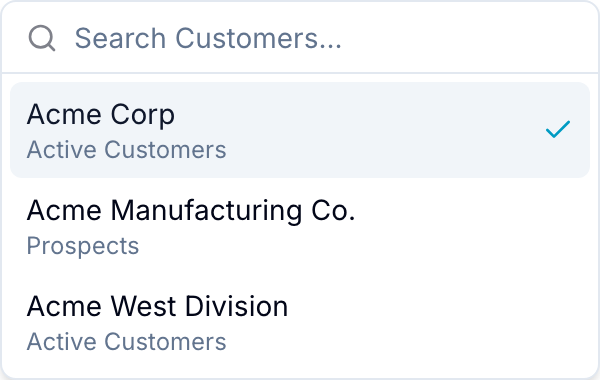
- Enter a search term in Search records…. The picker shows only records that you can see and that match the field’s filter.
- Select a result. Blue links the record.
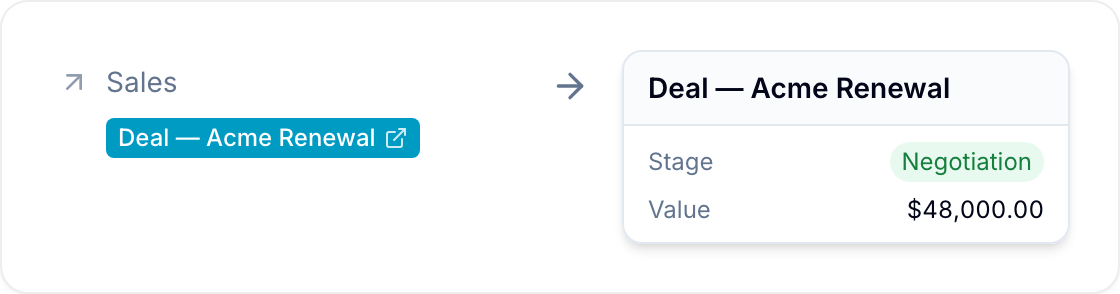
To remove a link, select Remove next to the linked record. Select a linked record to open it.
Create A Record From The Picker
When Allow users to create records is on, the picker shows a Create a new record… box below the results. Use it when the record you want to link does not exist yet.
- Select Link record.
- Enter the title of the record in Create a new record….
- Select Create. Blue creates the record in the target database and links it in one step.
The option is off by default. It does not give extra permission. The box appears only for people who can create records in the workspace of the target database. The permissions and record limits of that workspace still apply.
Track Incoming References
Add a Referenced By field to show the records that point to the current record. Blue updates this read-only field when matching Reference values change.

Filter, Group, And Sort
- Filter: Use Is any of, Is none of, Is empty, or Is not empty.
- Group: Group a Board, Table, or Timeline view by a Reference field. A record with several links appears in the group of each linked record.
- Sort: You cannot sort by a Reference field.