Formula
Calculate numeric, text, date, duration, or Yes/No results from fields in the same record.
A Formula field calculates a result from other fields in the same record. Use formulas for numeric calculations, text, dates, durations, and conditional results.
Watch this video for an overview of Formula fields:
Write a formula
Configure the formula when you create the field:
- Open a record and select Manage fields. You can also right-click the database tab and select Manage fields.
- Select Add Field. If Blue shows a menu, select New Custom Field.
- Enter a Field name and select Formula as the Type.
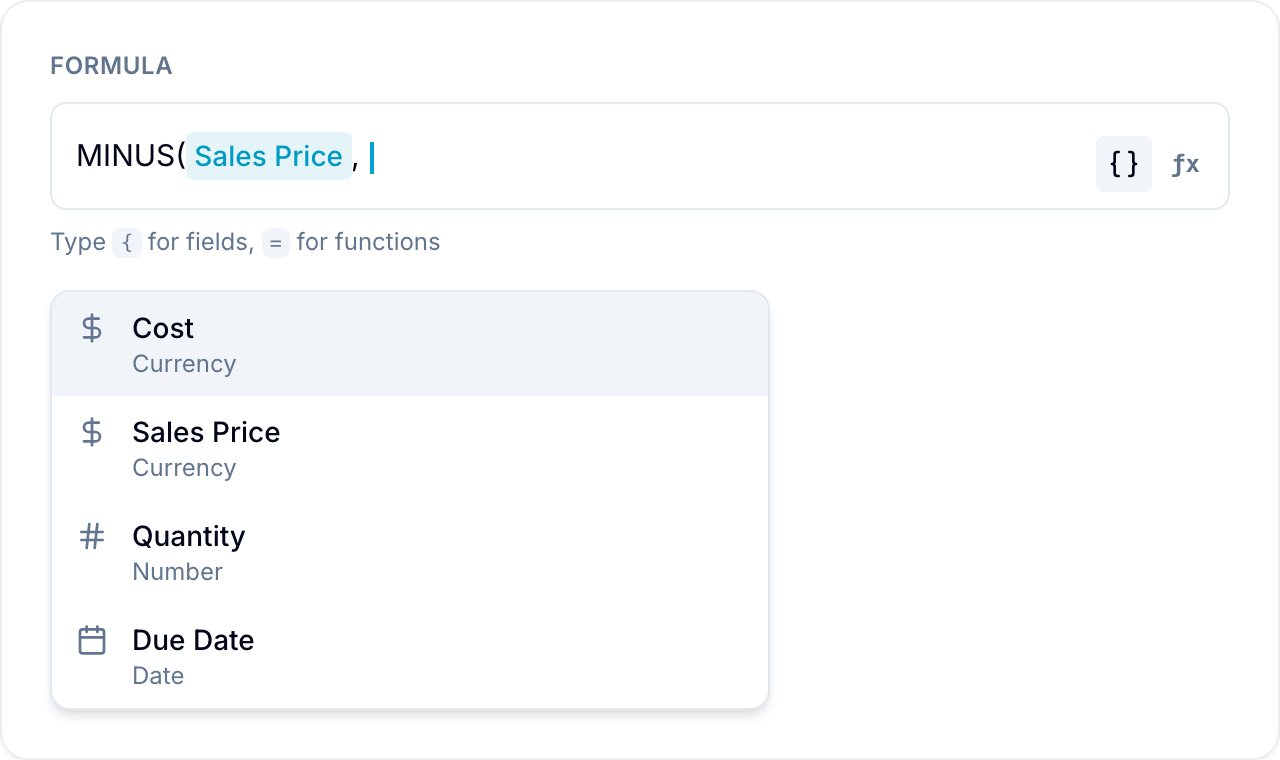
- Enter the expression under Formula. Type
{to insert a field. Type=to insert a function. - Select Create.
The Live Preview shows a result based on sample values.
Reference record fields
Enter a curly bracket {, or select Insert field, to show the fields that you can reference. A formula reads fields from the same record. It does not read other records or external sources. To use values from linked records, reference a Rollup field or a Lookup of a Table field.
You can reference:
- Number fields: Number, Currency, Currency conversion, Percent, Rating, and another Formula.
- Rollup fields that return a number.
- Text fields: Text, Email, URL, and Phone.
- Checkbox fields: Read as a Yes/No (true or false) value.
- Date fields: Compare dates or calculate with them.
- Table row count: Select
Table field: Row countin the{picker to count the table’s saved rows. A row can have empty cells; fully empty rows are removed when you save. An empty table returns0. Use the count directly or in calculations, such as{Products: Row count} * 10. - Table columns, directly or through a Lookup: Select a column and calculation in the field picker. Column footer totals do not need to be enabled.
Calculate with table columns
In the formula editor, type { or select Insert field. Choose the table column and calculation, such as Products: Quantity · Average. You can use the inserted value directly or combine it with other values in your formula.
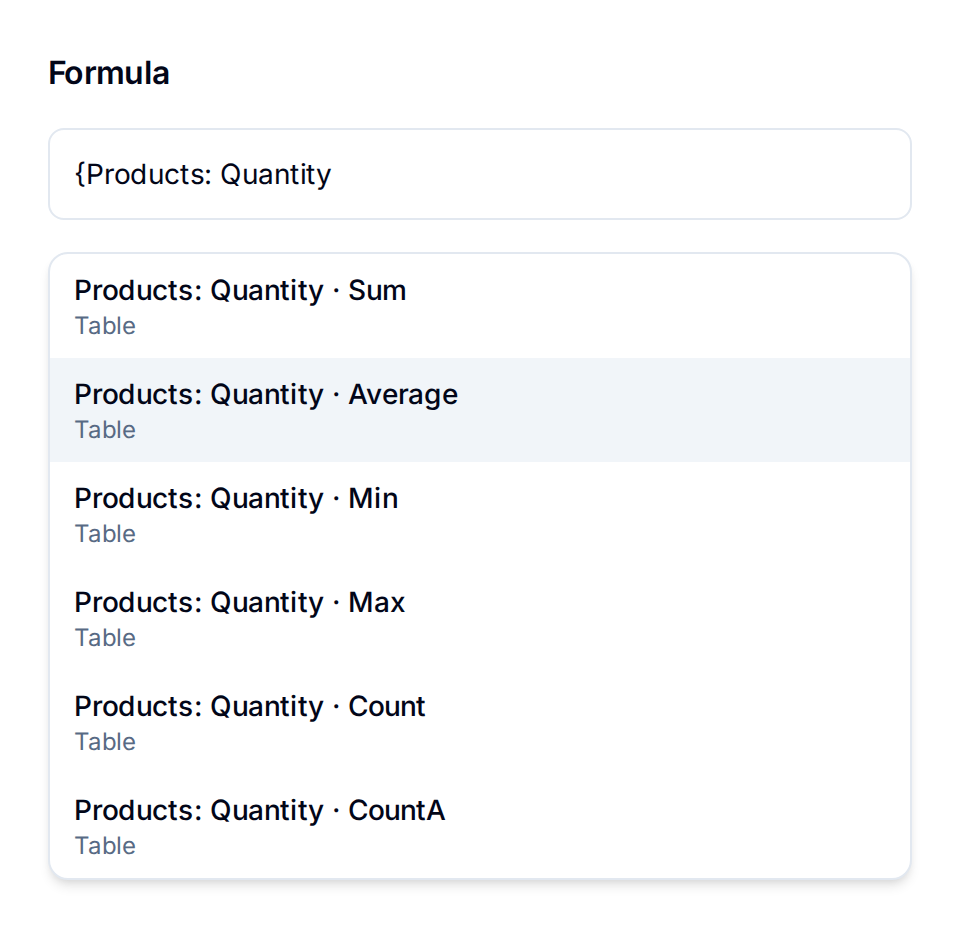
| Picker option | Result |
|---|---|
| Sum | Adds numeric values. |
| Average | Calculates the mean of numeric values. |
| Min | Returns the smallest numeric value. |
| Max | Returns the largest numeric value. |
| Count | Counts rows, including rows where this cell is empty. |
| CountA | Counts non-empty cells. Zero and an unchecked checkbox count as values. |
Sum, Average, Min, and Max are available for Number, Currency, and Formula columns. Count and CountA are available for every column type. Row count counts the whole table’s rows.
For a Lookup of tables, Blue calculates across all source rows. For example, Average uses all numeric cells, not an average of each table’s average. Calculations include rows beyond the Lookup preview.
For an empty table, Sum, Count, and CountA return 0. If there are no numeric values, Average, Min, and Max return an empty result. Numeric calculations on mixed currencies return an empty result instead of combining currencies.
Existing table-column references continue to return sums. To use a different calculation, insert the corresponding picker option.
Functions
Pass fields to a function to calculate with them. Type = or select Insert function to pick a function. Separate multiple inputs with a comma. For example, SUM({Cost}, {Profit}) adds fields named Cost and Profit.
Math and numbers
- SUM: Add all the values together.
- AVERAGE: The mean of the values (empty values are ignored).
- AVERAGEA: The mean, with empty or non-numeric values counted as zero.
- COUNT: How many of the values are numbers.
- COUNTA: How many values are not empty.
- MAX: The largest value.
- MIN: The smallest value.
- MULTIPLY: Multiply two values with
MULTIPLY(value1, value2). - MINUS: Subtract the second value from the first with
MINUS(value1, value2). - ROUND: Round to a number of decimal places with
ROUND(value, decimals). Omit the decimal value to round to a whole number. - ABS: The absolute (positive) value.
Logic and conditions
- IF: Return one value when a condition is true and another when it is false with
IF(condition, then, else). - AND: Return Yes only when every condition is true with
AND(a, b, ...). - OR: Return Yes when any condition is true with
OR(a, b, ...). - NOT: Change a Yes to a No, or a No to a Yes, with
NOT(condition).
Text
- CONCAT: Join values into one text value with
CONCAT(value1, value2, ...). - TEXT: Convert any value to text with
TEXT(value).
Dates and time
- DATE: Build a date from text with
DATE("2026-01-31")or from parts withDATE(year, month, day). - NOW: The current date and time.
- DATEADD: Add an amount of time to a date with
DATEADD(date, amount, "days"). - DATEDIF: Calculate the difference between two dates with
DATEDIF(start, end, "days"). - DURATION: Create a length of time with
DURATION(amount, "hours").
For DATEADD and DATEDIF, the unit is one of years, months, weeks, days, hours, minutes, seconds, or milliseconds. For DURATION, the unit is one of weeks, days, hours, minutes, seconds, or milliseconds.
Operators
Combine values with these arithmetic operators:
| Operator | Description |
|---|---|
| + | Addition |
| - | Subtraction |
| * | Multiplication |
| / | Division |
| ^ | Exponentiation |
Add % after a number to enter a percentage. Blue reads 50% as 0.5.
Conditions and comparisons
Comparison operators check two values and return Yes or No (true or false). Use them inside IF or by themselves.
| Operator | Description |
|---|---|
| > | Greater than |
| < | Less than |
| >= | Greater than or equal to |
| <= | Less than or equal to |
| == | Equal to |
| != | Not equal to |
For example, IF({Budget} - {Spent} < 0, "Over budget", "On track") shows a warning when spending exceeds the budget. {Score} >= 80 returns Yes when a record reaches the threshold.
Working with text
CONCAT joins fields and quoted text into one line. For example, CONCAT({First name}, " ", {Last name}) produces a full name. CONCAT("Invoice #", {Number}) adds a label before a number. Put fixed text in double quotes.
When a text field contains a numeric value, Blue reads it as a number. For example, "5" works as 5. Blue treats other text as blank, so it does not break a sum or average.
Working with dates and time
Date functions calculate with Date fields and values from DATE and NOW. DATEDIF({Start}, {Due}, "days") counts the days between two dates. DATEADD({Start}, 30, "days") finds the date 30 days later. DATEDIF({Created}, NOW(), "days") shows the record age.
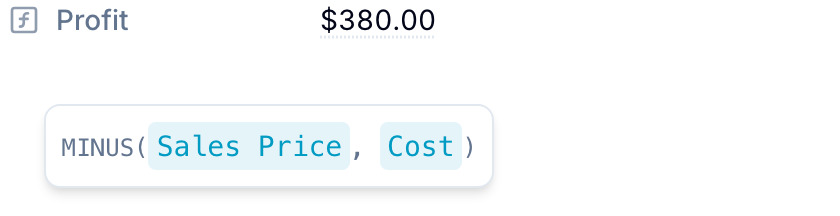
The following example calculates profit from sales price and cost:
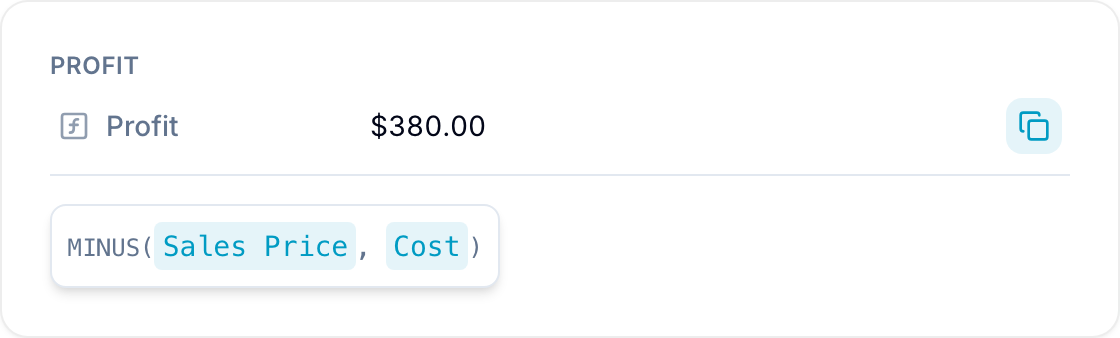
A Formula expression can contain up to 2,000 characters. Blue also validates the expression syntax when you save the field.
Configure the result display
When a formula returns a number, select how Blue displays the result under Display as:
- Number: Show a plain numeric value.
- Percentage: Convert the calculated value to a percentage.
- Currency: Show money with local formatting. Select the Currency. Blue supports numerous global currencies.
Select the number of decimal places under Decimals.
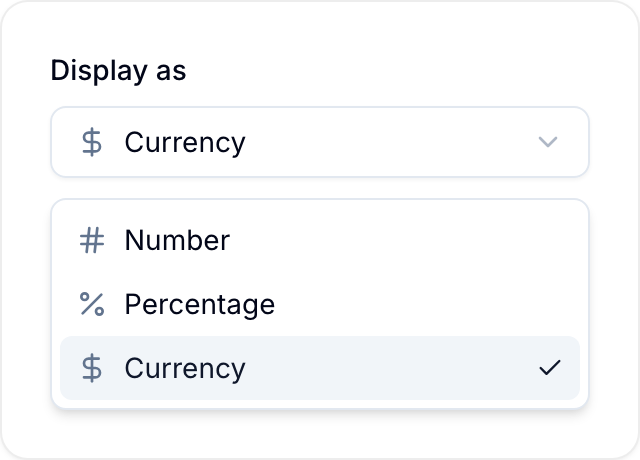
If a formula returns text, a date, a length of time, or a Yes/No, Blue shows the result directly. Display options apply only to numeric results.
Hover over the field on a record to view the formula logic.
Formula results update in real time when referenced values change. Exported data contains calculated results instead of the formulas.