AI Fields
Let AI fill a field from other record data, with typed output, deliberate triggers, and a one-click undo.
An AI field is a field that fills itself in. You write instructions once, and Blue’s AI generates each record’s value from the record’s other data. The value lands in the field’s normal typed storage, so filters, sorting, grouping, dashboards, automations, and the API all work on it exactly as they do for a value a person typed.
AI fields are a setting on a supported field type, not a separate field type. You turn on Fill with AI when you create a supported field. The AI field option in the Type picker opens a gallery of presets.
Supported field types
You can enable AI on these field types:
- Text (single line) and Text (multi-line)
- Select (single) and Select (multi)
- Checkbox
- Number, Currency, Percent, and Rating
- Date
- Email, Phone, and URL
- Country
- Assignee
Enable Fill with AI
- Open a record and select Manage fields. You can also right-click the database tab and select Manage fields.
- Select Add Field. If Blue shows a menu, select New Custom Field.
- Enter a Field name.
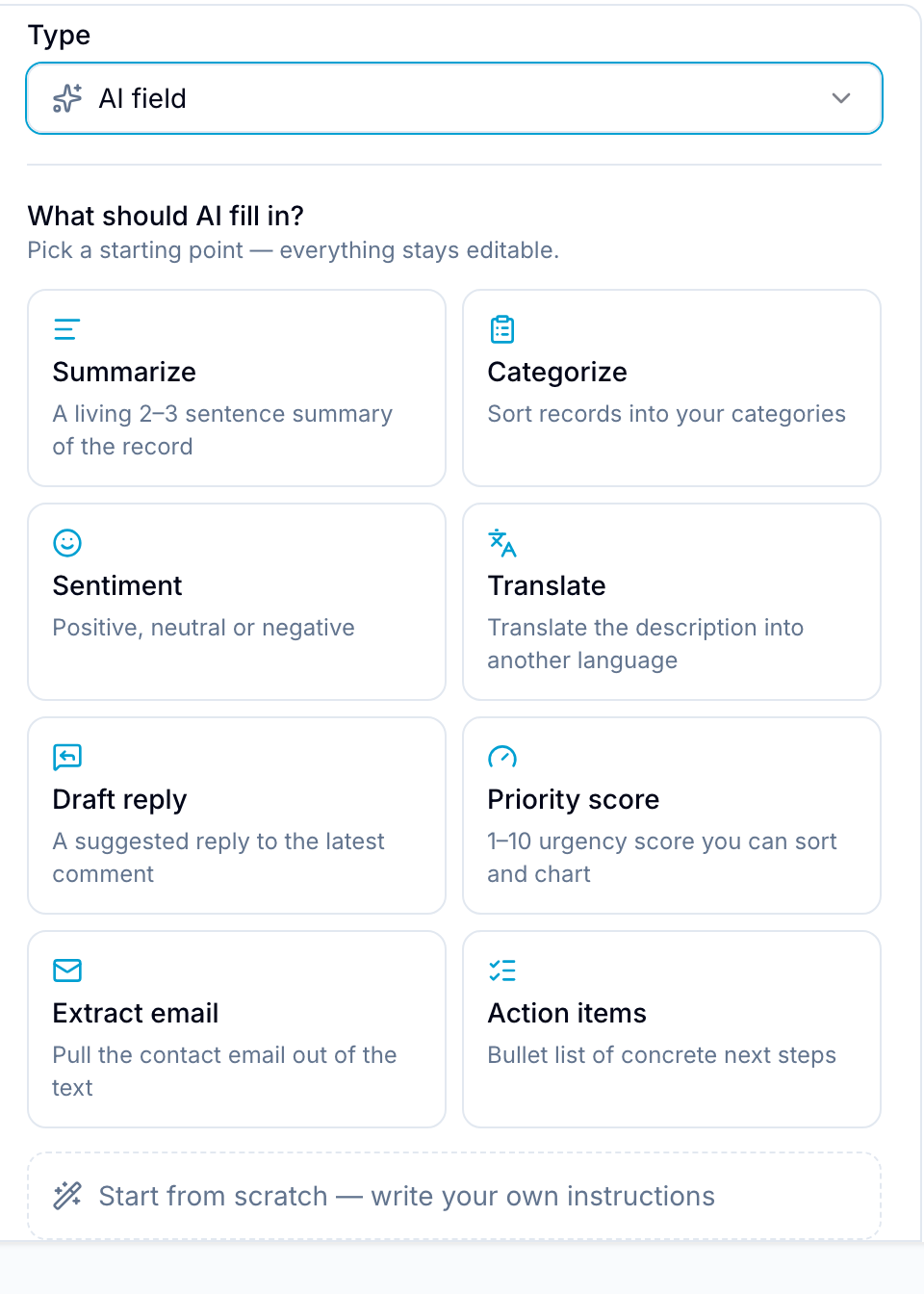
- Under Type, select AI field to start from a preset, or select a supported field type.
- For AI field, pick a starting point from the gallery, or select Start from scratch — write your own instructions.
- Make sure Fill with AI is on.
- Enter your instructions under Instructions.
- Select Create.
Presets
The preset gallery (What should AI fill in?) offers common starting points, including Summarize, Categorize, Sentiment, Translate, Draft reply, Priority score, Extract email, and Action items. A preset sets the field type, name, options, and instructions. You can change them before you select Create. Start from scratch creates a Text (multi-line) field.
Reference other fields
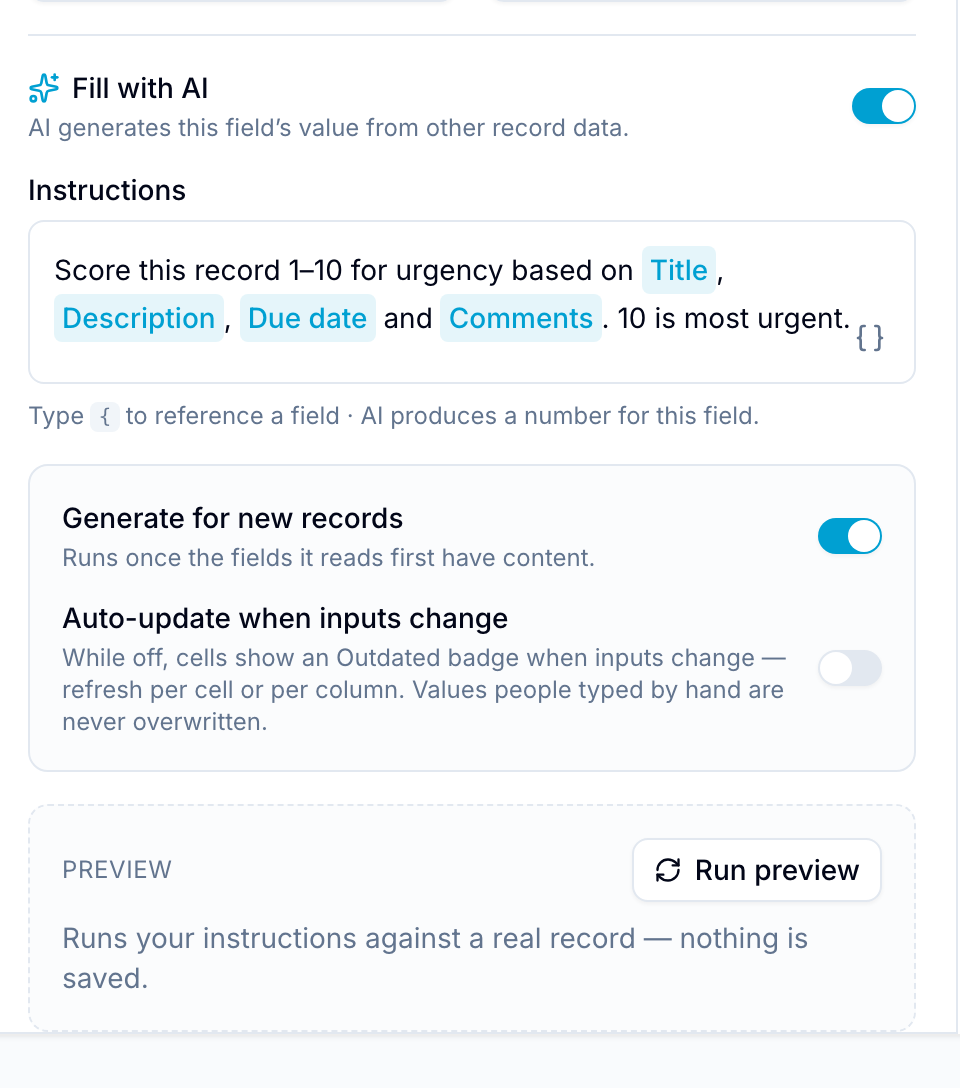
Type a curly bracket { in the instructions to reference another field on the same record. You can reference Title, Description, Comments, Tags, Assignees, and Due date, along with the other fields of the database. Title reads the record name. Comments reads the recent comments. Blue keeps a reference correct when you change the name of the referenced field.
Typed output
The AI writes a value that fits the field’s type. It cannot produce an out-of-range or invalid value.
- Selects are limited to the field’s existing options. The AI never invents a new option. For a Select (multi) field, set Maximum selections to cap how many options it can choose.
- Assignee is limited to the members the field allows.
- Number, Currency, Percent, and Rating are kept within range.
- Email, Phone, URL, Date, and Country values are validated. An invalid output is rejected, never written.
When the AI cannot determine a value for a record, Blue marks the value as failed rather than fill it with a guess.
Triggers
Choose when the field fills:
- Generate for new records: Fills the field on a new record once the fields it reads first have content.
- Auto-update when inputs change: Regenerates the value when a referenced field changes. While this is off, the value shows Outdated when its inputs change.
- Manual: On a record, select the sparkle icon, Outdated, or Retry next to the value to regenerate that single value.
A value that a person typed is protected. Automatic runs never overwrite it. Manual runs and automation runs are deliberate, so they may replace it.
Preview before you create the field
Select Run preview in the field editor to run your instructions against a real record. The preview shows the result without saving anything, so you can refine the instructions before you create the field.
Value states
On a record, an AI field shows its state next to the value:
- A spinner indicates the value is generating.
- A sparkle icon marks a value that AI wrote. Select it to regenerate the value.
- An Outdated chip means the inputs changed since the value was generated. Select it to refresh the value.
- A Retry chip means the value could not be generated. Hover over it to see the reason. Select it to try again.
- A value a person typed shows no AI marker.
Fill existing records
Fill the field for records that already exist in the database:
- Open Manage fields.
- Right-click the AI field and select Generate values with AI….
- Under Which cells, select Empty cells, Outdated cells, Failed cells, or All AI-written cells.
- Review the record count and the estimated cost on your AI key.
- Select Generate n values. Values appear live as they finish. If you select Run in background, the run continues after the dialog closes.
When the run finishes, Blue shows a message with an Undo button. Select Undo to restore the previous values. The message stays open for 15 seconds.