Lookup
Show data from records connected through a Reference custom field, and optionally edit it in place.
A Lookup custom field displays data from records in another workspace. A Reference custom field connects the records, and the Lookup field provides visibility into selected data.
A Lookup field connects to a specific Reference or Referenced By field. The Lookup field displays data from the connected records. A Lookup field is read-only unless a Project Administrator turns on Allow edits.
A Lookup field can display:
- Created at: When the referenced record was created.
- Updated at: The last date and time when the referenced record was updated in any way.
- Due Date: The referenced record’s start/due date and time.
- Description: The description field of the referenced record.
- List: Shows the list that the referenced record belongs to.
- Tag: Any tags that the referenced record is tagged with.
- Assignee: Any assignees on the referenced record.
- Referenced by: Any records that reference the referenced record.
- Any Custom Field: Any supported custom field from the referenced record. A Table field displays its rows as a read-only grid inside the record.
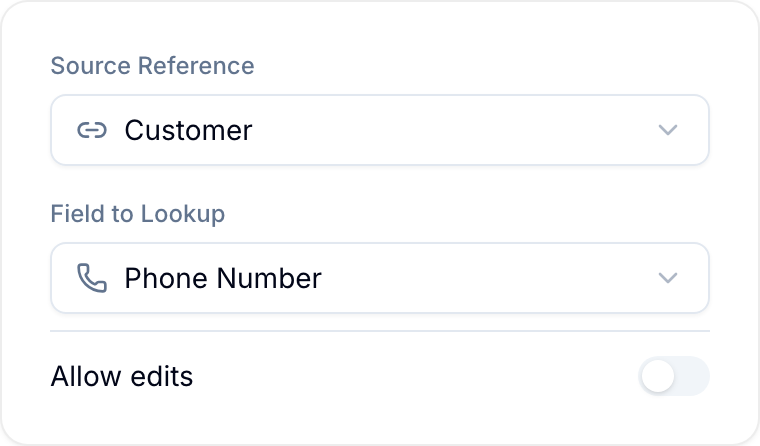
Allow edits
By default a Lookup field only shows data. Turn on Allow edits in the field’s configuration to let people change the value from this workspace. The edit writes through to the source record in the source workspace, so it changes that record for everyone.
You can allow edits through a Reference field or a Referenced By field. For Referenced By, you must select one source workspace in the field configuration. An unscoped Referenced By field can return records from different workspaces, so its Lookup fields stay read-only.
Each entry shows the source record’s title and the workspace it lives in, so it is clear what an edit changes. If the Lookup has more than three entries, they collapse until you expand them. An empty entry shows Set value.
Allow edits appears only for target data Blue can write back to:
- Due date, Assignee, Tag, List, and Description on the referenced record.
- These custom field types: Single Line Text, Multiple Line Text, Number, Percent, Star Rating, Email, Phone Number, URL / Link, Checkbox, Date, Country, Location / Map, Currency, Single Select, Multiple Select, Reference, Assignee, and File.
Created at and Updated at are system values. Referenced By, Formula, Rollup, and Table values also cannot be edit targets. The toggle is not offered for those target types. A Lookup of another Lookup can be edited when every lookup in the chain allows edits — see Edit through a chain of lookups.
An Assignee custom field shows the people assigned in that field on the source record. Editing it opens a member picker. A field configured for one person accepts one selection, and a field restricted to specific users or roles offers only those people.
Edit a File lookup
A Lookup of a File field with Allow edits on lets you add and remove files from the consuming workspace. In the record, each entry shows its files as a tile grid with an upload button, and you can drag files onto it. In a Reference field’s folder grid, the cell shows the file count and opens the same controls.
- Uploads go to the root of the File field on the source record. You cannot choose a folder.
- The files and the storage they use belong to the source workspace, and count against that workspace’s storage.
- The source File field’s upload limits apply. In single-file mode, a confirmed upload replaces the existing file.
- A new file appears in the Lookup as soon as Blue recalculates the field.
- Uploading and removing files through a Lookup needs a connection. It is not available offline.
Lookups of a URL field
A Lookup of a URL / Link field uses the same display as the source field. If the source field is set to show as a button, the Lookup shows that button, with the same label and colour, in the record, the table cell, the folder grid, and on board cards. Otherwise it shows a link. A calculated URL stays read-only, even when Allow edits is on. If a required source value is empty, its link is disabled.
Edit through a chain of lookups
A Lookup can read another Lookup field on the referenced record. Blue writes back through that chain, so you can change the original value from two or more workspaces away.
Turn on Allow edits on every Lookup in the chain, from the one you edit to the one that reads the original field. The field at the end of the chain must be a type Blue can write back to. If one lookup in the chain is read-only, the whole chain stays read-only.
In the record, select Edit source records to load the originals. Each entry shows the original record’s title and the workspace it lives in, with the editor for that value beside it. Select Refresh to read the current values again. No editable source records means the chain resolves to nothing you can edit.
A chain of 10 or more lookups is refused when you configure it, as is one that reads back into itself. Blue follows at most 200 records through a chain.
Blue checks your rights at every step. You must be able to see the records and the fields along the chain, and you must be able to make the same edit on the original record in its own workspace. Every workspace in the chain must belong to your organization and be active.
Who can edit
Editing is controlled by the source workspace, not by the workspace holding the Lookup field. To edit an entry you must:
- Be a member of the source workspace, with an access level that is not View Only or Comment Only.
- Have a role that permits editing records, and permits that specific field.
- For the List value, be an Owner, Admin, or Member of the source workspace.
The source workspace must also be active — you cannot edit through a Lookup into an archived or deleted workspace. Blue shows the entry as read-only when you do not have these rights.
Export tables as CSV
A Lookup of a Table field shows a separate table for each source record.
- Select Export CSV below a table to download that table.
- If the Lookup shows more than one table, select Export all CSV in the Lookup header to download one combined file.
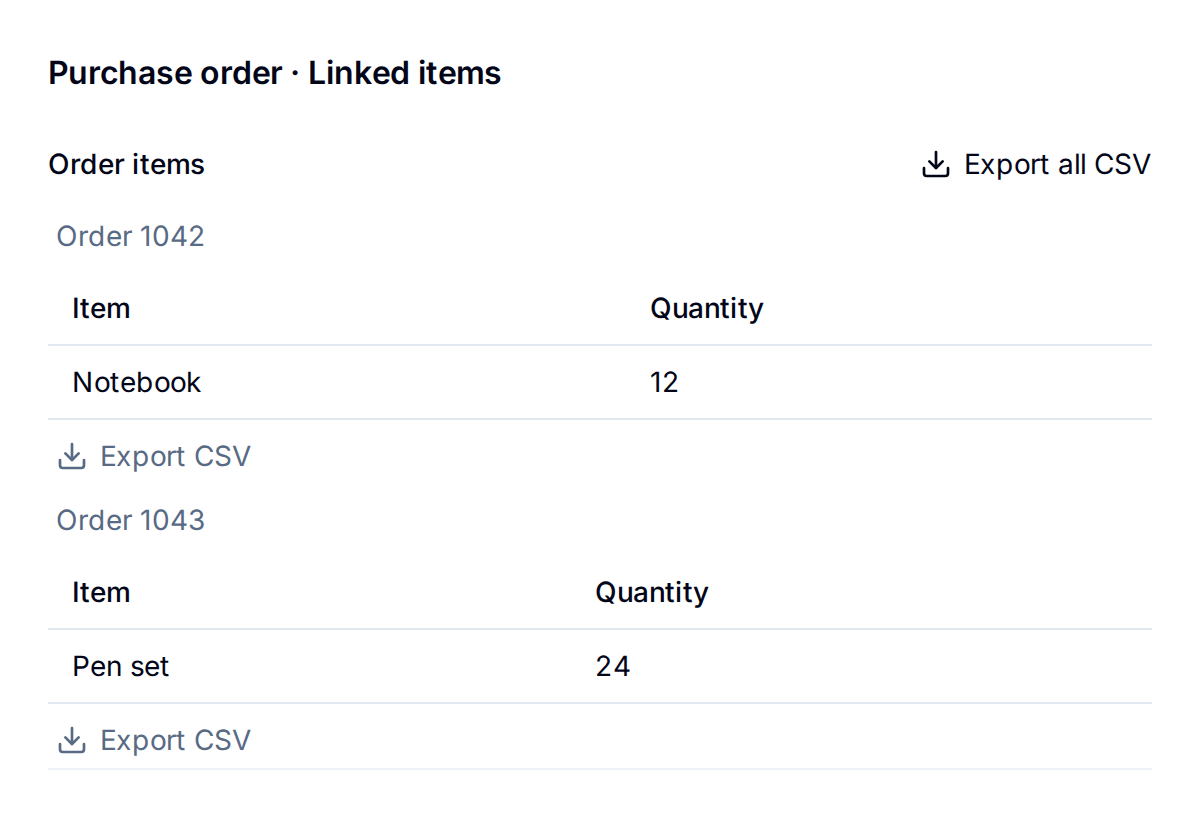
The combined CSV includes a Source record column to identify the record for each row. Blue aligns matching column names and leaves cells empty where a source has no matching column.
Exports include the full saved tables, including rows beyond the on-screen preview. Blue includes only data you can access.
You can also use these tables in a Formula field.
Download every file in a File lookup
A Lookup of a File field can show files from many referenced records. Select Download all in the Lookup’s header to save the whole set as one ZIP file.
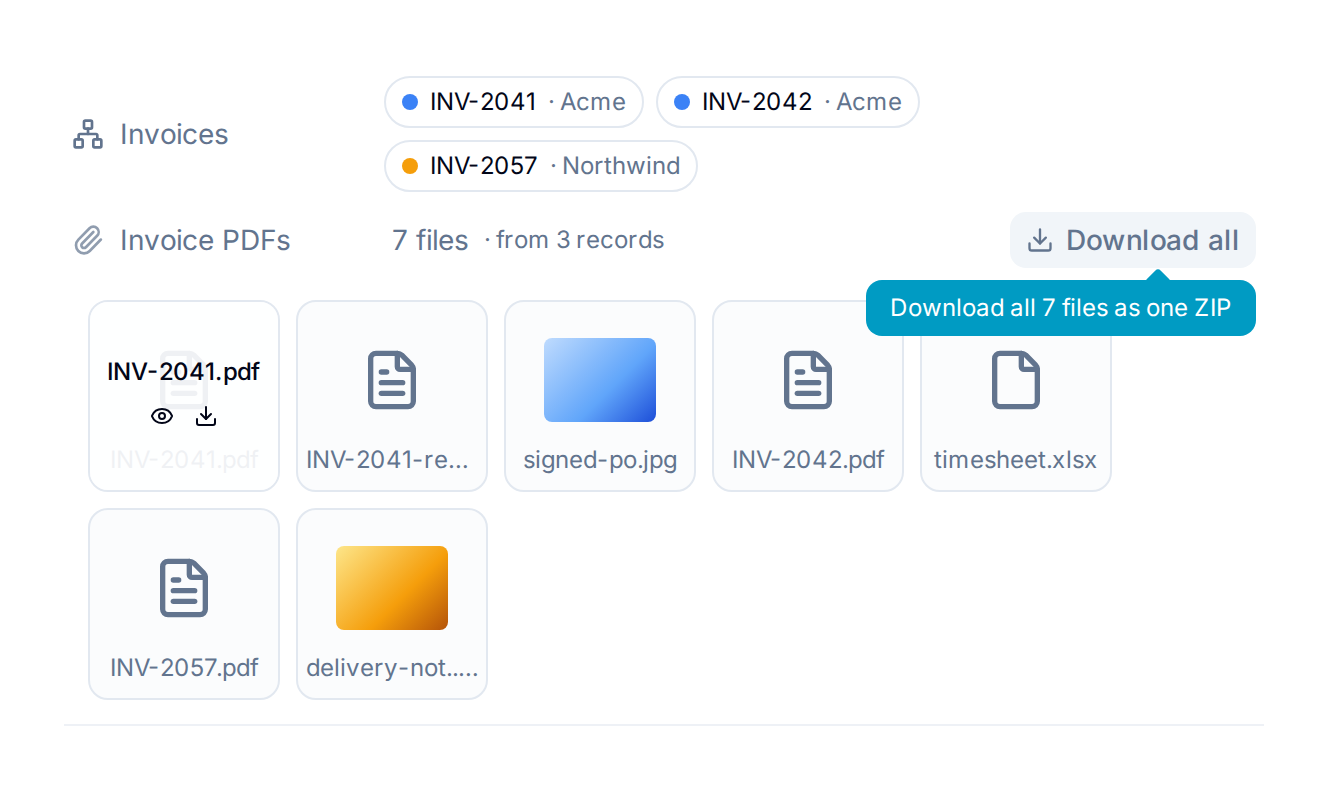
The archive contains one folder for each source record, named after that record, with that record’s files inside. You get only the files you are allowed to see.
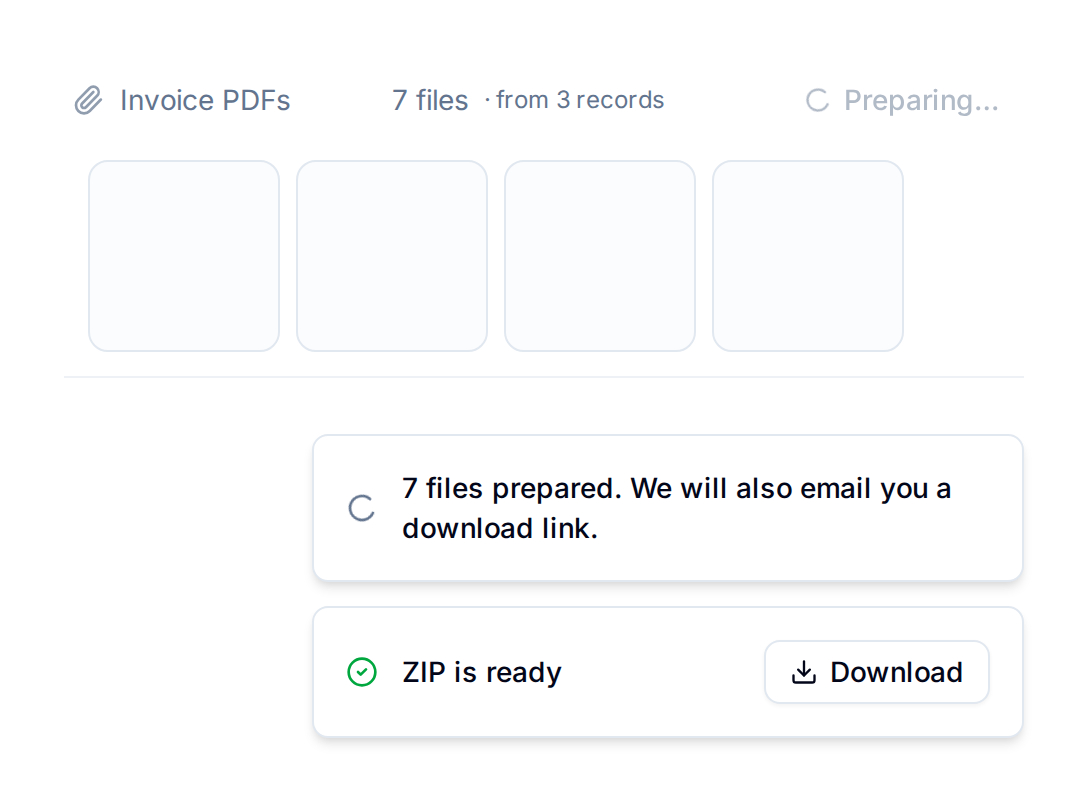
Up to 512 MB and 2,000 files, the download starts in your browser. Above either limit, Blue prepares the archive in the background and emails you a link when it is ready. The link stays valid for seven days.
Use a Reference across three workspaces
A Lookup can follow a Reference field in the immediately connected workspace to show records from a third workspace.
For example:
- In Workspace A, create a Reference field to Workspace B and select the relevant records from Workspace B.
- In Workspace C, create a Reference field to Workspace A and select the relevant records from Workspace A.
- In Workspace C, create a Lookup field. Choose the Reference field from Workspace C to Workspace A as the Source Reference, then choose the Reference field from Workspace A to Workspace B as the Field to Lookup.
The Lookup field in Workspace C displays the Workspace B records selected through the Reference field in Workspace A.
Chained lookup behavior
- The source Reference or Referenced By field must be in the same workspace as the Lookup field.
- Workspace C needs a connection to Workspace A, but it does not need a direct connection to Workspace B.
- The chain displays the records selected by the Reference field in Workspace A. It does not display other fields from those Workspace B records.
- Changes to the selected records appear automatically in the Lookup field.