Button
Create a button that triggers an automation, with optional confirmation before it runs.
A Button custom field triggers an automation when a user selects it. For example, a button can send an email or copy a record.

Watch this video for an overview of Button custom fields:
Create a Button custom field
Create a Button field in the same way as another custom field in your workspace. Enter a name, then choose a confirmation type.
Confirmations
A confirmation helps prevent an accidental button selection. Blue displays a confirmation window before it triggers the automation.
Choose one of these confirmation types:
- No confirmation: Blue triggers the automation immediately.
- Soft Confirmation: Blue shows a confirmation window. The user must confirm the action.
- Hard Confirmation: Blue shows a confirmation window. The user must enter a specific phrase and then confirm the action.
Use Hard Confirmation for consequential actions, such as sending a confirmation email to a customer.
Link a button to an automation
Select a specific Button field as the trigger for any automation that Blue supports.
Trigger a button on many records
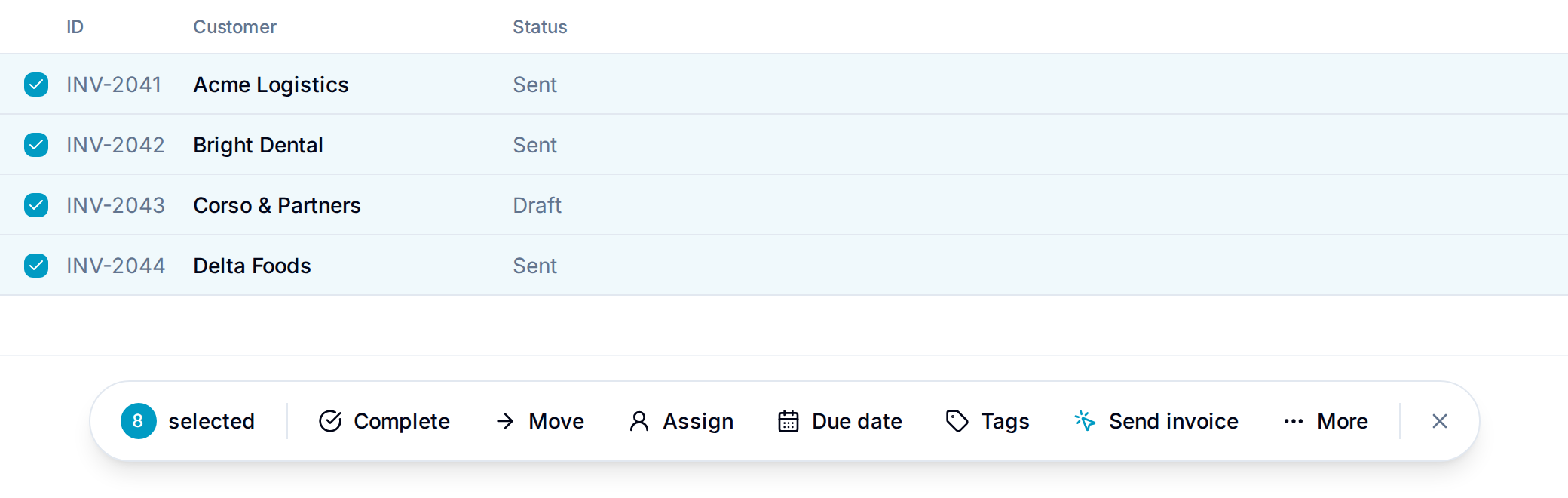
Turn on Show in bulk actions in the field’s configuration to use a button on a selection of records. Select the records you want, and the button appears on the selection bar at the bottom of the screen.
One button gets its own entry on the bar.
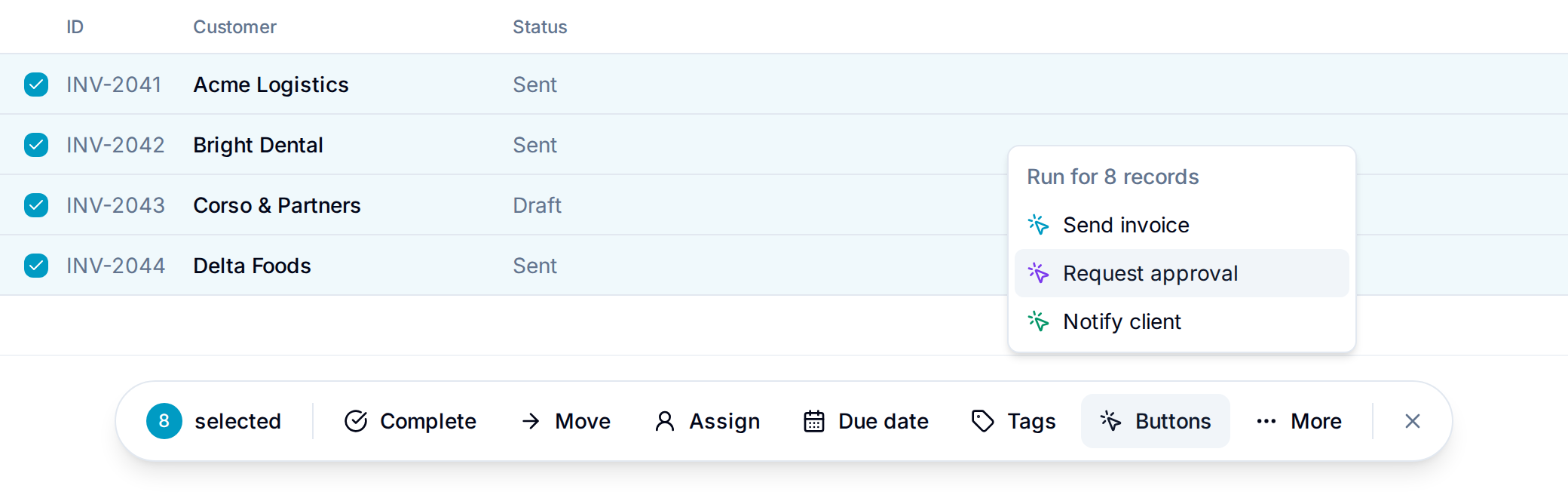
Two or more collapse into a Buttons menu that lists them all.
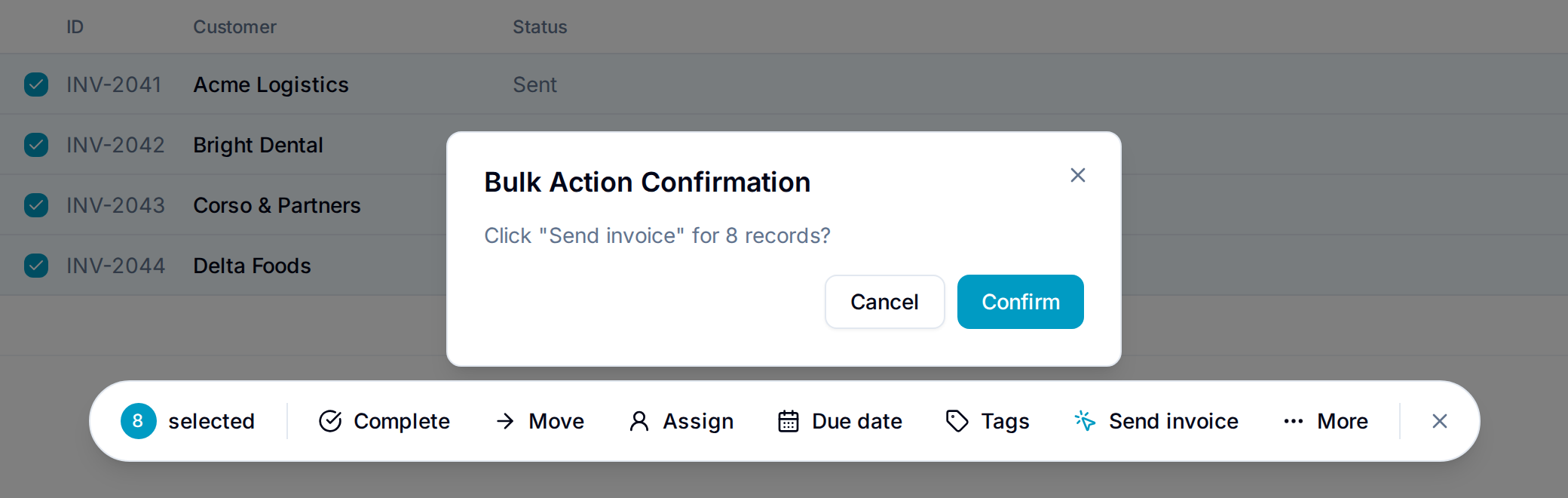
Blue always asks you to confirm a bulk trigger. The confirmation names the button and the number of records, whichever confirmation type the field uses.
- A button is disabled when no active automation applies to the lists of the records you selected.
- You cannot trigger a button on more than 1,000 records at once. Select fewer records.
- Buttons stay available under More > Edit fields as well.
Pin a button to the bar
When the Buttons menu is open, select the pin next to a button to keep that button on the bar itself, instead of inside the menu.
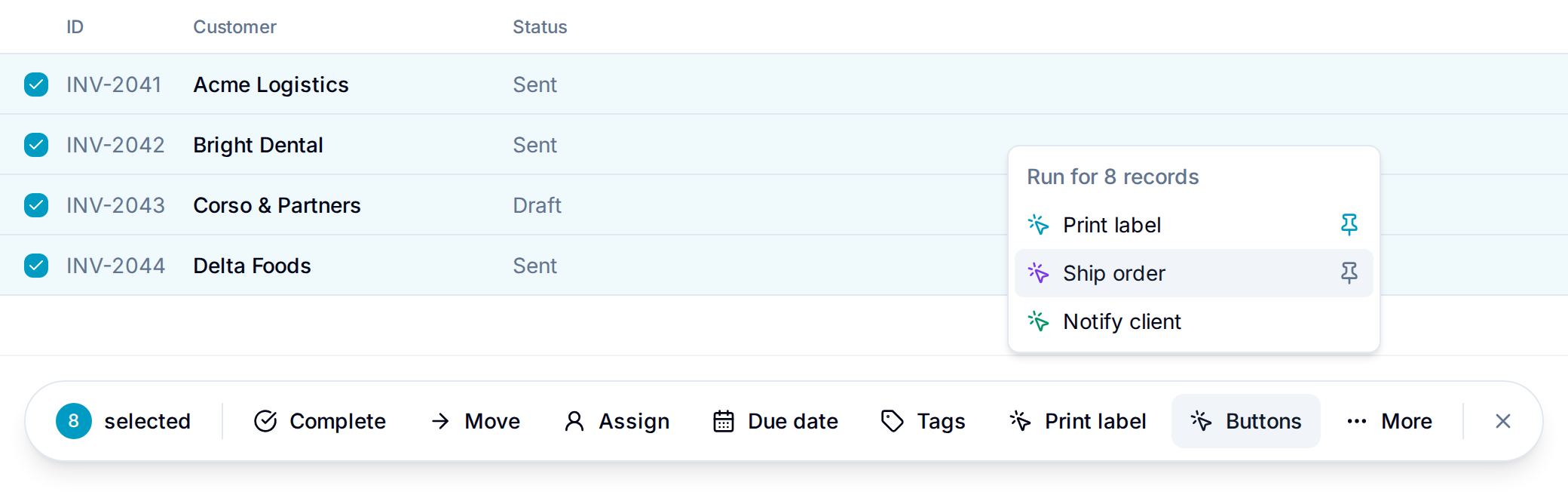
- The pin is yours alone. It does not change the bar for anybody else.
- You can pin one button per workspace. Pinning another one replaces it.
- Select the pin again to remove it.
Buttons and list scope
A button trigger can be scoped to specific lists. Blue then shows the button as disabled on records in every other list, with the tooltip “This button doesn’t trigger any automation.”
- A trigger with no list scope keeps the button active in every list.
- A button that drives more than one automation stays active while at least one of those automations applies to the record’s current list.