Referenced By
Show the records that point to the current record through a Reference field.
The Referenced By field shows records that point to the current record through a Reference field. It provides the reverse side of a relationship between records.
A Reference field answers, “Which records does this record point to?” A Referenced By field answers, “Which records point to this record?”
Common Uses
- Show deals, support records, or invoices linked to a customer.
- Show child records linked to a parent record.
- Check incoming links before you delete a record.
- Use the field as the source for a Lookup.
Configure The Field
A workspace Owner or Project Administrator configures which incoming links Blue shows:
- Add a field and select Referenced By.
- Under Source database, select the database that holds the linking records. Leave it empty (Any database) to include incoming links from every database in your organization.
- If you selected a source database, under Reference field, select one of its Reference fields. Select Any Reference field to include all Reference fields of that database. Reference fields that target the current database appear first.
- If you selected a source database, under Filter source records, add conditions to limit the results. Leave the filter empty to include every matching record.
- Select Create.
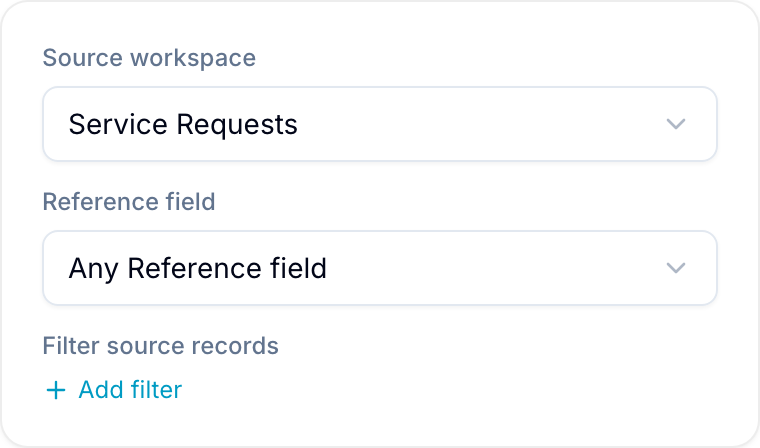
Blue fills the field automatically. When a matching Reference value changes, Blue updates the Referenced By field.
A Referenced By field shows up to 200 matching records. Blue leaves out additional matches.
Field Behavior
- The field is read-only. Change the source Reference value to add or remove an entry.
- Select a listed record to open it.

- Blue removes an entry when its source Reference stops pointing to the current record.
- Filter: Use Is any of, Is none of, Is empty, or Is not empty.
- Sort: Blue sorts by the number of records that point to each record.
Group Records By Reference Count
In the Board, Table, and Timeline views, select Group by, then select the Referenced By field. Blue groups records by how many records point to them, such as No references, 1 reference, and 3 references.
- Blue creates one group for each count that has records, starting with the fewest references.
- Records at the 200-record limit appear under 200+ references.
- The count includes only records you have access to.
- You cannot add a record to a group or drag a record between groups. Change the source Reference value instead, and Blue moves the record to its new group.
- Public views do not support this grouping.
Use The Field In A Lookup
A Lookup field can read values from records in a Referenced By field. This lets the Lookup follow the relationship in either direction.
For example, add a Referenced By field to the Customers database and select Service Requests as the source database. A Lookup can then show due dates, statuses, tags, or assignees from the Referenced By result. You do not need another Reference field on the customer record.
To show a field value through a Lookup, the Referenced By field must have a source database. With Any database, a Lookup can show only Created at, Updated at, and Referencing records.