Table
Add a typed grid of line items, scorecards, or checklist rows to one record.
A Table field stores a structured grid inside one record. Define up to 10 typed columns, then add up to 100 rows to each record.
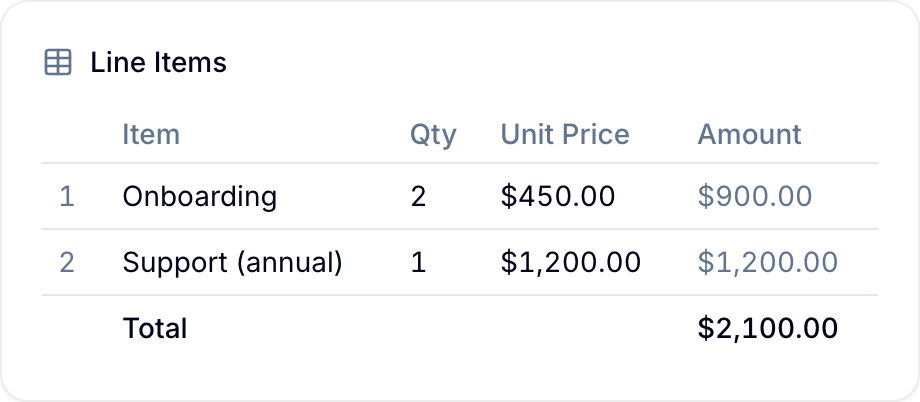
Use it for invoice items, interview rounds, work-order parts, or another small set of items that belongs to one record. Each column type controls the input that Blue shows.
Define Columns
When you create the field, select Add column under Columns. Add up to 10 columns. Give each column a name and type, then drag the columns into the required order.
Blue matches saved cell values to a stable internal column ID. Renaming or reordering a column does not rewrite existing row data.
Column Types
Each column is one of the following types:
| Type | What it holds |
|---|---|
| Text | Free text, up to 2,000 characters per cell. |
| Number | A numeric value. |
| Date | A calendar date, chosen from a date picker. |
| Checkbox | A checked or unchecked value. |
| Select (single) | One choice from a list of options you define. |
| Select (multi) | Any number of choices from your list of options. |
| Currency | A money amount in a currency you allow. |
| Formula | A value calculated from the other columns in the same row (read-only). |
Formulas
A Formula column calculates its value from other columns in the same row. Reference a column by name in the expression, or select it under Insert column:. For example, multiply Quantity by Unit price to calculate Amount.
- The result can be a Number or Currency value.
- Formula cells are read-only and recalculate automatically as the other cells in the row change.
- A formula can use another Formula column, such as a subtotal in a total calculation. The chain can be only one level deep: the referenced Formula column cannot itself use a Formula column.
Column Totals
For a Number, Currency, or Formula column, turn on Show column total (sum) in footer. Blue adds the values in that column. For Currency columns, Blue shows a separate total for each currency.
Use totals for values such as an invoice amount or budget total.
Export a table as CSV
Select Export CSV below the table to download its columns and rows. The export contains the saved values, including calculated Formula cells.
For tables shown through a Lookup, you can export each table separately or download one combined CSV. See Export tables from a Lookup.
Use table values in a Formula field
A Formula field can calculate sums, averages, minimums, maximums, row counts, and non-empty cell counts from a Table. It can also read tables through a Lookup.
Row Numbers
A number column at the left numbers each row. The record’s activity log uses labels such as Row 1 and Row 2 so you can identify the changed row.
Unique Columns
You can turn on Require unique values (no duplicates across rows) for a Text, Number, Date, Currency, or Select (single) column. Each row in that record must then have a different value in the column.
Examples
- Invoice or quote: Add Item, Quantity, Unit price, and a Formula Amount column. Show the Amount total in the footer.
- Interview scorecard: Add one row per round with the interviewer, a rating option, an advance checkbox, and a date.
- Packing list: Add each item with its quantity and a checkbox for its packed state.
- Budget breakdown: Add one row per cost and show the total for the record.
- Measurements: Store a structured set of readings on one record.
Choose A Table Or Linked Records
Use a Table for a small, self-contained set of rows that belongs to one record. Table rows stay within their parent record.
If you need to filter, group, or report on the rows across many records, store them as records in a separate database. Connect that database with Reference, Lookup, and Rollup fields.
Limits
- Up to 10 columns per field.
- Up to 100 rows per record.
- Up to 2,000 characters per text cell.
- Up to 1,000 characters in each Formula column expression.