Introduction
Create database automations that run actions after events, on schedules, or when record conditions change.
Automations run actions when a defined event, schedule, or record condition occurs. Each automation belongs to one database and runs on the records of that database.
Open Automations
You can open the automation list of a database from three locations:
- Open Settings, switch to Databases, select the database, then select Automations.
- Select Automations (the robot icon) in the toolbar of the database.
- Right-click the tab of the database and select Manage automations. This option is for users who can manage workspace tabs.
All three locations show the same automation list for that database. The field pickers in the editor show the fields of that database.
Use the When and Then Model
The automation editor has two sections:
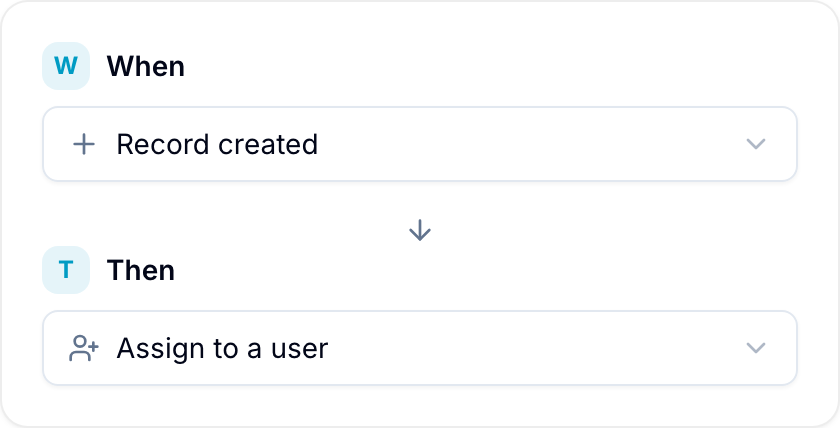
- When defines the event, schedule, or condition that starts the automation.
- Then defines one or more actions that Blue runs.
For an event automation, this model is:
When something happens, Then run these actions.
See the complete trigger reference and action reference.
Automation Types
Event Automations
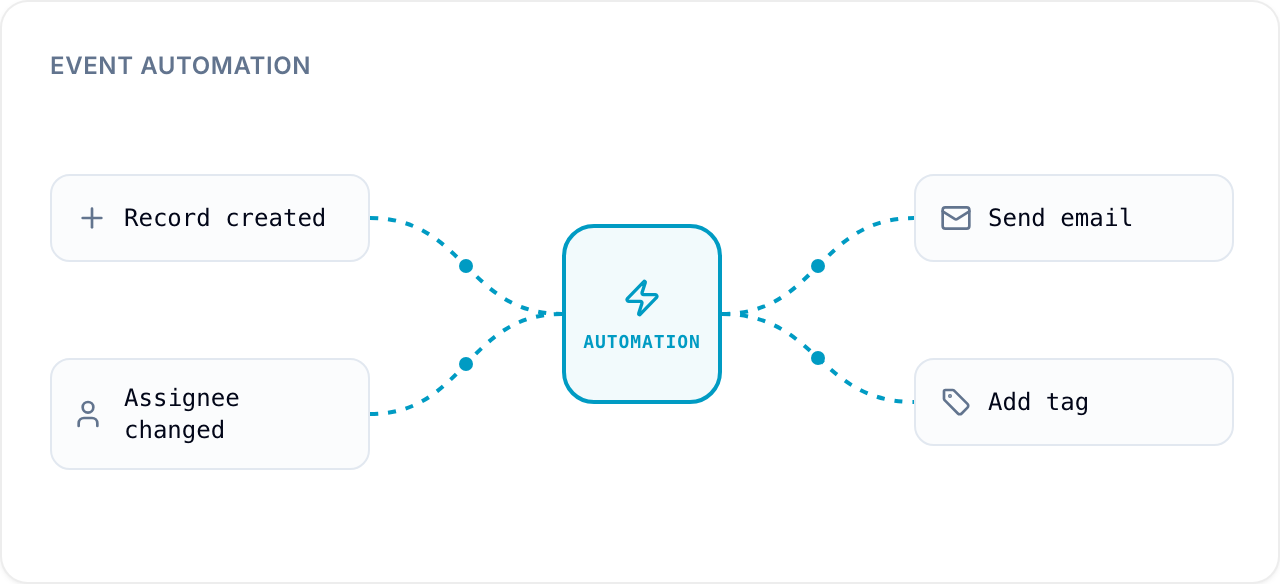
An event automation runs after a specific change. Examples include creating a record, completing a record, or setting a field value.
Scheduled Automations
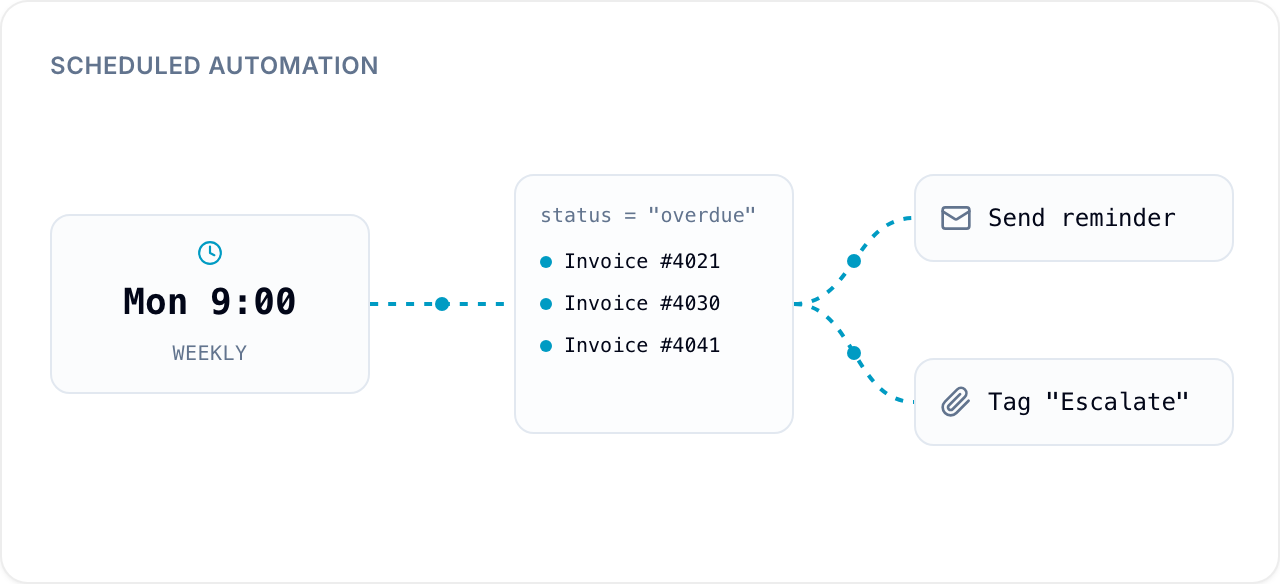
Scheduled automations run daily, weekly, monthly, or yearly. At each scheduled time, Blue applies the actions to records that match the saved filter.
Scheduled automations require Pro or Enterprise. See the complete scheduled automations guide.
Conditional Automations
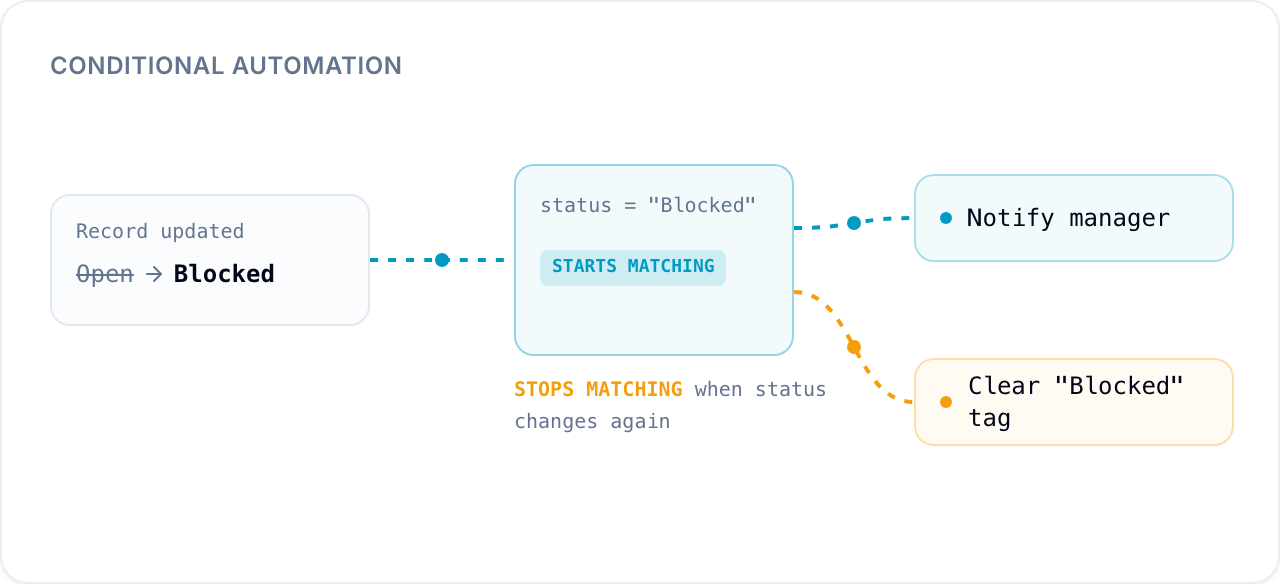
Conditional automations run when a record starts or stops matching a saved set of conditions. They respond to the record’s combined state instead of one event.
Conditional automations require Pro or Enterprise.
Let One Automation Start Another
An automation action changes a record. That change can start a second automation, which can start a third. This is called chaining.
For example, an automation that completes a record can start a second automation that watches for completed records and adds a tag.
Automation chaining requires Pro or Enterprise.
Without Pro or Enterprise, each automation still runs all of its own actions. The changes those actions make do not start any other automation.
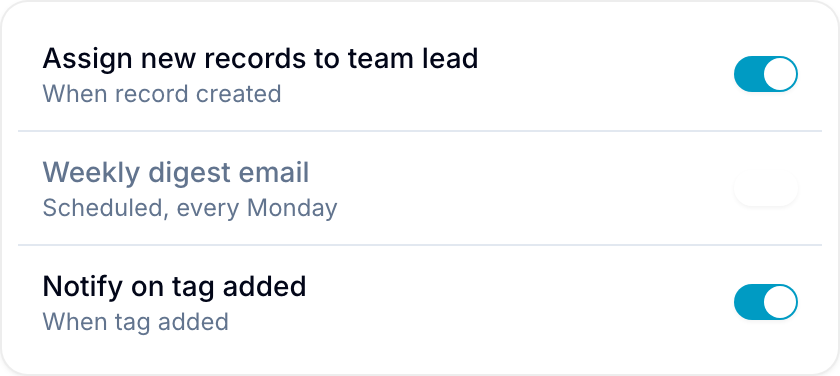
Use the automation toggle to pause or resume an automation.
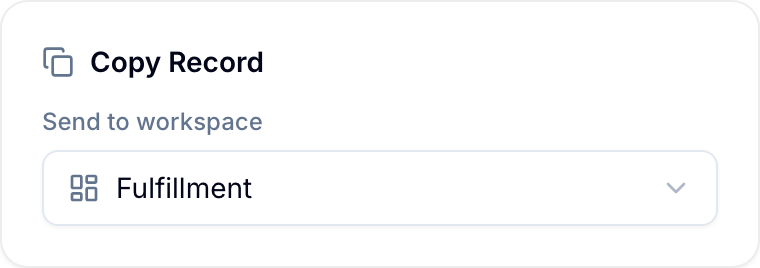
Most actions change the record in the database of the automation. Copy record and Add to workspace can copy or add a record to another database, also in another workspace.
Name and Group Automations
An automation can have a name. The name is the card headline; the generated trigger → actions summary stays beneath it. Without a name, the card shows the summary alone.
Groups organize automations into sections. Groups are flat — one level, no folders inside folders. Groups belong to the workspace. The automation list of a database shows the groups that contain automations of that database.
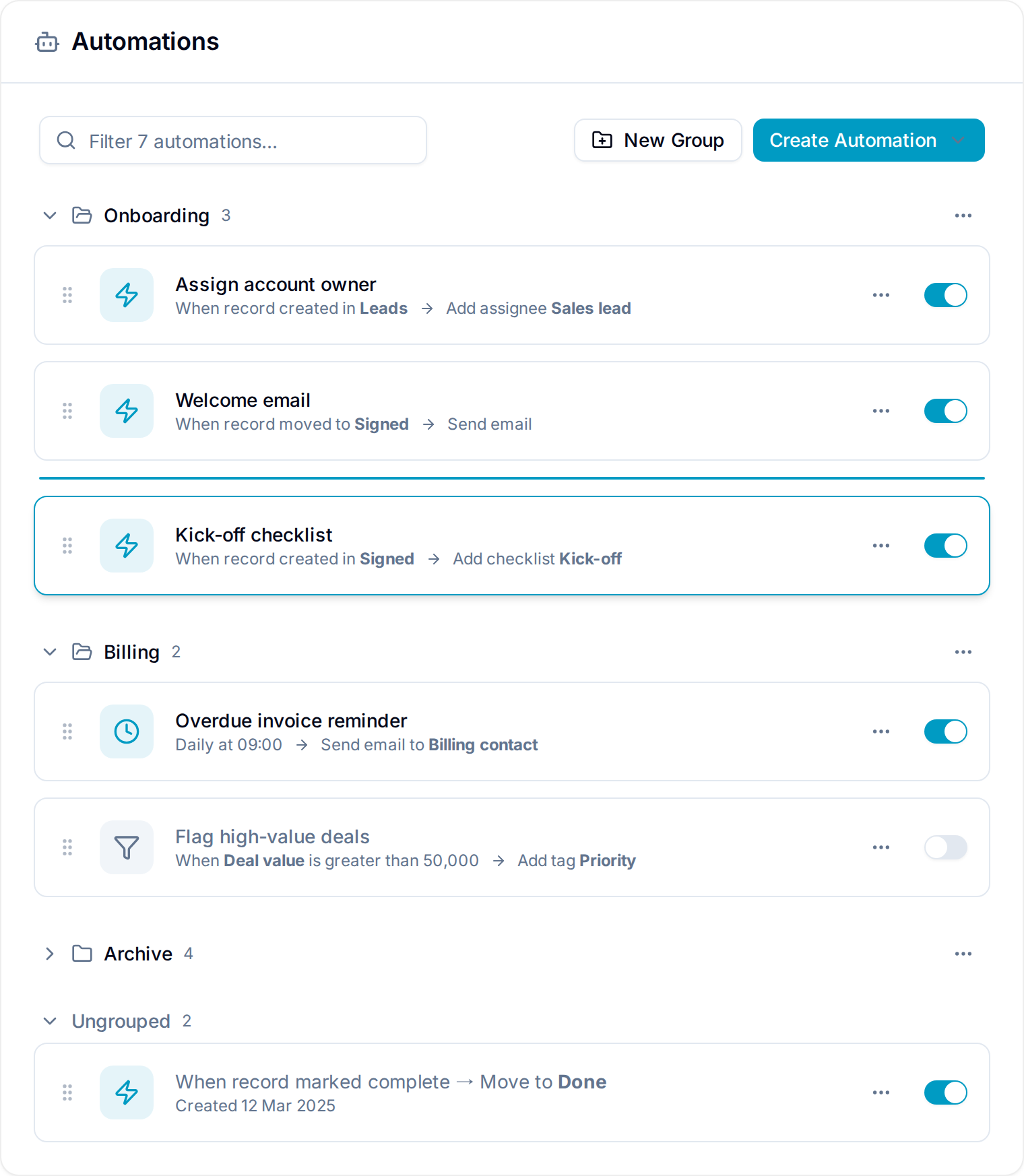
- Open Automations and select New Group.
- Enter a group name and press Enter.
- Drag automations into the group, or select Move to group from an automation’s menu.
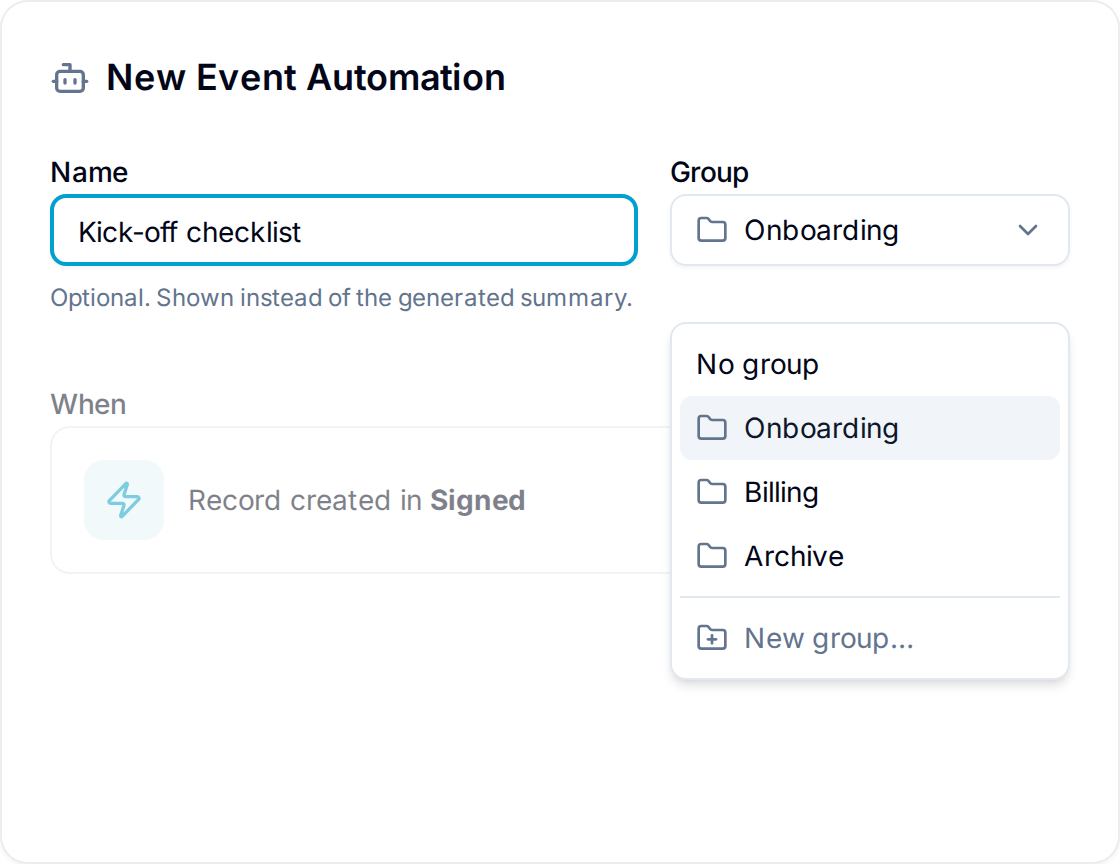
Set the name and group at the top of the automation form. Select New group… in the picker to create a group without leaving the form.
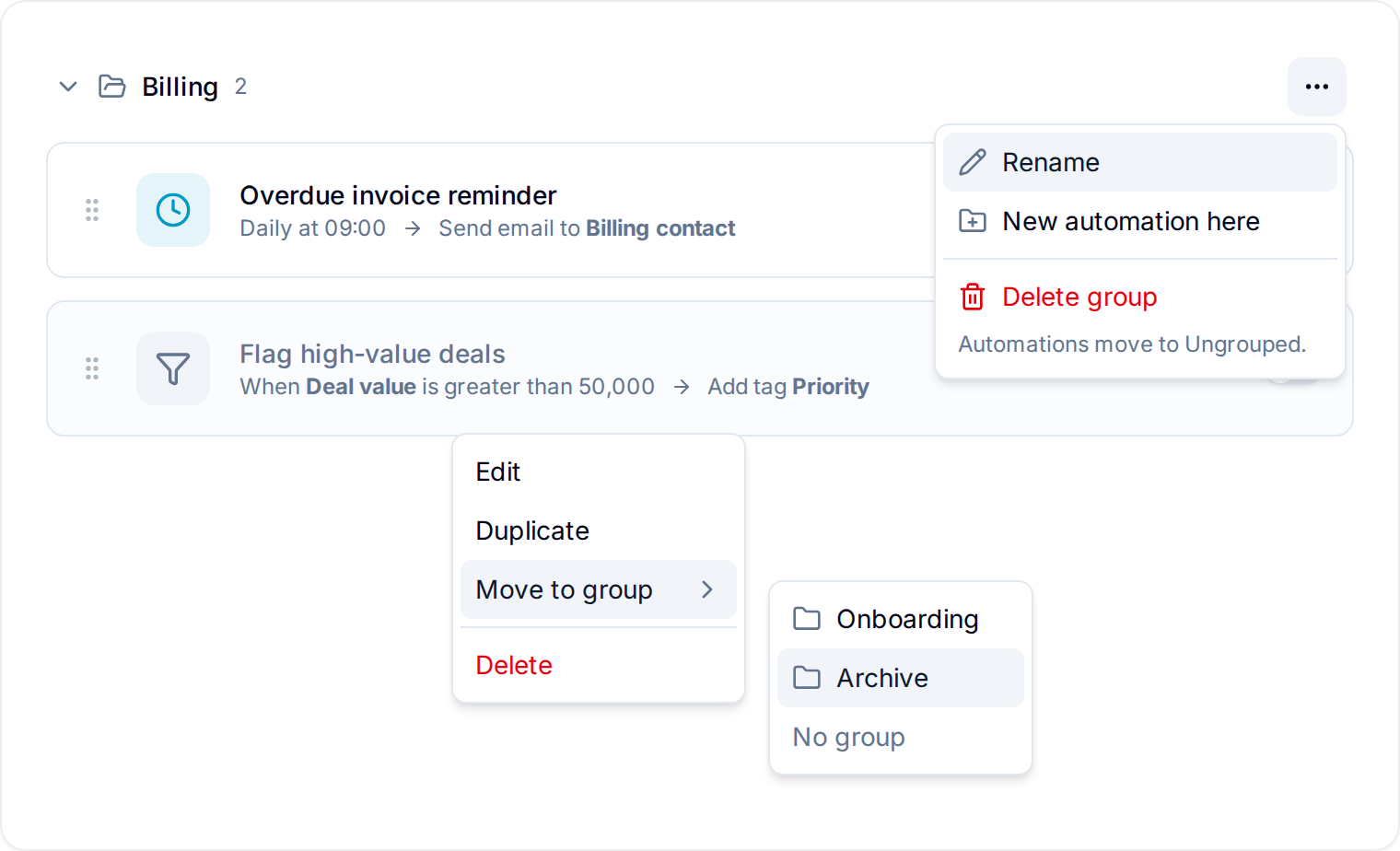
- Drag a group header to reorder groups. Drag an automation to reorder it inside its group or move it to another group.
- Collapse a group to hide its automations. Blue remembers which groups you collapsed.
- Delete a group from its menu. The automations inside are not deleted — they move to Ungrouped.
- Names and groups do not change when or how an automation runs.
- Duplicating an automation keeps its group. Copying a workspace copies its groups.
Workspace owners and administrators can create, rename, reorder, and delete groups.
Permissions
Workspace owners and administrators can create, edit, pause, duplicate, and delete automations. Other workspace members can view active automations.
Each workspace can hold a maximum of 500 automations, counted across all of its databases. This maximum is the same on every plan. To add a new automation to a full workspace, first delete an automation you do not need.
Loop Protection
Two automations can form a loop. For example, the first automation completes a record, and the second automation reopens every completed record. Together they run again and again.
Blue prevents this in three places:
- When you save. Blue checks the automation against every other active automation in the workspace. If the result is a loop, Blue does not save it. The message names each automation in the loop, in order. Select an automation in that list to open it and change it.
- When you copy a workspace. A copied workspace can contain a loop that did not exist before. Blue switches off the copied automations that form the loop and tells you how many it switched off. Your records are not changed. Review those automations, correct them, and switch them back on.
- While automations run. A chain stops after 10 steps, and the same automation cannot run twice on the same record in one chain.