Conditional Automations
Run actions when a record starts or stops matching a saved set of conditions.
Conditional automations run when a record starts or stops matching saved conditions. They are a separate automation type and do not use an event trigger.
Conditional automations require Pro or Enterprise.
Create a Conditional Automation
- Open the Automations list of the database. Read Open Automations.
- Select Create Automation > Conditional Automation.
- Under Trigger, select Matches conditions or Stops matching.
- In Conditions, select a field, operator, and comparison value.
- Add more rules or groups as needed. Use the filter controls to choose AND or OR logic.
- Add one or more actions in Then.
- Select Create Automation. Blue starts tracking whether the records of the database match the conditions.
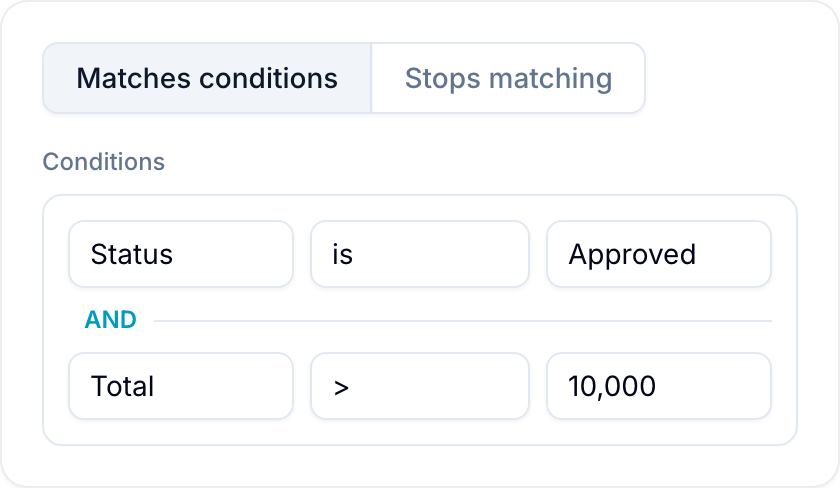
Available Conditions
You can create conditions for most fields, for example Text, Number, Currency, Percent, Date, Select, Checkbox, Assignee, Reference, Lookup, Formula, and Rollup fields.
Each field provides applicable filter operators, such as Is equal to, Is empty, Greater than, Contains, Is any of, and date ranges.
Example
Transition: Record starts matching Conditions:
- Stage is “Approved”
- Total > 10,000
Actions: Send an email to the finance team and assign a reviewer.
The automation runs when a record changes from not matching both conditions to matching both. It does not run again while the record remains in that state.
Conditions On Related Records
Use Add related records condition to check records linked to the current record. Actions run on the current record.
You need administrator access to the related workspace. The relationship must use Reference or Referenced by and have a source workspace.
- Select Add related records condition.
- In Linked through, select the relationship field.
- Under When should this automation run?, select Any, All, or First.
- Select fields, operators, and values from the related workspace.
- Add current-record conditions if the action must run only in a specific state.
- Select AND or OR to combine current and related conditions. Add more related blocks if needed.
- Add the action and save the automation.
| Mode | When the related condition matches |
|---|---|
| Any | At least one linked record matches. |
| All | At least one record is linked, and every linked record matches. |
| First | At least one linked record matches. The automation runs only once for each current record. |
You need administrator access to the related workspace to save these conditions.
An empty relationship matches none of these modes. Archived linked records count. Deleted records do not count. Blue checks the complete linked set.
Advance A Stage Only Once
In an Orders workspace, choose Line items under Linked through. Select First, then List > Is any of > Cutting. Add Move to list > Cutting as the action. Create another First automation for Sewing.
When item A enters Cutting, the order moves to Cutting. When A enters Sewing, the order moves to Sewing. If item B then enters Cutting, the Cutting automation does not run again. The order stays in Sewing.
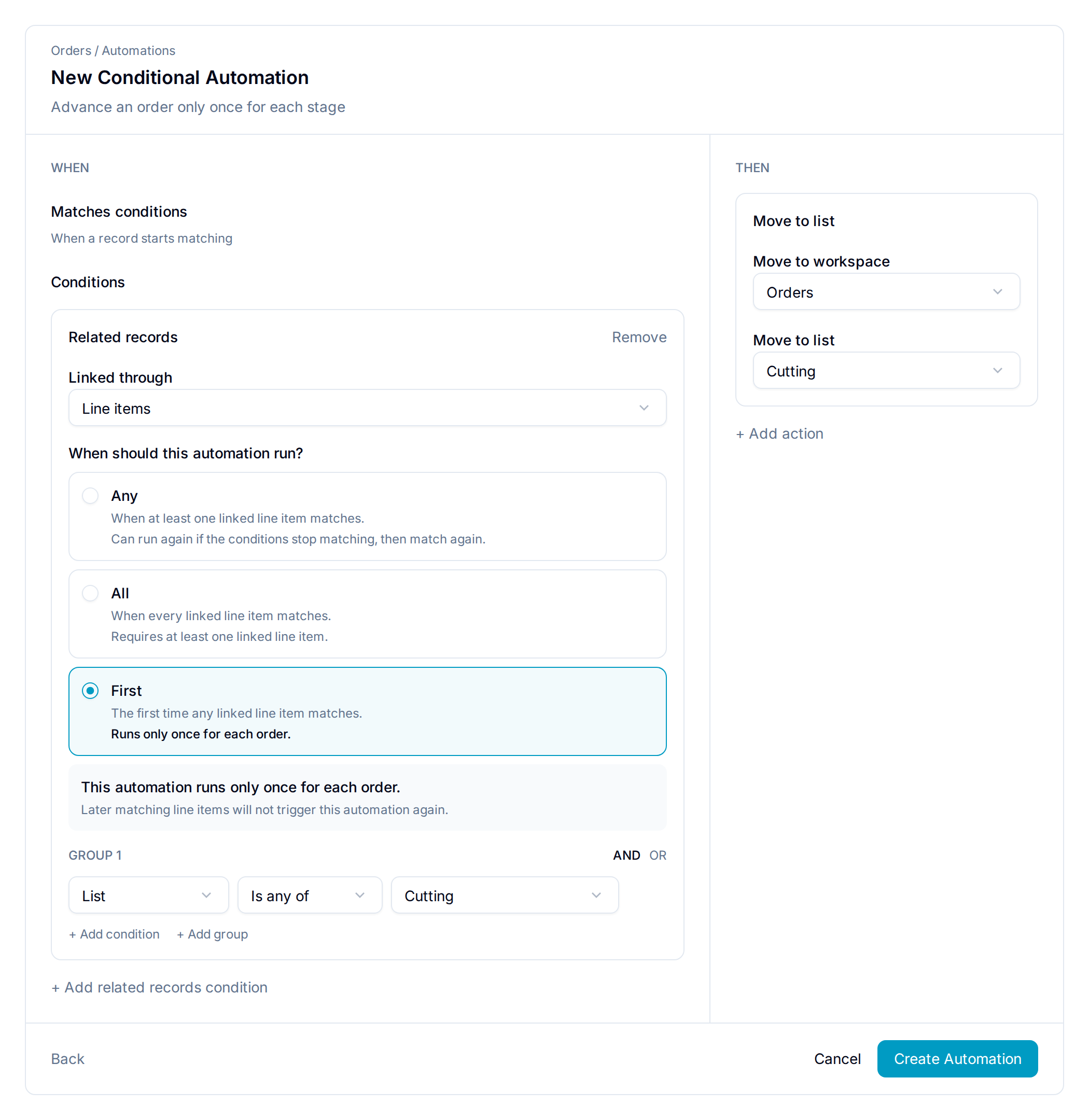
First uses Matches conditions. A First block makes the whole automation run once for each current record, even when combined with other blocks. Each automation has its own history. Editing, disabling, or re-enabling it does not clear completed runs. A new automation has new history.
First does not compare stage order. If an earlier stage has never run for an order, its First automation can still run later. A failed action attempt can retry; Blue records First as complete after the actions succeed or are queued for delivery.
Use Any when the automation should run again after the record stops matching and later starts matching again.
Ship When The Last Item Is Ready
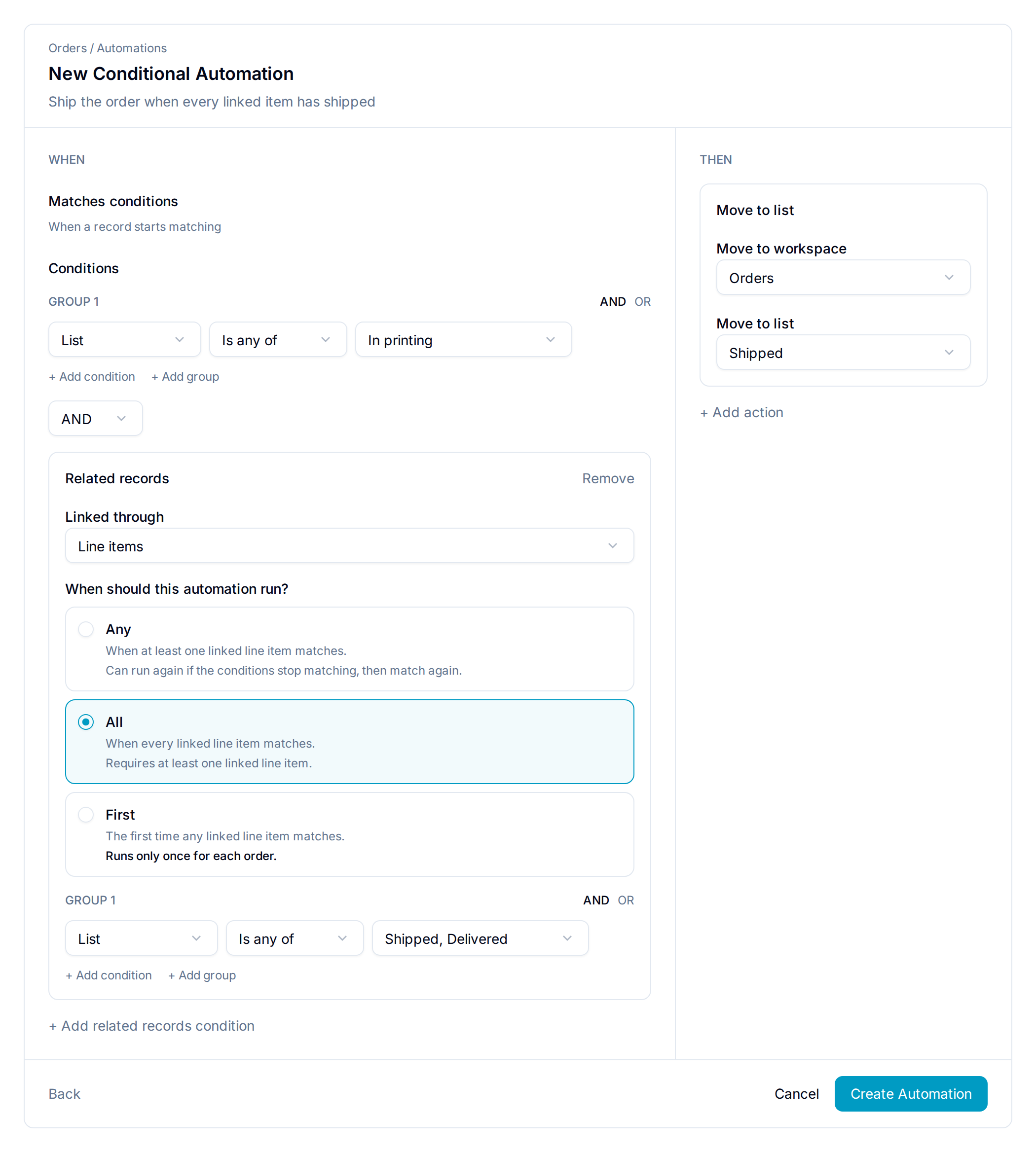
Select All, then List > Is any of > Shipped, Delivered. Add Move to list > Shipped as the action.
One unfinished item prevents the order from shipping. The final item reaching either selected list makes the order match.
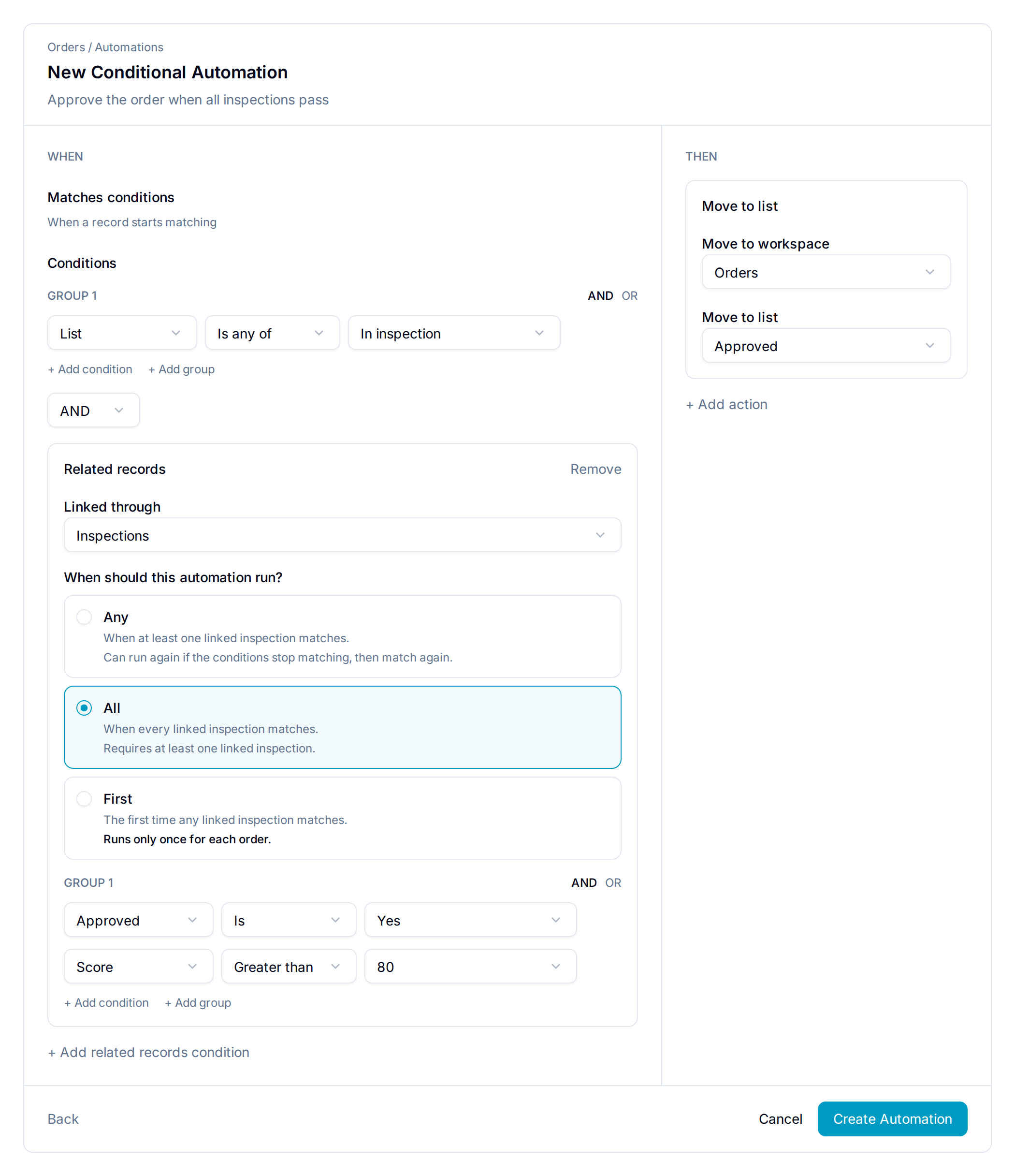
Use Other Fields
Related conditions support the same field filters as current-record conditions. For example, require every inspection to have Approved = Yes and Score > 80.
You can add up to eight related blocks. Each block checks one relationship; nested relationships are not supported.
Changes to linked records normally cause a check after the change is saved. Date conditions and relationship-definition changes are also checked each minute. Computed conditions use the saved computed value after recalculation.
If a relationship or field becomes unavailable, Blue cannot evaluate the rule. Restore the field or edit the automation. Blue does not treat the failure as a successful match.
Behavior
- Matches conditions runs only when a record enters the matching state.
- Stops matching runs only when a record leaves the matching state.
- Blue records the current matching state when you create or edit the automation. Existing matching records do not run merely because you created it.
- If a required field is absent or empty, the record must satisfy the selected operator before the automation runs.