Email Automations
Send automated emails with static recipients, record recipients, and record variables.
The Send email action sends an email after an automation starts. Recipients and content can use data from the affected record.
Create an Email Automation
Test the email template before you activate the automation. Test emails go to your Blue account email and keep variables as placeholders.
Select a Trigger
- Open the Automations list of the database. Read Open Automations.
- Select Create Automation and choose an automation type.
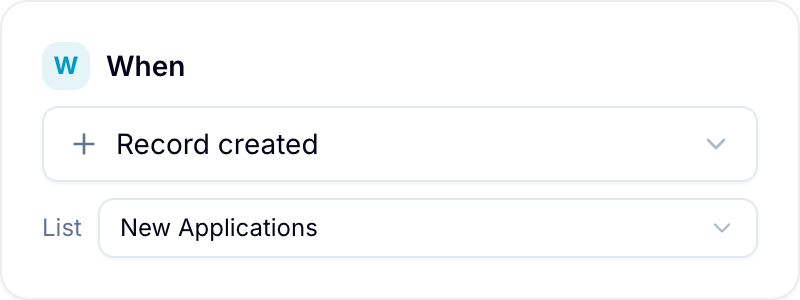
- Configure When. For example, select Record created, Field value is set, or Field value changed.
Add the Email Action
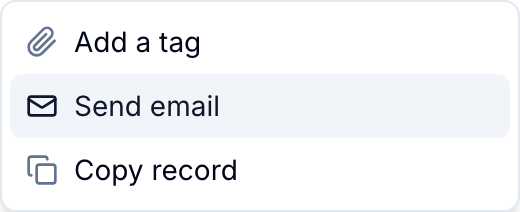
- In Then, select Add action.
- Select Send email.
- Select Configure Email.
Configure the Sender and Recipients
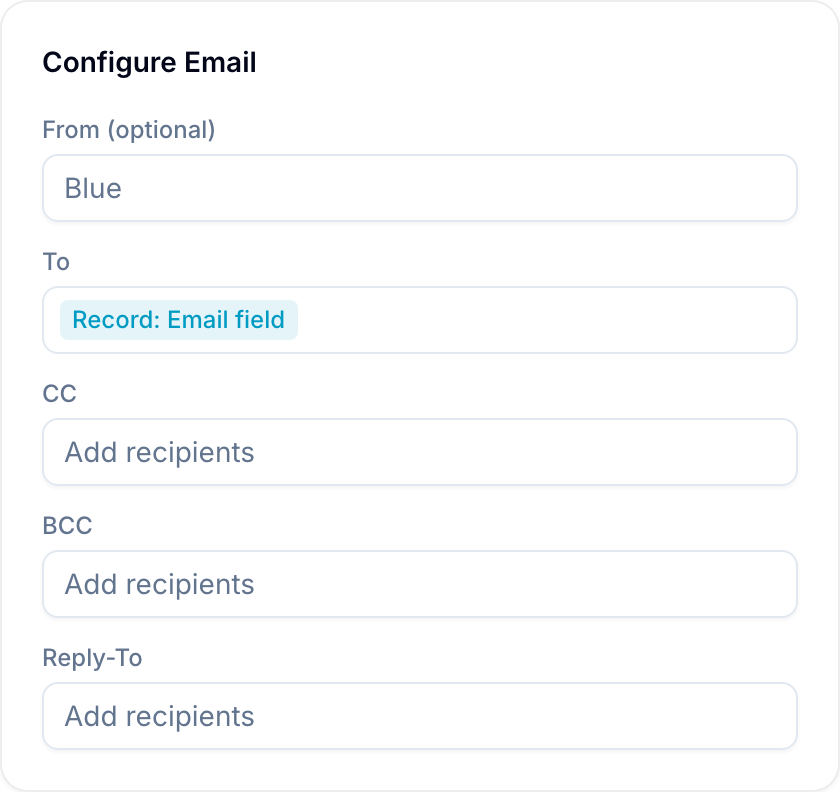
- Enter an optional From name. Blue uses
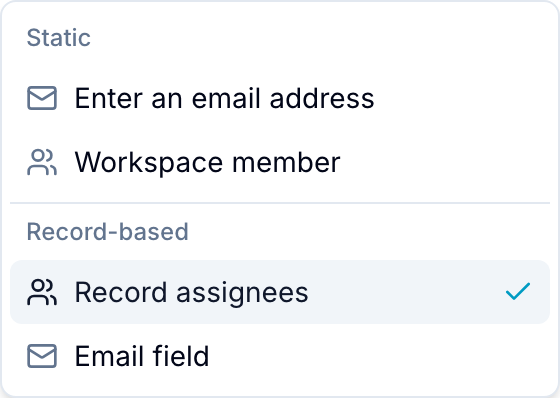
Bluewhen this field is empty. - Add at least one recipient under To. Use a static address, a workspace member, Assignees (the people in the Assignee field of the record), or a supported field such as an Email field. Email, Text (single line), Select (single), and Select (multi) fields are supported.
- To use an address from a linked record, select a Lookup field that returns one of these field types. A lookup that points to another lookup is also supported.
- Add CC, BCC, or Reply-To recipients if needed.
Write the Template
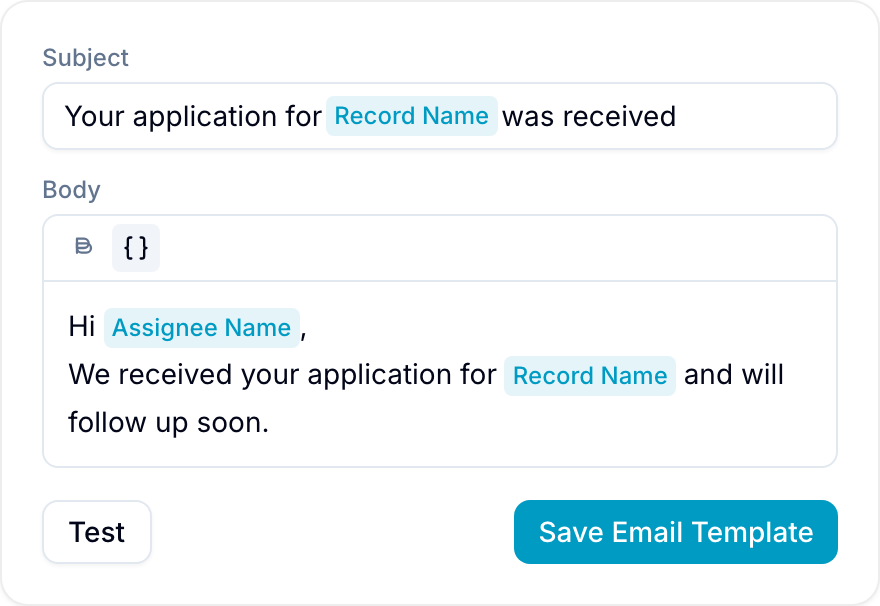
- Enter a Subject and email body.
- Enter
{or select the braces button to insert record and field variables. - To include files from a File field, insert its default variable. Blue embeds image thumbnails and attaches non-image files.
- To include only existing public links, select <field> (Shared links). This variable does not turn on sharing for other files.
- To make a link point at a variable, select the link button, then select the braces button in the link popover and choose a variable. Blue uses the variable’s value as the link destination when it sends the email, so the link text can stay whatever you wrote.
- Select Test to send the template to your Blue account email. Variables remain as placeholders in the test.
- Select Save Email Template.
- Select Create Automation or Save Changes.
Send Multiple Emails
Add Send email more than once to one automation. Configure separate recipients, subjects, and bodies for each action.
For example, when a record becomes approved, one automation can send:
- A confirmation to the customer.
- A handoff message to the operations team.
- A receipt to the finance team.
Each Send email action can use different variables and content.
Use HTML Email Templates
On Pro and Enterprise, select HTML to author the email body as HTML. This mode supports tables, inline styles, images, and responsive styles.
Use {{TOKEN}} for variables. For example, use {{TODO_NAME}} in text or href="{{TODO_URL}}" in a link. Add a fallback with {{TOKEN|fallback}}.
Blue sanitizes HTML before sending. It removes scripts, event handlers, forms, iframes, objects, embeds, and JavaScript URLs. It keeps supported email layout and style elements.
Bulk Email Behavior
When an automation processes multiple records, Blue resolves variables for each record. Each matching record produces its own email.
Examples
Confirm a Form Submission
When: A form creates a record. Then: Send an email.
Add an email field to the form. Use that field as the email recipient.
Notify an Assignee About Priority
When: The Priority field is set to High. Then: Send an email.
Set the record’s assignees as recipients.
Send a Survey After Resolution
When: The List field changes to Done. Then: Send an email.
Use the customer’s email field as the recipient. Insert issue fields into the template as variables.
Confirm an Application
When: A form creates an application record. Then: Send an email.
Include the applicant’s email in the form. Use that field as the recipient for the confirmation.