Scheduled Automations
Run actions on a recurring schedule against records that match a filter.
Scheduled automations run at set times instead of after an event. They are a separate automation type and do not use an event trigger.
At each scheduled time, Blue finds every record of the database that matches the automation’s filter and runs the actions on each one.
Scheduled automations require Pro or Enterprise.
Create a Scheduled Automation
- Open the Automations list of the database. Read Open Automations.
- Select Create Automation > Scheduled Automation.
- Choose a frequency: Daily, Weekly, Monthly, Yearly, or Cron.
- Set the options for that frequency (see below).
- Set the time of day and time zone.
- In Filter records, choose which records the actions run on. Leave it empty to include all records of the database.
- Add one or more actions in Then.
- Select Create Automation.
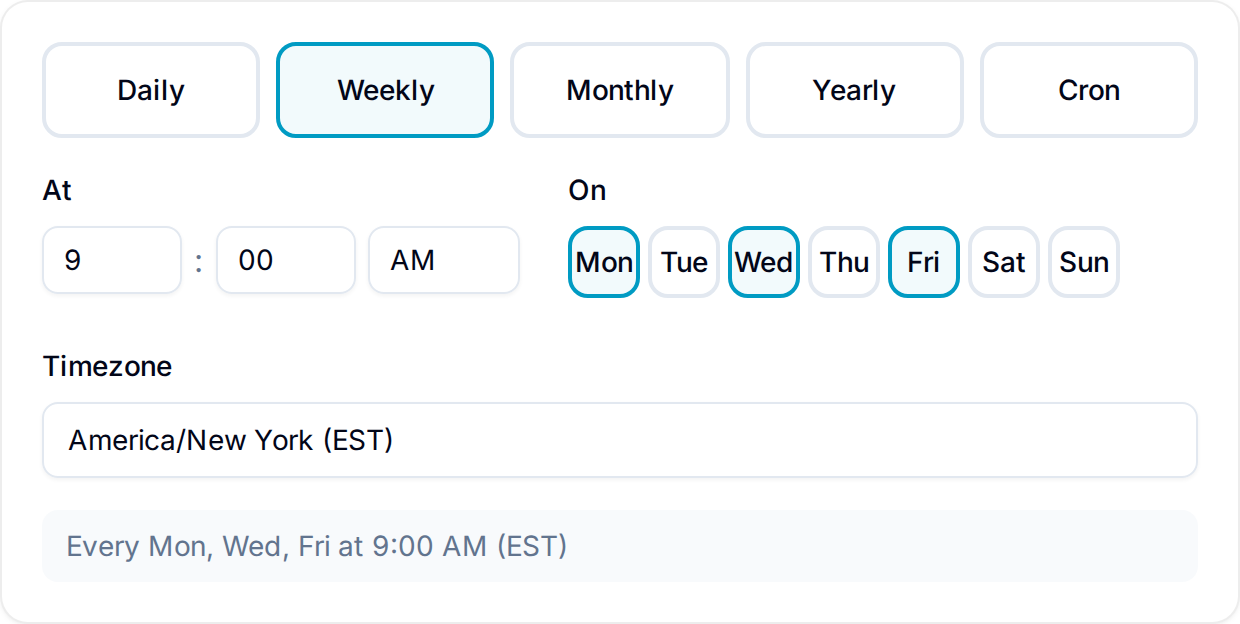
Frequency Options
- Daily: Runs every day at the configured time.
- Weekly: Runs on one or more selected days of the week, at the configured time. At least one day must stay selected.
- Monthly: Runs on one selected day of the month, at the configured time.
- Yearly: Runs on one selected month and day, at the configured time.
- Cron: Runs on a schedule you enter as a raw cron expression. Use this for schedules the other options cannot express, such as every few hours.
The time zone applies to this automation only. It defaults to your browser’s local time zone. Open Timezone to select a different one. The Cron option does not use the time-of-day picker. Enter the timing in Expression.
Filter records
The filter works the same as other record filters: pick a field, an operator, and a value, and combine rules with AND/OR. A scheduled automation supports one filter group.
Filter by record age
A scheduled automation can filter on Created date. Event-triggered automations cannot.
The condition takes an age: a number and a unit of hours, days, weeks, months, quarters, or years. It matches every record created at least that long ago. For example, “more than 7 days” matches every record created 7 or more days before the schedule fires.
Blue evaluates the age at each run, so the set of matching records changes as records get older.
Schedule: Daily at 8:00 AM Filter: Created date more than 30 days AND Completed is unchecked Actions: Set the Tags field to Stale.
Example
Schedule: Weekly, every Monday at 9:00 AM, America/New_York Filter: Due date is before today AND Completed is unchecked Actions: Set the Tags field to Overdue and send an email to the assignee.
Each Monday morning, Blue tags every record that is still open past its due date and emails its assignee.
Behavior
- A scheduled automation evaluates the filter fresh at each run. A record that did not match last time can match this time, and the other way around.
- If no records match when the schedule fires, Blue runs no actions and waits for the next scheduled time.
- Pausing an automation stops it from running at its next scheduled time. See Introduction for the pause/resume toggle.