Exporting Reports
Export records from a report's saved data sources and receive one CSV file per database by email.
A report export creates one standard record CSV for each database in the report’s source workspaces. Blue generates the files in the background and emails a download link for each file.
Export a Report
- Open the report menu.
- Select Export.
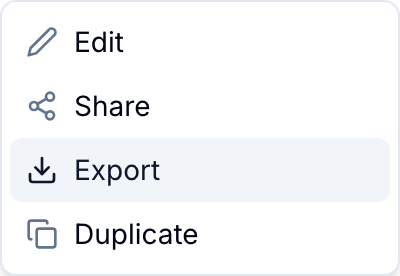
- Wait for the completion email.
- Open a download link in the email. The email lists one link for each database.
Export Scope
The export applies each data source’s saved filters to the workspaces of that data source. It contains the records that you can see in the report.
The export does not use:
- The report’s selected or ordered columns.
- Temporary filters applied from the report toolbar.
- The report table’s current sort order.
CSV Contents
Each CSV contains one row per matching record in that database. It uses the same columns as a database CSV export. Blue leaves out fields that your role cannot view.
Aggregation summaries are not included. Calculate additional summaries in the destination spreadsheet if needed.
Export Dashboard Charts
Charts on a dashboard can also create a CSV export:
- Open the chart menu.
- Select Export.
- Wait for the email with the generated file.
Chart exports contain the records included by the chart configuration and filters. This action is available for bar graphs, pie charts, stat cards, and other supported dashboard charts.
Export Cooldown
Blue applies a one-minute browser cooldown after you start an export for a report. If the warning shows, wait for the displayed time and try again.
Permissions
Report owners, editors, and viewers can export a report from its page. The report must belong to the member’s organization.