CSV Export
Export the records and field values of one database to a CSV file for storage or analysis outside Blue.
CSV export creates a CSV file with the records of one database. Blue emails you a link to download the file.
Export all records
- Select the workspace name, then select Workspace settings.
- At the top of the settings menu, select Databases.
- In the Database dropdown, select the database that you want to export.
- Select Import & Export.
- In Export CSV (Everything), select Export Everything. Blue starts the export on its servers.
- Open the export email after processing finishes.
- Select the download link in the email.
The download link in the email is valid for seven days. After that, run the export again. Exported files do not appear in the workspace Files tab.
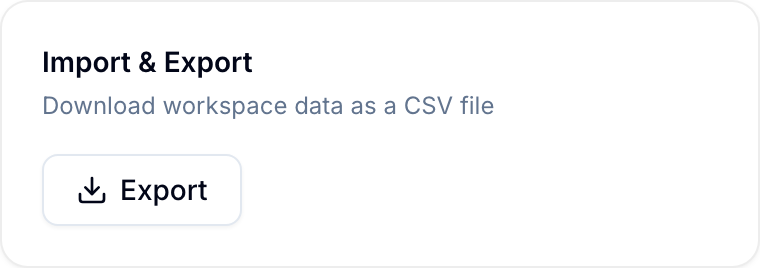
You can start one export each minute. Until the minute ends, the button shows Wait _n_s.
Export records with active filters
Use Export CSV (Active Filters) to export only the records that match your current filters.
- Open the database and apply filters to it.
- Open Workspace settings > Databases, and select the same database.
- Select Import & Export.
- In Export CSV (Active Filters), select Export Filtered. If no filters are active, Blue shows No filters currently active. and the button is not available.
- Open the email after the export is ready. The CSV contains only records that match the active filters.

Columns in the export
The CSV contains one row for each record in the database. Archived records are not included. Fields that your role cannot view are not included.
The columns depend on the fields of the database:
- A database with the standard record fields (Title, Description, Completed, Due date, Assignee, Tags, Files, and List), such as the first database of a workspace: the CSV starts with the columns Todo ID, Title, List, Start Date, Due Date, Tags, Description, Assignees, Completed, Created At, Updated At, Completed At, Created By, Color, Project, and Checklists. One column follows for each other field. A Currency field column shows the currency code, for example
Budget (EUR). - All other databases: the CSV starts with Record ID. One column follows for each field of the database, in the field order.
Every field type has a column. A Button field column is always empty. A File field column shows file names only. Download files in the workspace Files tab separately.
Use exported data
- Store workspace data for backup or external analysis.
- Use the Blue API to trigger scheduled exports from another system.
- Share CSV data with people outside Blue.
- Use CSV import to import supported data into Blue.