GitHub
Link a GitHub repository to a database to connect records to branches and pull requests, automate changes, and sync GitHub Issues.
The native GitHub integration connects a GitHub repository to a database in a Blue workspace. Once connected, you can link records to branches and pull requests, watch live status chips update as work progresses, drive automations from GitHub events, and keep records in sync with GitHub Issues.
Connecting GitHub happens at three levels: an organization owner or administrator installs the Blue GitHub App once, each workspace links a single repository to one database, and each person optionally links their own GitHub account so their comments and actions are attributed to them.
Connect GitHub to your organization
Installing the Blue GitHub App is an organization-level action that requires the Owner or Administrator role.
- Open Settings > Integrations.
- On the GitHub card, select Connect GitHub.
- Choose the GitHub organization and the repositories to grant access to, then approve the installation on GitHub.
- GitHub returns you to Settings > Integrations, where the card shows the connected account.
A GitHub organization can be connected to only one Blue organization at a time. If the account is already connected elsewhere, the installation is rejected.
Link a repository to a workspace
Each workspace links one repository to one of its databases. Branches, pull requests, and issues from that repository connect to records in this linked database.
- Select the workspace name, then select Workspace settings.
- At the top of the settings menu, select Databases, then select GitHub.
- Under Repository, select a repository from the connected account.
- Under Database, select the database whose records link to GitHub.
- Under Record ID field, select the field that identifies records in commit, branch, and pull request text.
- Optional: under Issue description field, select a Text (multi-line) field. Blue uses its value as the issue body when an automation creates a GitHub issue.
- Select Link repository.
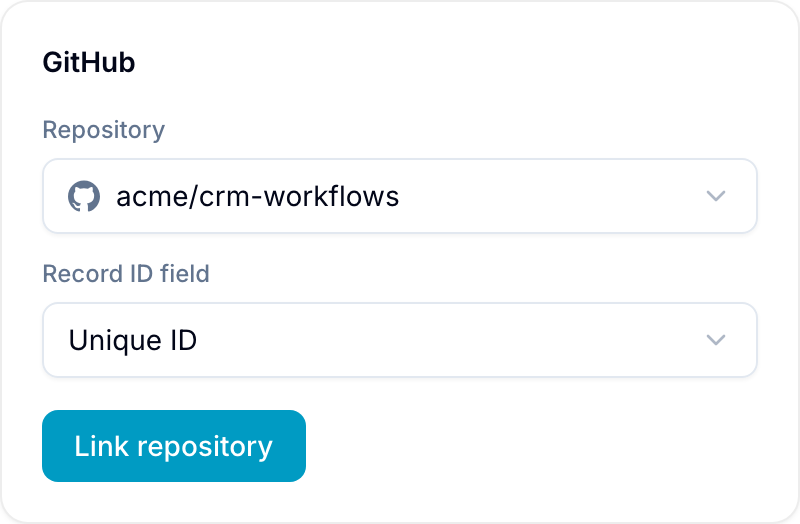
The Record ID field must be an auto-numbered Unique ID field in the selected database. The field must use a sequence and have a prefix (for example, BLUE-). If the database has no such field, create one in Workspace settings > Databases > Fields first, then return to the GitHub page.
Unlinking a repository is non-destructive. Existing chips remain on records as read-only history, but they stop updating and new branches and pull requests no longer link. Link a repository again to resume.
Link your GitHub account
Linking your personal GitHub account lets Blue attribute your synced comments and actions to you rather than to the Blue bot.
- Open Account > Access.
- In Connected Accounts, find the GitHub row and select Connect.
- Authorize Blue on GitHub.
Until you link your account, comments you sync to GitHub post through the Blue bot with your name attached. After linking, they post as your GitHub account. You can disconnect at any time from the same row.
Link records to branches and pull requests
Blue links a record to GitHub work when it finds the record’s ID (the prefix and number from the Record ID field, such as BLUE-482) in GitHub. Where the ID appears determines how it is matched:
- Branch name: a record ID anywhere in the name links the branch to the record.
- Pull request title: a record ID anywhere in the title links the pull request.
- Pull request description and commit message: linking requires a keyword before the ID. Reference keywords such as
refsorrelated tolink the record. Closing keywords such asclose,fixes, orresolveslink the record and mark it complete when the pull request merges. A bare ID with no keyword does not link.
Record IDs are matched case-insensitively and tolerate zero-padding. To stop a mention from linking, prefix it with skip or ignore (for example, skip BLUE-482). Comments on a pull request are not scanned for record IDs.

You can also link a pull request by hand in the GitHub section of the record: select Link pull request, enter the pull request number or URL from the linked repository, then select Link.
Status chips
Linked pull requests appear as chips in the GitHub section of the record and update live as their state changes:
- State: Open, Draft, Merged, or Closed.
- Checks: whether CI checks are passing, failing, or still running.
- Reviews: approvals or requested changes.
- Diff: lines added and removed.
Branches and commits contribute to linking and automations but are not shown as chips. When the repository is unlinked, chips remain as history and stop updating.
Automate with GitHub events
When a workspace has a linked repository, the automation builder shows a GitHub trigger group. See Triggers for the full list of GitHub triggers and Actions for the Create GitHub issue action.
The GitHub settings page also shows Automation presets. Each preset creates an ordinary automation for the linked database that you can edit or delete in Automations:
- Branch created → set field value
- Pull request opened → set field value
- Changes requested → set field value
- Pull request merged → mark complete
- Merge reverted → mark incomplete
For a preset that sets a field value, select a Select (single) field of the linked database and one of its options, then select Enable.
Sync records with GitHub Issues
Issue sync keeps records and GitHub Issues mirrored in both directions. Configure it in the GitHub Issues sync section of the GitHub settings page, after you link a repository.
- Under New issue records go to, select a list. The options are the values of the List field.
- Select Enable sync.
To stop issue sync, select Turn off issue sync. Records still link to branches and pull requests, and automations still run.
Only one workspace can sync issues for a repository.
Synced records and issues mirror their title, description, completion, and comments. Creating an issue in GitHub creates a record with the selected List value. Closing or reopening the issue changes the record’s completion, and the reverse applies when you change the record in Blue. Deleting an issue in GitHub does not delete the Blue record.
Comments and the Internal toggle
On a synced record, comments sync to the paired GitHub Issue by default. To keep a comment in Blue only, select the lock icon (Internal comment) in the comment box before posting. The tooltip shows Internal — stays in Blue, not synced to GitHub. Internal comments never leave Blue.
Comment sync covers GitHub Issue comments only. Comments on pull request discussions are not synced.
Disconnect
Disconnecting removes the integration and its links:
- Unlink a repository on the GitHub settings page to stop that workspace from linking and syncing while keeping existing chips as history.
- Disconnect GitHub from Settings > Integrations to uninstall the Blue app from your GitHub organization and remove every repository link. Linked records keep their data, but chips stop updating and issue sync ends.