Claude & ChatGPT
Connect Blue to Claude and ChatGPT as a custom connector — sign in and approve, no API token required.
Add Blue as a custom connector inside the Claude and ChatGPT chat apps. Sign in with your Blue account and approve access once — no Personal Access Token to generate or paste.
Connect Claude
- Open claude.ai and go to Settings > Connectors.
- Select Add custom connector.
- Enter the URL:
https://mcp.blue.app/mcp - Claude redirects you to Blue to sign in (if needed) and shows a consent screen with the connector name and the organizations it will cover.

- Select Approve.
Once connected, Blue appears alongside your other connectors in Settings > Connectors.
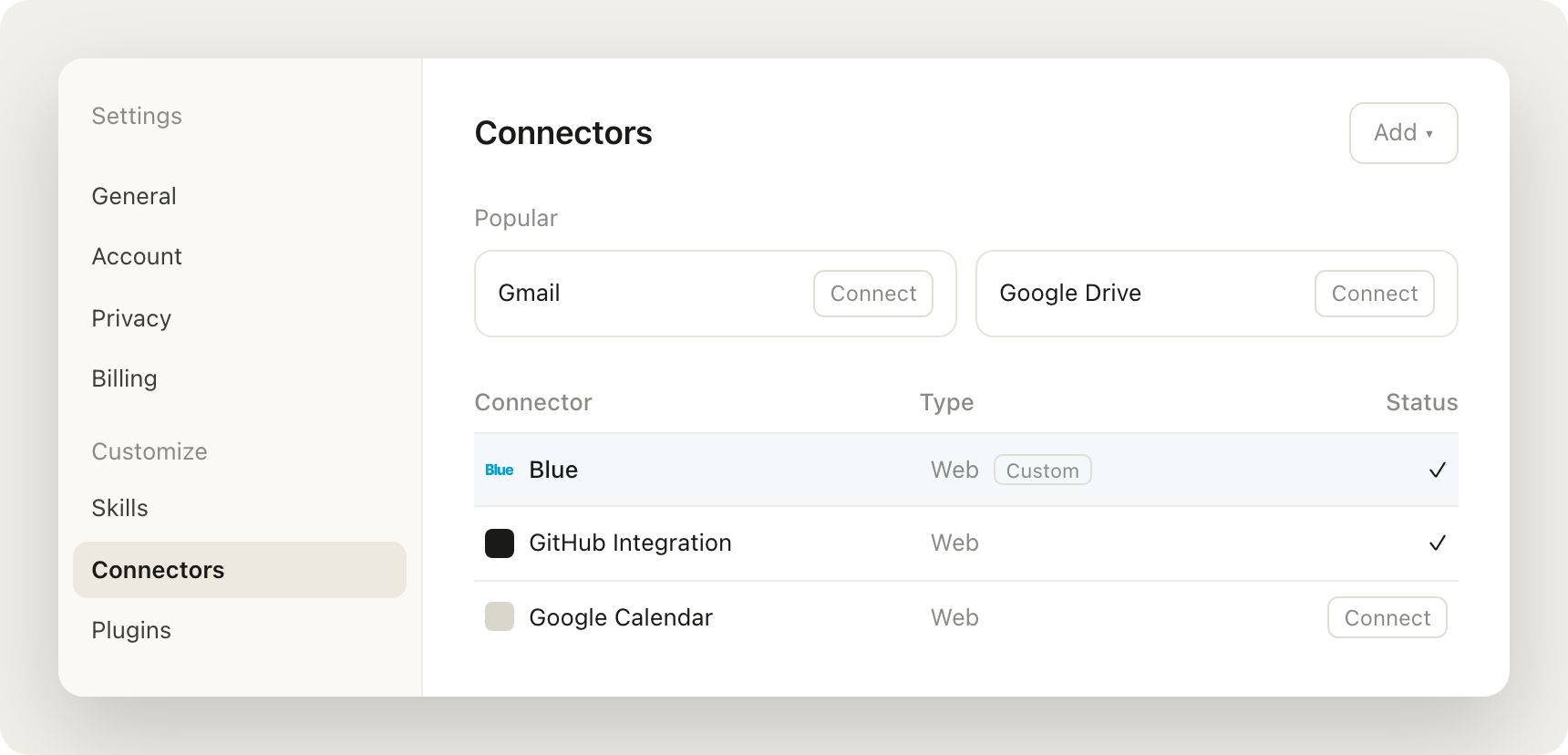
Claude Desktop uses the same Settings > Connectors flow as Claude web.
Connect ChatGPT
- In ChatGPT, open Settings and turn on Developer mode (in Advanced settings, under Plugins or Apps & Connectors depending on your account — the exact label varies by ChatGPT version).
- Select Add custom connector (or Create).
- Enter a name, and set the MCP Server URL to:
https://mcp.blue.app/mcp - Save. ChatGPT redirects you to Blue to sign in and approve.
Once connected, Blue appears in ChatGPT’s Settings > Plugins list.
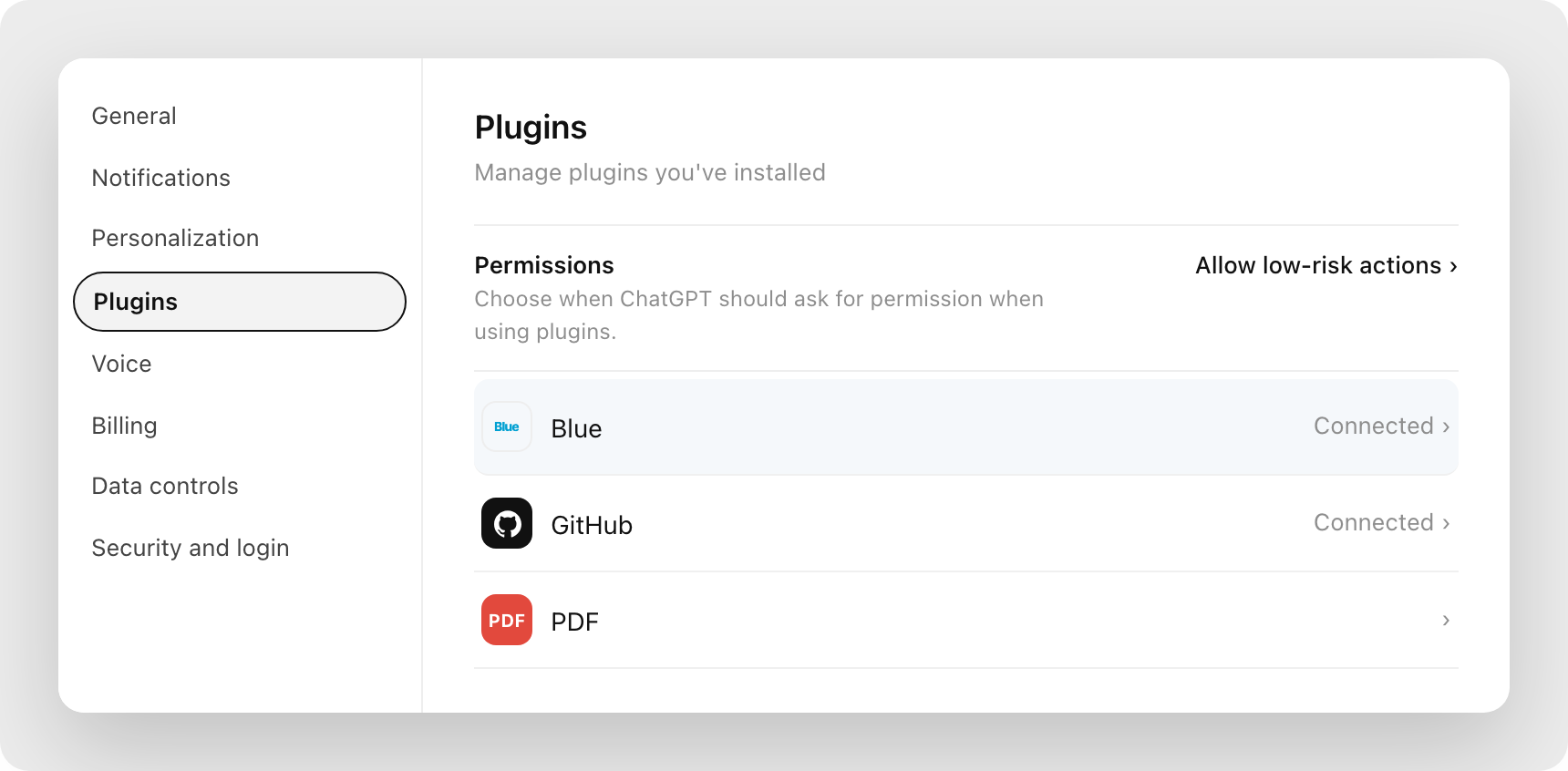
Choosing an organization
A single connection covers every organization you belong to in Blue, the same as your web session — approving does not grant access to anything beyond what you can already see when logged in.
Because one connection can span multiple organizations, ask the assistant to list them first if you’re in more than one:
- “List my Blue organizations.”
- “Use the Marketing organization for this.”
Managing connections
Every connector you’ve approved is listed under Account > Access > Connected apps, along with when it was connected and last used.
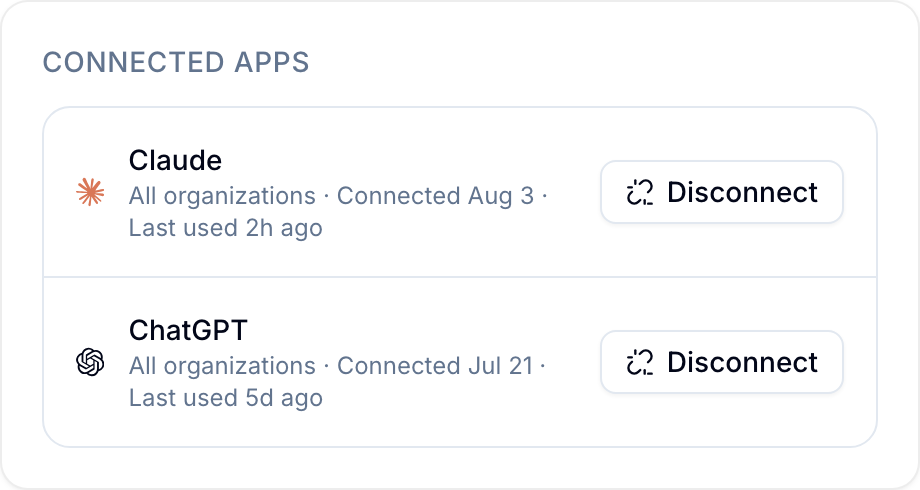
Select Disconnect to revoke access. This takes effect on the connector’s next request, even if its current session hasn’t expired — you can reconnect at any time.
Security
- Blue confirms every connection with a sign-in and an explicit approval step. No connector can access your data without that approval.
- A connection has the same permissions as your Blue user account — it cannot see or do more than you can in the web app.
- All communication uses HTTPS with TLS encryption.
- Revoking a connection from Account > Access takes effect immediately.