MCP
Connect Blue to AI assistants such as Claude, Cursor, and other MCP-compatible clients.
The Model Context Protocol (MCP) is an open standard for connecting AI assistants to external tools and data. The Blue MCP server lets assistants read and change workspace data, including records and checklists.
Endpoint
https://mcp.blue.app/mcpBlue uses the Streamable HTTP transport. Claude Code, Cursor, Windsurf, and other remote MCP clients can connect directly.
Claude Desktop supports only the local stdio transport. Its configuration uses the mcp-remote bridge.
Authentication
The Blue MCP server uses Personal Access Tokens (PATs). Send these three headers with every request:
| Header | Description |
|---|---|
blue-token-id | Your Personal Access Token ID |
blue-token-secret | Your Personal Access Token secret |
blue-org-id | Your organization slug or ID |
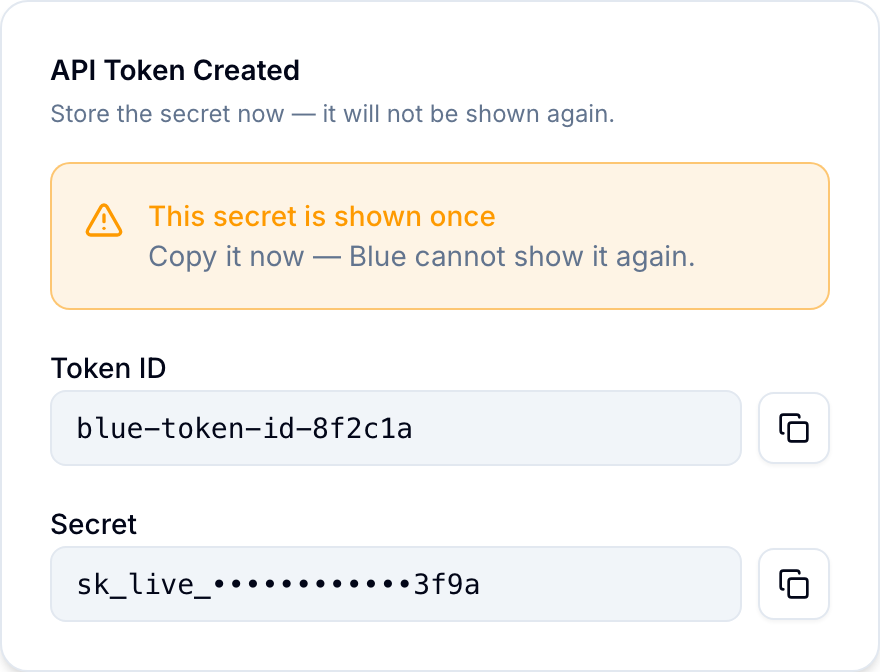
Generate a Personal Access Token
- Log in to Blue.
- Open Account > API.
- Select Create Token.
- Copy the Token ID and Token Secret.
Setup
Claude Desktop
Add this configuration to the Claude Desktop configuration file:
- macOS:
~/Library/Application Support/Claude/claude_desktop_config.json - Windows:
%APPDATA%\Claude\claude_desktop_config.json
{
  "mcpServers": {
    "blue": {
      "command": "npx",
      "args": [
        "mcp-remote",
        "https://mcp.blue.app/mcp",
        "--header",
        "blue-token-id:YOUR_TOKEN_ID",
        "--header",
        "blue-token-secret:YOUR_TOKEN_SECRET",
        "--header",
        "blue-org-id:YOUR_ORG_SLUG"
      ]
    }
  }
}
Save the file and restart Claude Desktop. The mcp-remote package bridges the remote MCP server to the local Claude Desktop transport.
Claude Code
claude mcp add \
  -t http \
  -H "blue-token-id: YOUR_TOKEN_ID" \
  -H "blue-token-secret: YOUR_TOKEN_SECRET" \
  -H "blue-org-id: YOUR_ORG_SLUG" \
  -- blue https://mcp.blue.app/mcp
Restart Claude Code after you add the server. Run claude mcp list to verify the connection. Run claude mcp remove blue to remove it.
Cursor
Add this configuration to .cursor/mcp.json in your project directory. For global access, add it to ~/.cursor/mcp.json.
{
  "mcpServers": {
    "blue": {
      "url": "https://mcp.blue.app/mcp",
      "headers": {
        "blue-token-id": "YOUR_TOKEN_ID",
        "blue-token-secret": "YOUR_TOKEN_SECRET",
        "blue-org-id": "YOUR_ORG_SLUG"
      }
    }
  }
}
You can also open Settings > Tools & MCP > Add Server.
Windsurf
Add this configuration to ~/.codeium/windsurf/mcp_config.json:
{
  "mcpServers": {
    "blue": {
      "serverUrl": "https://mcp.blue.app/mcp",
      "headers": {
        "blue-token-id": "YOUR_TOKEN_ID",
        "blue-token-secret": "YOUR_TOKEN_SECRET",
        "blue-org-id": "YOUR_ORG_SLUG"
      }
    }
  }
}
You can also open Plugins > Manage plugins > View raw config.
Other MCP clients
Configure any MCP client that supports Streamable HTTP with:
- URL:
https://mcp.blue.app/mcp - Transport: Streamable HTTP
- Headers: The three authentication headers listed above
Available tools
The Blue MCP server provides 53 tools across 21 capability areas. These tools cover records, custom fields, views, reports, automations, and integrations.
| Capability area | Tools |
|---|---|
| Workspaces | list-workspaces, create-workspace, list-workspace-templates |
| Records | list-records, get-record, count-records, create-record, update-record, move-record, delete-record |
| Search | search-records |
| Lists | list-lists, create-list |
| Tags | list-tags, create-tag, set-tags-on-record |
| Users | list-users, invite-user-to-workspace |
| Custom field values | list-custom-fields, set-custom-field-value |
| Custom field definitions | manage-custom-field, manage-custom-field-options |
| Checklists | create-checklist, create-checklist-item, update-checklist-item |
| Comments | add-comment |
| Activity | list-activity, list-record-activity |
| Documents | list-documents, get-document, manage-document |
| Saved views | list-saved-views, get-saved-view |
| Dependencies | manage-dependency |
| Reports | list-reports, get-report, get-report-data, manage-report |
| Charts | list-charts, manage-chart |
| Dashboards | list-dashboards, get-dashboard, manage-dashboard |
| Forms | list-forms, get-form, manage-form, manage-form-field |
| Automations | list-automations, manage-automation |
| Webhooks | list-webhooks, get-webhook, manage-webhook |
| Files | list-files |
invite-user-to-workspace returns requestedAccessLevel. The effective level can differ: organization owners join a workspace as ADMIN, and an existing invitation keeps its stored level when it is resent.
Workspace scoping
Blue organizes data as Organization > Workspaces > Lists > Records.
- Set the organization globally with the
blue-org-idheader. - Pass a workspace parameter to tools that require it. Most write tools and several read tools require a workspace ID.
- For read-only tools such as
get-record, pass only the entity ID. Blue resolves the workspace automatically.
An assistant can work across multiple workspaces in one conversation.
Examples
After you connect Blue, you can use requests such as:
Reading data:
- “List my workspaces”
- “Show me the open records in the Sales workspace”
- “Get the details of record [ID]”
- “How many records are overdue?”
- “What custom fields are set up in the Onboarding workspace?”
Writing data:
- “Create a record called ‘Follow up with client’ in the Sales workspace”
- “Mark that record as done”
- “Move it to the Completed list”
- “Add a checklist with three items: send proposal, schedule call, get signature”
- “Tag it as ‘urgent’”
- “Add a comment: ‘Discussed in today’s meeting, needs follow-up by Friday’”
Rate limits
Blue limits MCP requests to 60 requests per minute for each user.
Security
- Blue authenticates every request with your Personal Access Token.
- The token has the same permissions as your user account. MCP tools can access only data available to your account.
- All communication uses HTTPS with TLS encryption.
- The MCP server uses the same infrastructure and security controls as the main Blue API.