'%20fill='%23fff'%3e%3cpath%20d='M24%20364.337V24h141.909c25.481%200%2046.833%203.601%2064.056%2010.803%2017.222%207.191%2030.183%2017.279%2038.882%2030.24s13.049%2027.972%2013.049%2045.041c0%2012.961-2.72%2024.513-8.148%2034.645-5.429%2010.142-12.906%2018.534-22.431%2025.174-9.526%206.651-20.548%2011.299-33.069%2013.953v3.325c13.732.661%2026.451%204.383%2038.134%2011.134%2011.684%206.762%2021.077%2016.155%2028.168%2028.17%207.092%2012.025%2010.638%2026.231%2010.638%2042.628%200%2018.281-4.647%2034.601-13.952%2048.939-9.305%2014.35-22.762%2025.648-40.381%2033.908-17.607%208.248-38.992%2012.377-64.143%2012.377H24zm82.258-200.414h45.534c8.975%200%2016.947-1.497%2023.929-4.493s12.432-7.312%2016.374-12.961c3.931-5.65%205.902-12.466%205.902-20.439%200-11.409-4.041-20.384-12.135-26.926-8.082-6.53-18.995-9.801-32.738-9.801h-46.866v74.62zm0%20134.109h50.853c17.839%200%2030.987-3.381%2039.466-10.131%208.479-6.762%2012.708-16.178%2012.708-28.247%200-8.755-2.049-16.309-6.145-22.686-4.096-6.365-9.922-11.298-17.443-14.789-7.532-3.491-16.561-5.231-27.089-5.231h-52.339v81.095l-.011-.011zM388.865%2024v340.337h-81.256V24h81.256zm181.618%20230.159V109.082h81.091v255.255h-77.435v-47.529h-2.665c-5.649%2015.616-15.263%2028.004-28.829%2037.145-13.578%209.14-29.941%2013.71-49.102%2013.71-17.398%200-32.683-3.986-45.864-11.97-13.181-7.973-23.433-19.14-30.745-33.489s-11.023-31.165-11.133-50.437V109.082h81.256v146.739c.11%2013.854%203.766%2024.767%2010.968%2032.74s17.002%2011.96%2029.413%2011.96c8.082%200%2015.372-1.795%2021.847-5.407%206.486-3.601%2011.628-8.865%2015.45-15.781%203.821-6.927%205.737-15.318%205.737-25.174h.011zm224.376%20115.002c-26.704%200-49.718-5.286-69.044-15.869-19.337-10.583-34.181-25.703-44.532-45.371-10.362-19.668-15.537-43.069-15.537-70.215s5.208-49.445%2015.614-69.212c10.418-19.779%2025.096-35.174%2044.037-46.197s41.261-16.53%2066.962-16.53c18.17%200%2034.787%202.83%2049.851%208.48s28.08%2014.007%2039.048%2025.086%2019.501%2024.734%2025.591%2040.966%209.14%2034.81%209.14%2055.756v20.273H694.145v-47.199h146.226c-.11-8.633-2.159-16.342-6.145-23.104s-9.448-12.047-16.374-15.869-14.866-5.726-23.841-5.726-17.233%202.015-24.424%206.057c-7.202%204.052-12.906%209.537-17.112%2016.452-4.207%206.927-6.431%2014.757-6.652%2023.512v48.025c0%2010.417%202.049%2019.525%206.145%2027.332s9.911%2013.876%2017.454%2018.193c7.532%204.317%2016.506%206.486%2026.924%206.486%207.201%200%2013.731-1.002%2019.612-2.995%205.869-1.993%2010.912-4.923%2015.119-8.81%204.206-3.876%207.367-8.645%209.47-14.294l74.616%202.158c-3.105%2016.728-9.889%2031.264-20.361%2043.62s-24.182%2021.937-41.129%2028.743c-16.947%206.816-36.559%2010.219-58.825%2010.219l.011.033z'/%3e%3c/g%3e%3cdefs%3e%3cclipPath%20id='A'%3e%3cpath%20fill='%23fff'%20transform='translate(24%2024)'%20d='M0%200h892v345.161H0z'/%3e%3c/clipPath%3e%3c/defs%3e%3c/svg%3e)
Conditional Select
Let one select field filter the options another select field shows.
A select field can filter its options based on the value of another select field. Turn this on when two fields are related and the second list only makes sense for some values of the first.
For example, a Country field can control a City field. When a record’s country is Germany, the City field offers Berlin, Munich, and Hamburg. When it is France, the same field offers Paris and Lyon.
Enable Option Filtering
Project Administrators configure this while creating or editing a Single Select or Multiple Select field:
- Open the field’s settings and enable Filter options by another field.
- Choose the Controlling field. Any select field in the workspace can control another field.
- Under Visible options, choose the options to show for each controlling value.
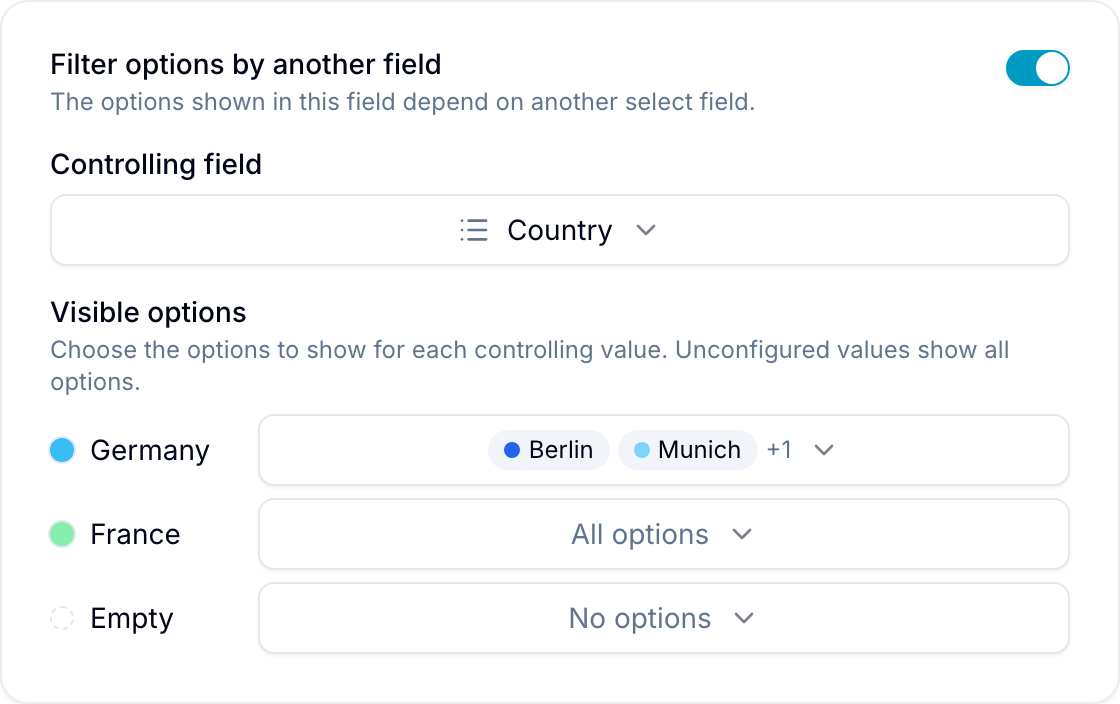
The controlling field can be a Single Select or a Multiple Select field. A field cannot control itself, and control cannot loop back on itself. A field can both be controlled by one field and control another.
Visible Options
Each controlling value has its own rule:
- All options: the default. Values without a rule show every option, so a field never ends up empty.
- A specific set of options: pick the options that value allows. Blue shows only these.
- No options: the field offers nothing for that value.
The Empty row sets the rule for records where the controlling field has no value.
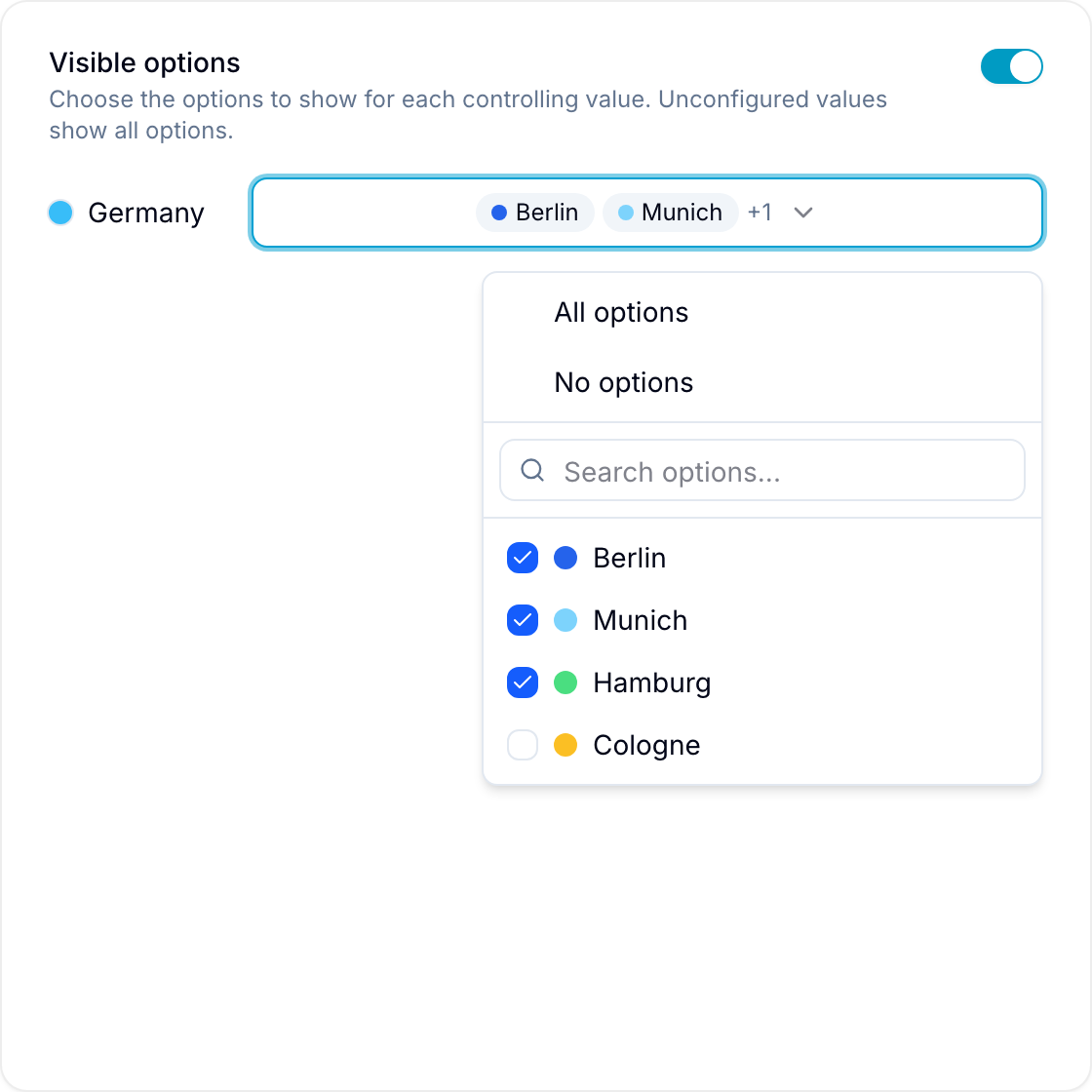
When the controlling field is a Multiple Select and several values are selected, Blue shows every option allowed by any of them. If any selected value has no rule, Blue shows all options.
Where It Applies
Filtered options appear wherever the field does:
- On records, when you pick a value.
- In public forms, with no extra setup. People filling in the form see the same filtered options.
Filtering rules belong to the field. Copying a workspace or reusing a template carries the rules, and the controlling relationship, to the copy.