'%20fill='%23fff'%3e%3cpath%20d='M24%20364.337V24h141.909c25.481%200%2046.833%203.601%2064.056%2010.803%2017.222%207.191%2030.183%2017.279%2038.882%2030.24s13.049%2027.972%2013.049%2045.041c0%2012.961-2.72%2024.513-8.148%2034.645-5.429%2010.142-12.906%2018.534-22.431%2025.174-9.526%206.651-20.548%2011.299-33.069%2013.953v3.325c13.732.661%2026.451%204.383%2038.134%2011.134%2011.684%206.762%2021.077%2016.155%2028.168%2028.17%207.092%2012.025%2010.638%2026.231%2010.638%2042.628%200%2018.281-4.647%2034.601-13.952%2048.939-9.305%2014.35-22.762%2025.648-40.381%2033.908-17.607%208.248-38.992%2012.377-64.143%2012.377H24zm82.258-200.414h45.534c8.975%200%2016.947-1.497%2023.929-4.493s12.432-7.312%2016.374-12.961c3.931-5.65%205.902-12.466%205.902-20.439%200-11.409-4.041-20.384-12.135-26.926-8.082-6.53-18.995-9.801-32.738-9.801h-46.866v74.62zm0%20134.109h50.853c17.839%200%2030.987-3.381%2039.466-10.131%208.479-6.762%2012.708-16.178%2012.708-28.247%200-8.755-2.049-16.309-6.145-22.686-4.096-6.365-9.922-11.298-17.443-14.789-7.532-3.491-16.561-5.231-27.089-5.231h-52.339v81.095l-.011-.011zM388.865%2024v340.337h-81.256V24h81.256zm181.618%20230.159V109.082h81.091v255.255h-77.435v-47.529h-2.665c-5.649%2015.616-15.263%2028.004-28.829%2037.145-13.578%209.14-29.941%2013.71-49.102%2013.71-17.398%200-32.683-3.986-45.864-11.97-13.181-7.973-23.433-19.14-30.745-33.489s-11.023-31.165-11.133-50.437V109.082h81.256v146.739c.11%2013.854%203.766%2024.767%2010.968%2032.74s17.002%2011.96%2029.413%2011.96c8.082%200%2015.372-1.795%2021.847-5.407%206.486-3.601%2011.628-8.865%2015.45-15.781%203.821-6.927%205.737-15.318%205.737-25.174h.011zm224.376%20115.002c-26.704%200-49.718-5.286-69.044-15.869-19.337-10.583-34.181-25.703-44.532-45.371-10.362-19.668-15.537-43.069-15.537-70.215s5.208-49.445%2015.614-69.212c10.418-19.779%2025.096-35.174%2044.037-46.197s41.261-16.53%2066.962-16.53c18.17%200%2034.787%202.83%2049.851%208.48s28.08%2014.007%2039.048%2025.086%2019.501%2024.734%2025.591%2040.966%209.14%2034.81%209.14%2055.756v20.273H694.145v-47.199h146.226c-.11-8.633-2.159-16.342-6.145-23.104s-9.448-12.047-16.374-15.869-14.866-5.726-23.841-5.726-17.233%202.015-24.424%206.057c-7.202%204.052-12.906%209.537-17.112%2016.452-4.207%206.927-6.431%2014.757-6.652%2023.512v48.025c0%2010.417%202.049%2019.525%206.145%2027.332s9.911%2013.876%2017.454%2018.193c7.532%204.317%2016.506%206.486%2026.924%206.486%207.201%200%2013.731-1.002%2019.612-2.995%205.869-1.993%2010.912-4.923%2015.119-8.81%204.206-3.876%207.367-8.645%209.47-14.294l74.616%202.158c-3.105%2016.728-9.889%2031.264-20.361%2043.62s-24.182%2021.937-41.129%2028.743c-16.947%206.816-36.559%2010.219-58.825%2010.219l.011.033z'/%3e%3c/g%3e%3cdefs%3e%3cclipPath%20id='A'%3e%3cpath%20fill='%23fff'%20transform='translate(24%2024)'%20d='M0%200h892v345.161H0z'/%3e%3c/clipPath%3e%3c/defs%3e%3c/svg%3e)
Introduction
Add structured fields to every record in a workspace, then use their data in views, forms, reports, and integrations.
Custom fields add structured data to every record in a workspace. Use them instead of comments or descriptions when you need consistent values that Blue can filter, report, import, or export.
The API and Webhooks support custom fields and their structured data.
Built-in and custom fields
Each record includes these built-in fields:
- Record Name
- Status
- Assignees
- Due Date
- Tags
- Dependencies
- Description
- Checklist
- Created at
- Time tracking
Add custom fields when you need more structured data. For example, add a Currency field named “Sales Price” to every record in a sales workspace.
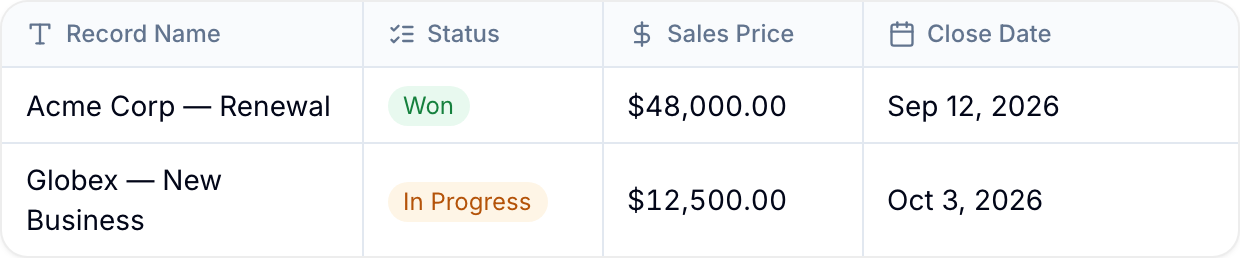
Each custom field adds a column to the workspace database. You can use custom field data in forms, CSV imports, CSV exports, filters, and dashboards.
Custom fields have two types:
- Editable custom fields: Users enter data in these fields. For example, an Email field accepts an email address. A Single Select field accepts one option from a list.
- Read-only custom fields: Blue displays data but users cannot enter a value. A Unique ID field displays a record identifier. A Formula field displays a calculation. A Lookup field displays data from referenced records in other workspaces.
Many field types can also fill themselves in. Turn on Fill with AI to have Blue generate a field’s value from the record’s other data. See AI Fields.
Select fields can also filter their options from another select field’s value. See Conditional Select.
Create custom fields
Workspace Owners and Project Administrators can create and manage custom fields.
- Open a record in the workspace.
- Select Manage fields. Blue opens Field Management.
- Select Add Field.
- Configure the field, then select Create.
Organize fields
Use folders to group related fields. Use field separators to divide a record into visual sections. Both options change the record layout without changing field data.
Delete a custom field
- Open a record in the workspace.
- Select Manage fields.
- Select the field that you want to delete.
- Select Delete.
- Enter the field name, then select Delete field.
Control field access
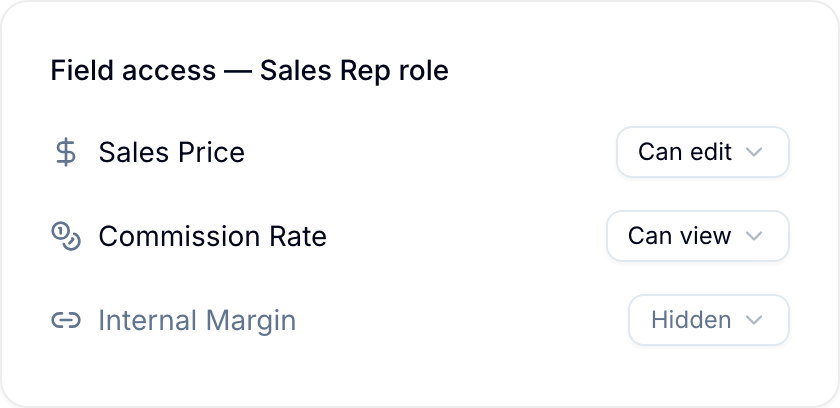
Blue provides field-level permissions for custom fields. Use a custom user role to set which user groups can view or edit each field.