Dates
Add start and due dates to records with a Date field for calendars, timelines, automations, and filters.
A Date field stores a date or a date range, with an optional time. The Records database of a new blank workspace has a Due date field. It holds a record’s start date and due date. In another database, add a Date field.
Dates also work with the Calendar view, Timeline view, automations, and filters.
Add dates
- Open the record.
- Select the Date field to open the calendar and time selector.
- Select a date or date range.
- Optional: Set the start and end times.
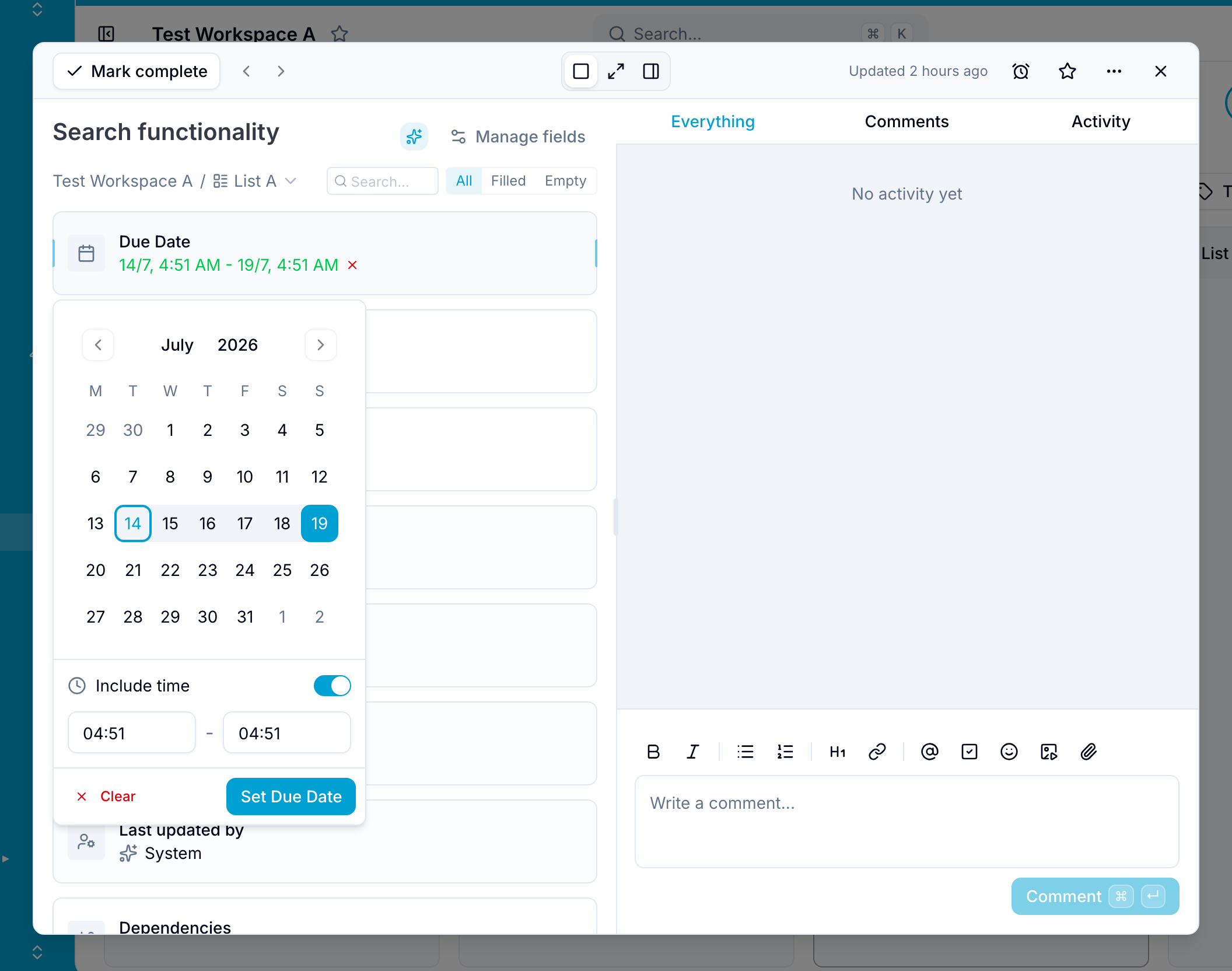
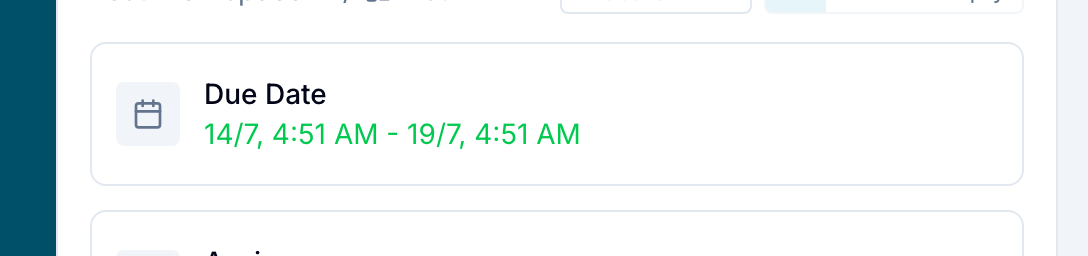
Blue displays the dates on the record. It also adds date changes to the record’s activity.
Related features
- The Calendar and Timeline views show records by the Date field that the view uses.
- Use date filters to find records before or after specified dates.
- Sync record dates to external calendars.