Lists
Track process steps as options of a select field, shown as board columns. Rename, lock, color, and limit each column.
A list is a process step, such as “To Do,” “In Progress,” or “Done.” In a database, each step is an option of a Select (single) field. The Board view shows one column for each option.
There is no separate list object. A record is in a list when its select field has that option.
The List field
In the Records database of a new blank workspace, the process steps are the options of a field named List. A database that you create with New database has no List field. Its setup asks you to create a single-select field and its values. For more information, see Databases.
You can use any single-select field for process steps. For categories that a record can have more than one of, use a multiple-select field or tags.
Show lists as board columns
The Board view groups records by one field. Group the board by the List field, or by another single-select field, to show each option as a column.
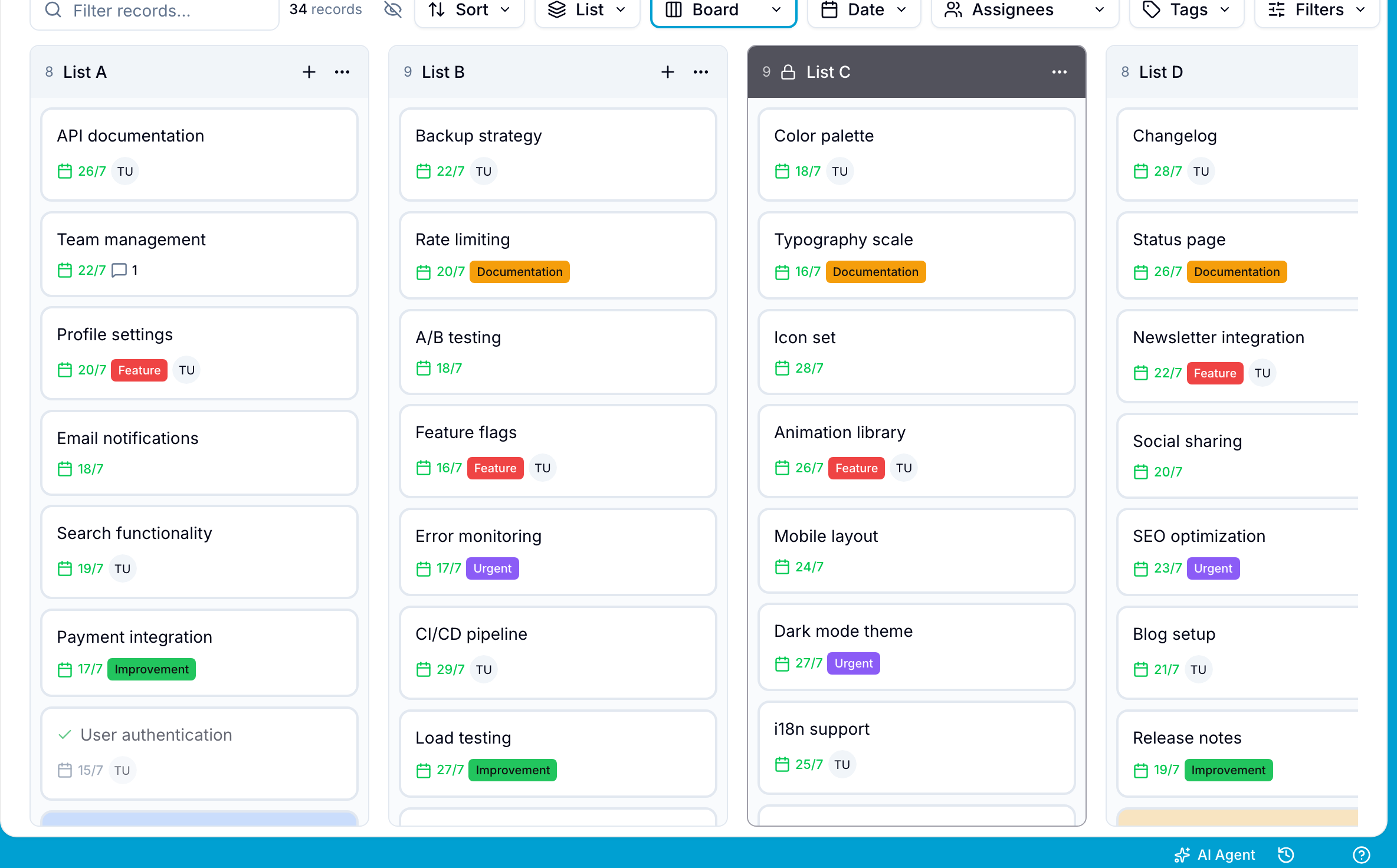
Move a record to another list
Use one of these methods:
- Drag the card to another column.
- Open the record and change the value of the select field.
- Right-click the card, select Move to option, and select the destination option.
To move all visible records in a column, open the column’s … menu and select Move to option.
Add a list
Workspace Owners and Admins can add options from the board when it is grouped by a select field:
- Select Add option after the last column. Enter one or more option names.
- Open a column’s … menu and select Add option left or Add option right. Blue adds an option named “New option” next to the column.
You can also add options in the field settings. See Single select.
Manage a column
Open the … menu in a column header. Workspace Owners and Admins can use these actions:
- Rename: Change the option name.
- Lock or Unlock: Prevent changes to the column. See Lock a list.
- Color: Choose the column color, or select Reset color.
- Set WIP limit or Edit WIP limit: Limit the number of records in the column. This action is available for single-select fields only.
- Add option left and Add option right: Add an option next to the column.
The menu also contains Archive all, which archives the records that are visible in the column, and Copy Field ID.
Set a WIP limit
A work-in-progress (WIP) limit sets the maximum number of records for one option.
- Open the column’s … menu.
- Select Set WIP limit.
- Enter the limit. Leave the box empty for no limit.
- Optional: Select Block new records when the limit is reached. Blue then blocks records from drags, the API, automations, forms, and imports.
- Select Save.
Without the block option, the column shows its count against the limit as a warning. To remove the limit, select Remove limit.
Lock a list
Lock a column to prevent structural changes and movement of its records on the board.
- Open the … menu in the column header.
- Select Lock. Blue adds a lock icon to the column.
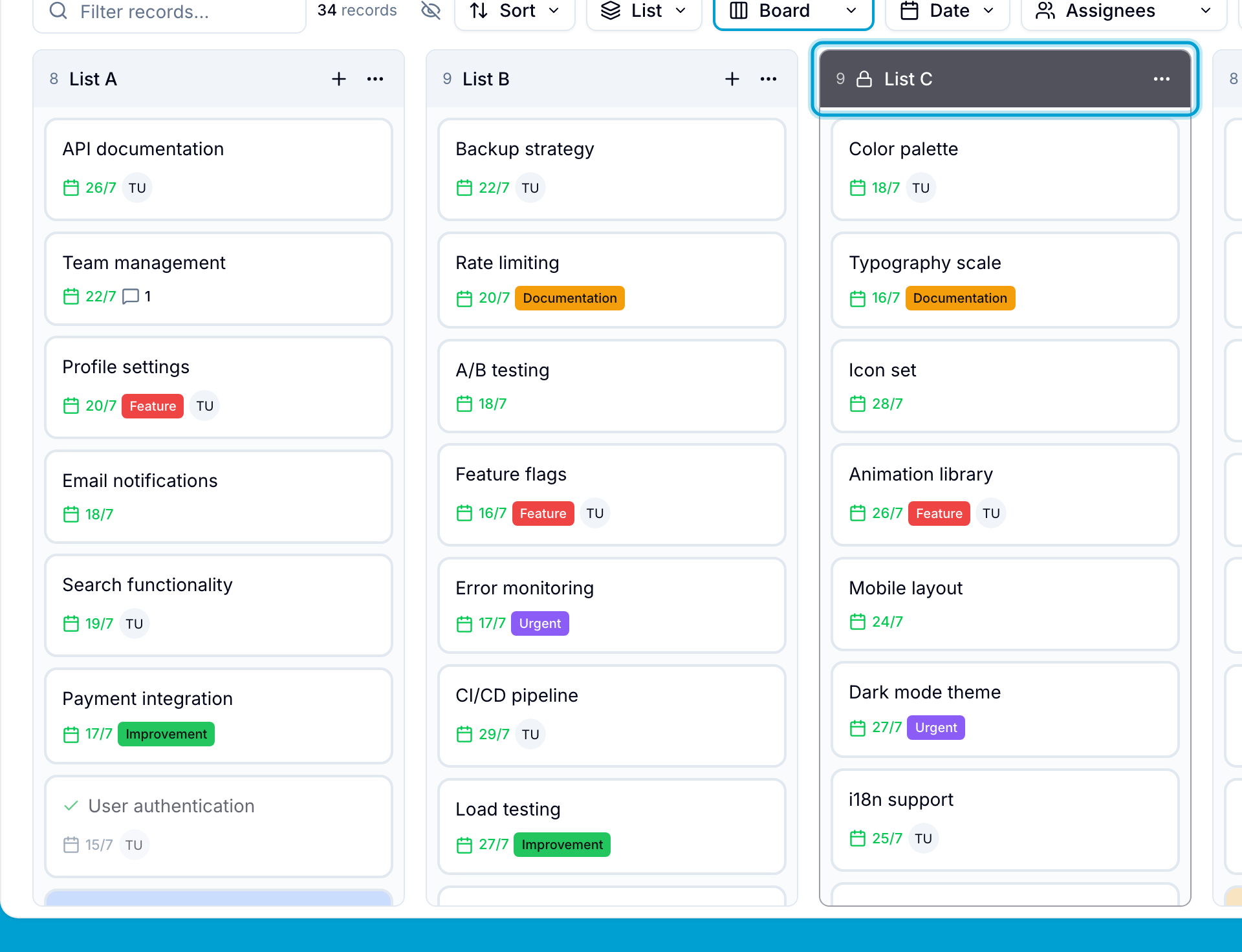
In a locked column, you cannot:
- Rename the option.
- Drag records into, out of, or within the column.
- Create records in the column.
- Add options next to the column.
- Use Archive all or Move to option for the column.
- Use Move to option, Pin to top, Move to top, Archive, or Delete in a card’s right-click menu.