Copying Records
Duplicate a record in the same database, with its field values, checklists, and comments.
Copying creates a separate record in the same database. The copy has its own history. Changes to the copy do not change the original record.
Workspace Owners, Admins, and Members can copy records. Client, Comment Only, and View Only roles cannot copy records.
Copy a record
- Open the copy command. Use one of these methods:
- Right-click the record card or row and select Copy.
- Open the record, open the … menu in the record toolbar, and select Copy.
- Open the record and press C.
- Enter a name for the copy. The default is the original name followed by “(copy).”
- Select Copy Record. Blue creates the copy in the same database.
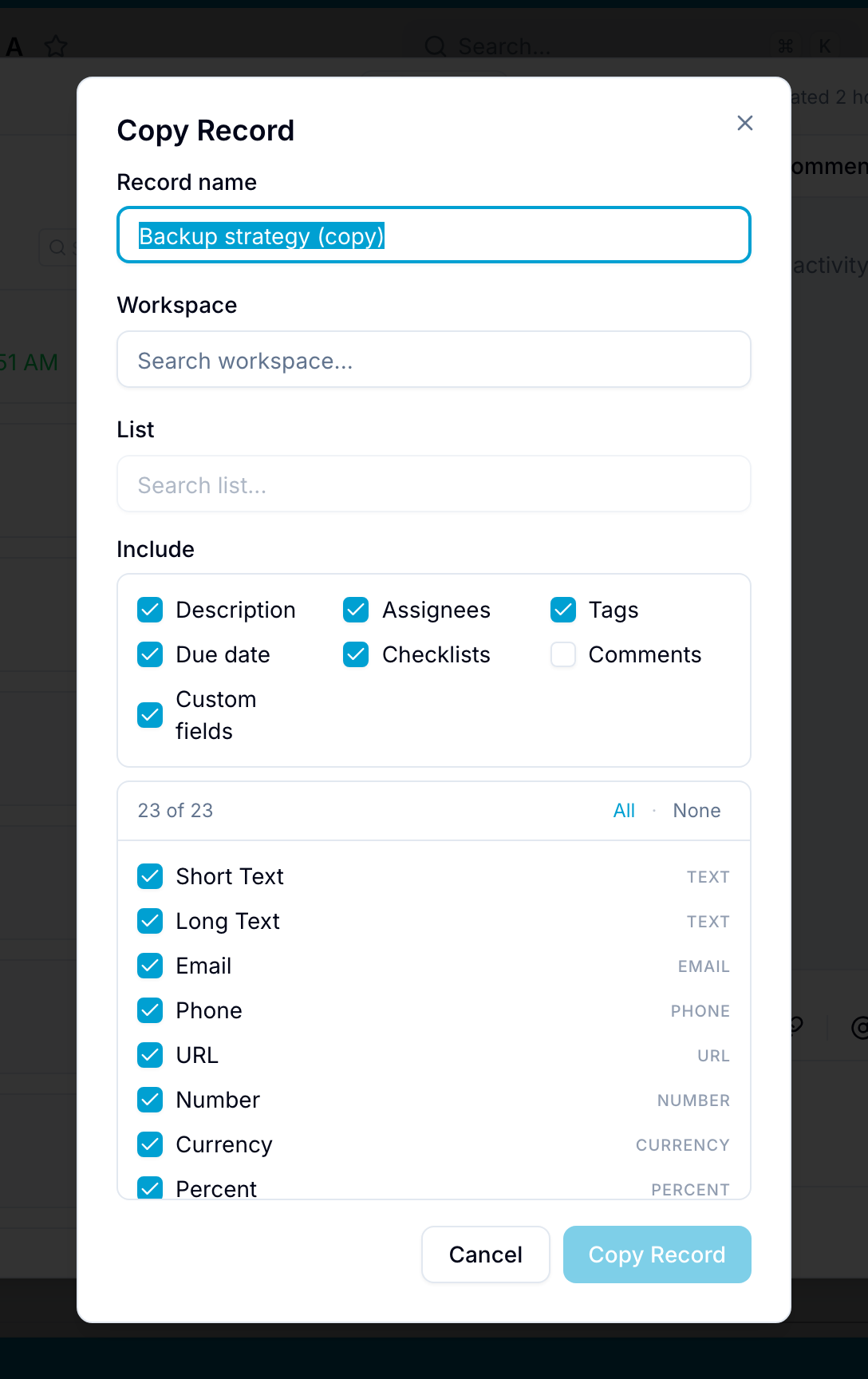
Data in the copy
Blue copies these items to the new record:
- The values of text, number, percent, rating, currency, date, checkbox, select, country, assignee, email, phone, URL, location, reference, and table fields
- Checklists and their items
- Comments
Computed fields, such as Formula, Lookup, Rollup, and Unique ID, calculate their values for the copy. For a Unique ID field, the copy gets a new ID.